
Integration Guide
Tablet Command
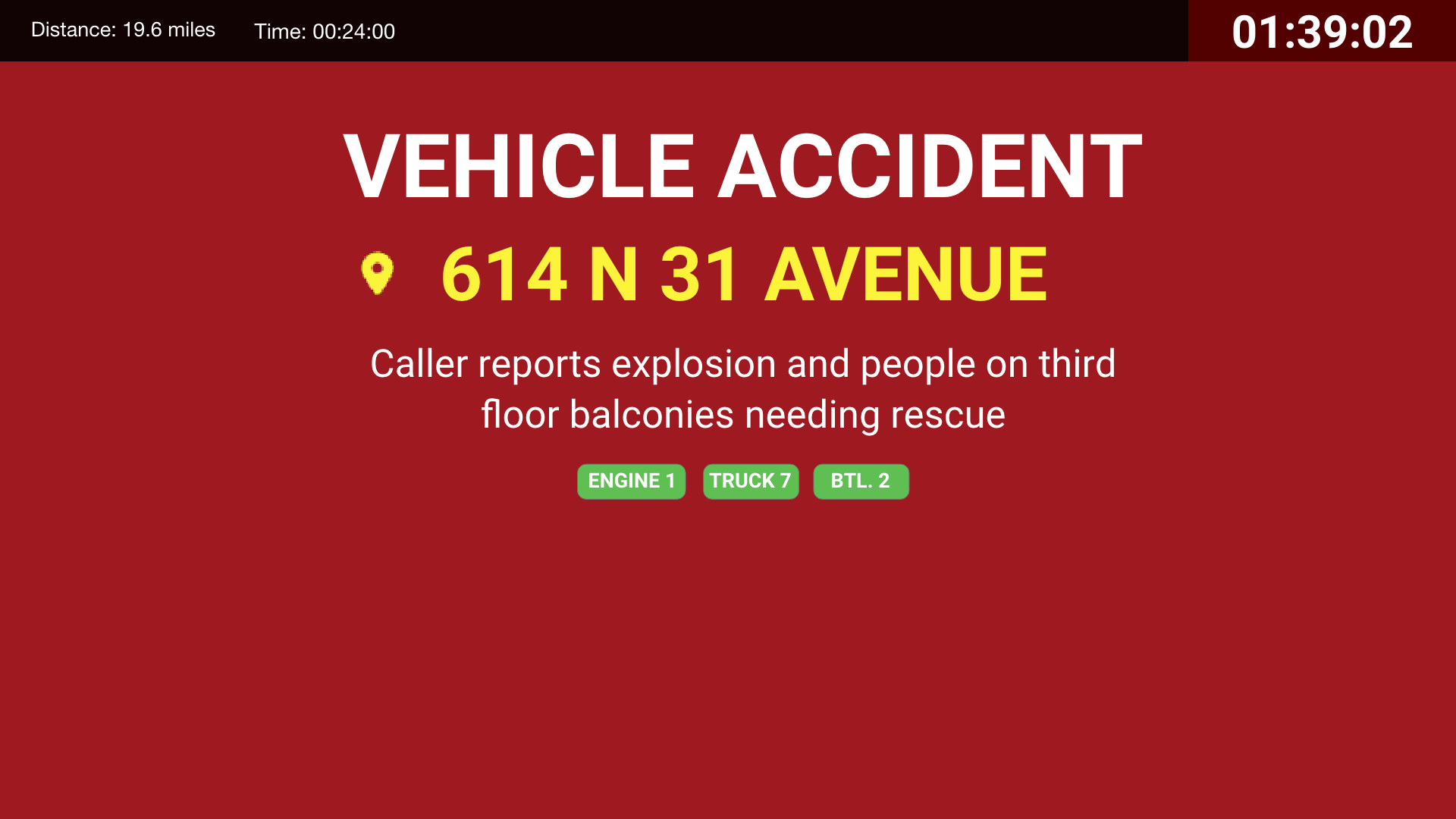
First Arriving’s integration with Tablet Command displays real-time dispatch information on your digital dashboards — live call alerting when a run comes in, and a running list of recent alarms between calls.
What we can put on your dashboard
Jump to the one you need: Alerting · Recent Alarms
Alerting
Calls, the moment they drop
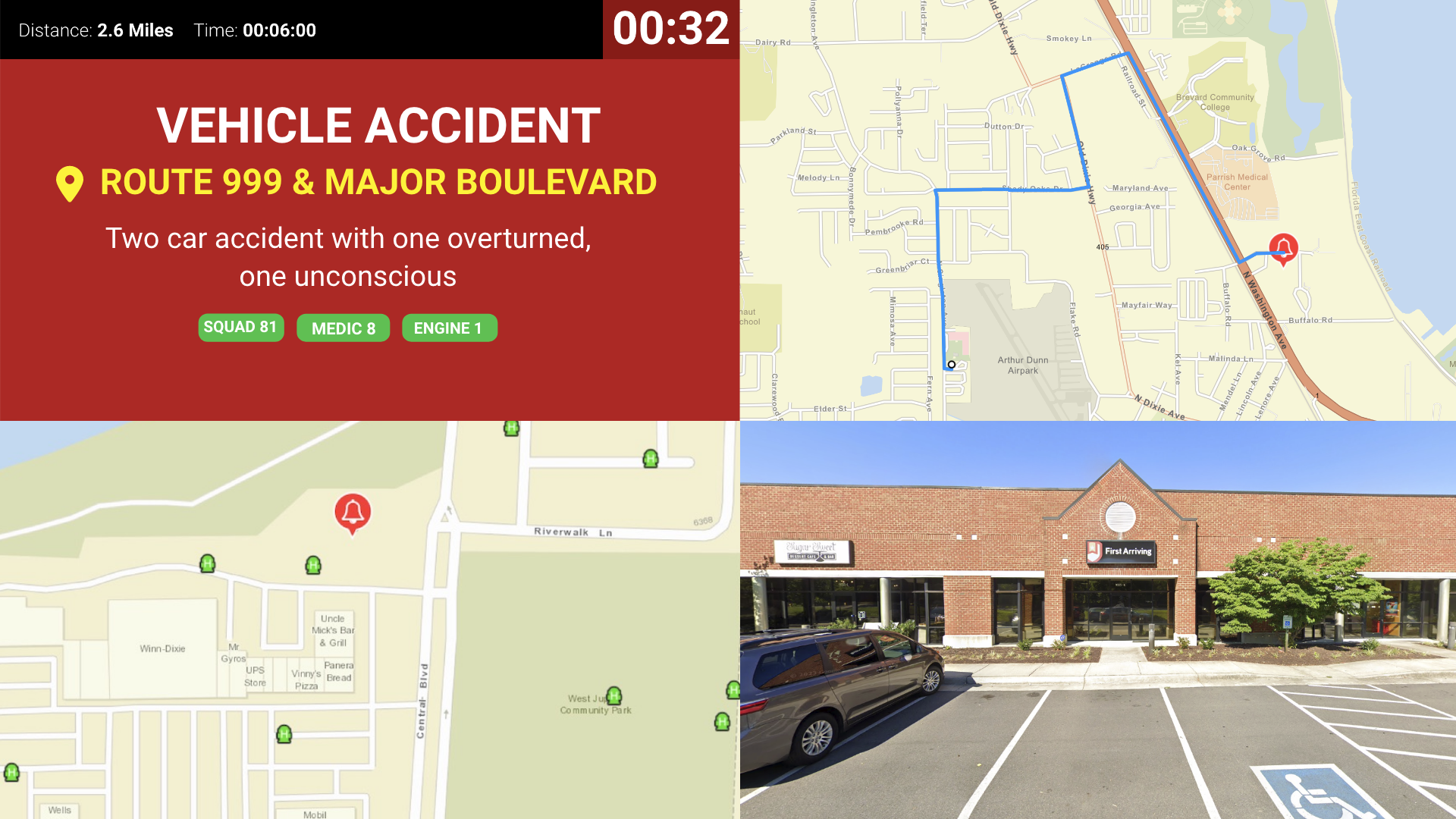
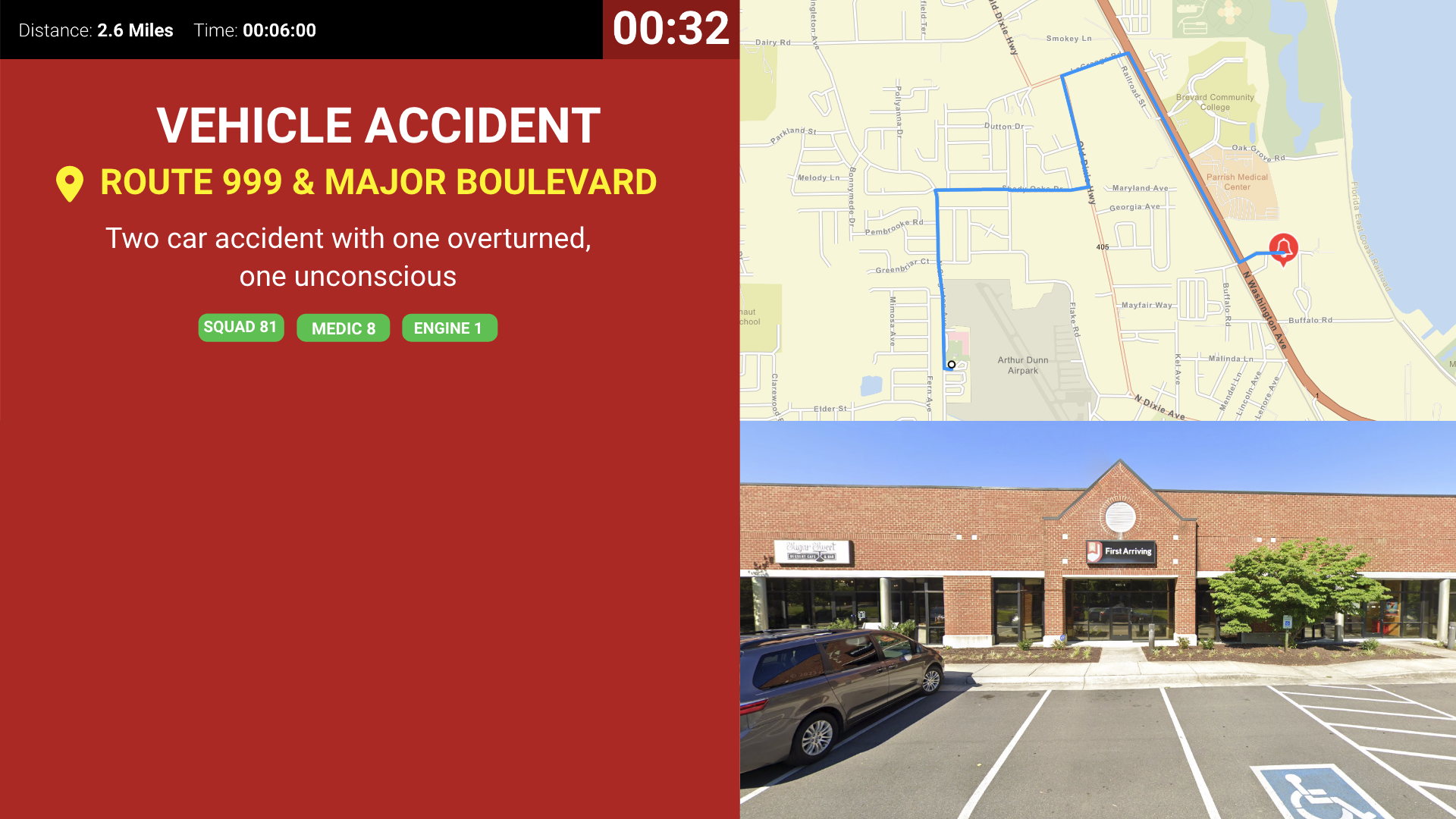
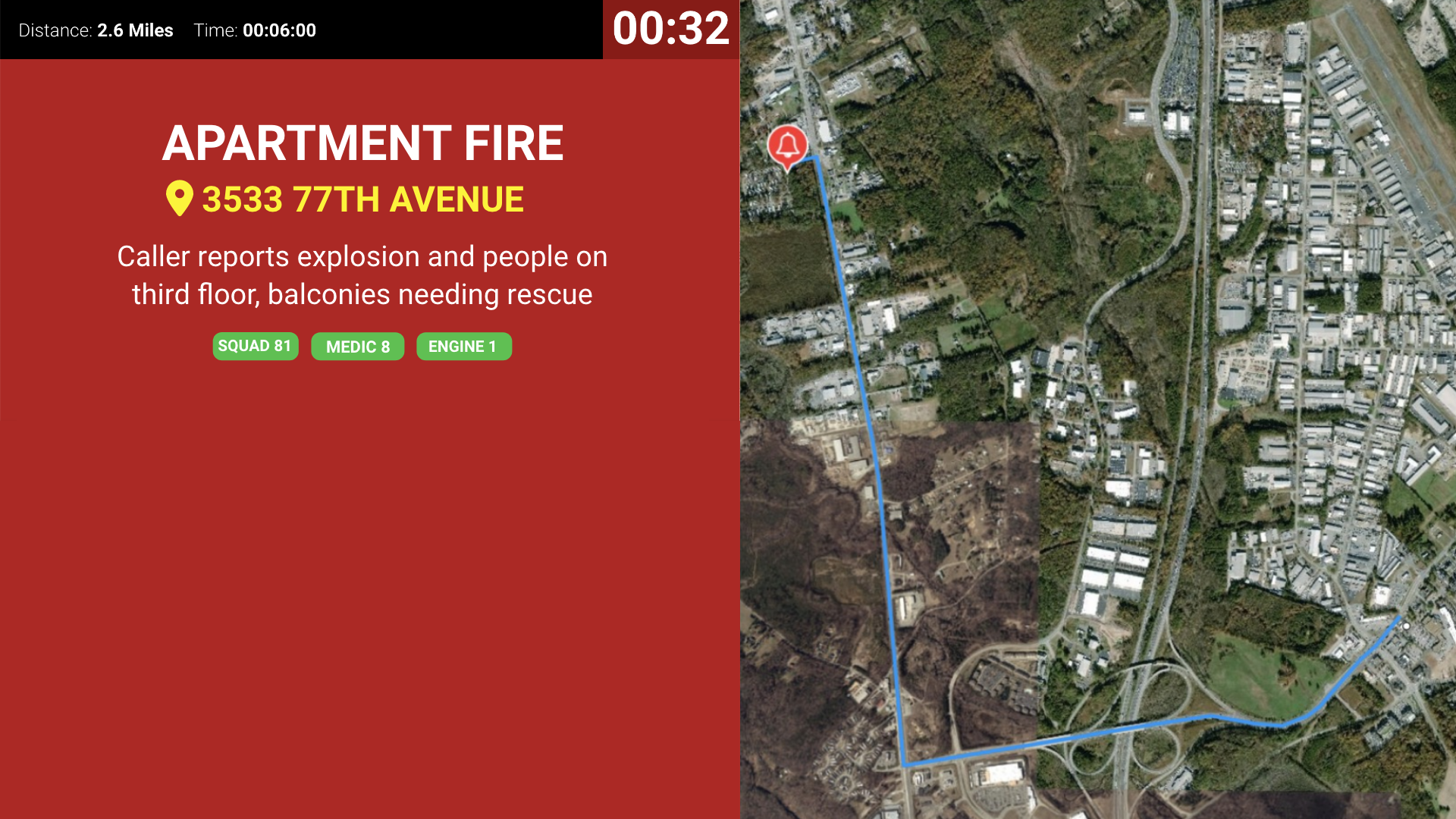
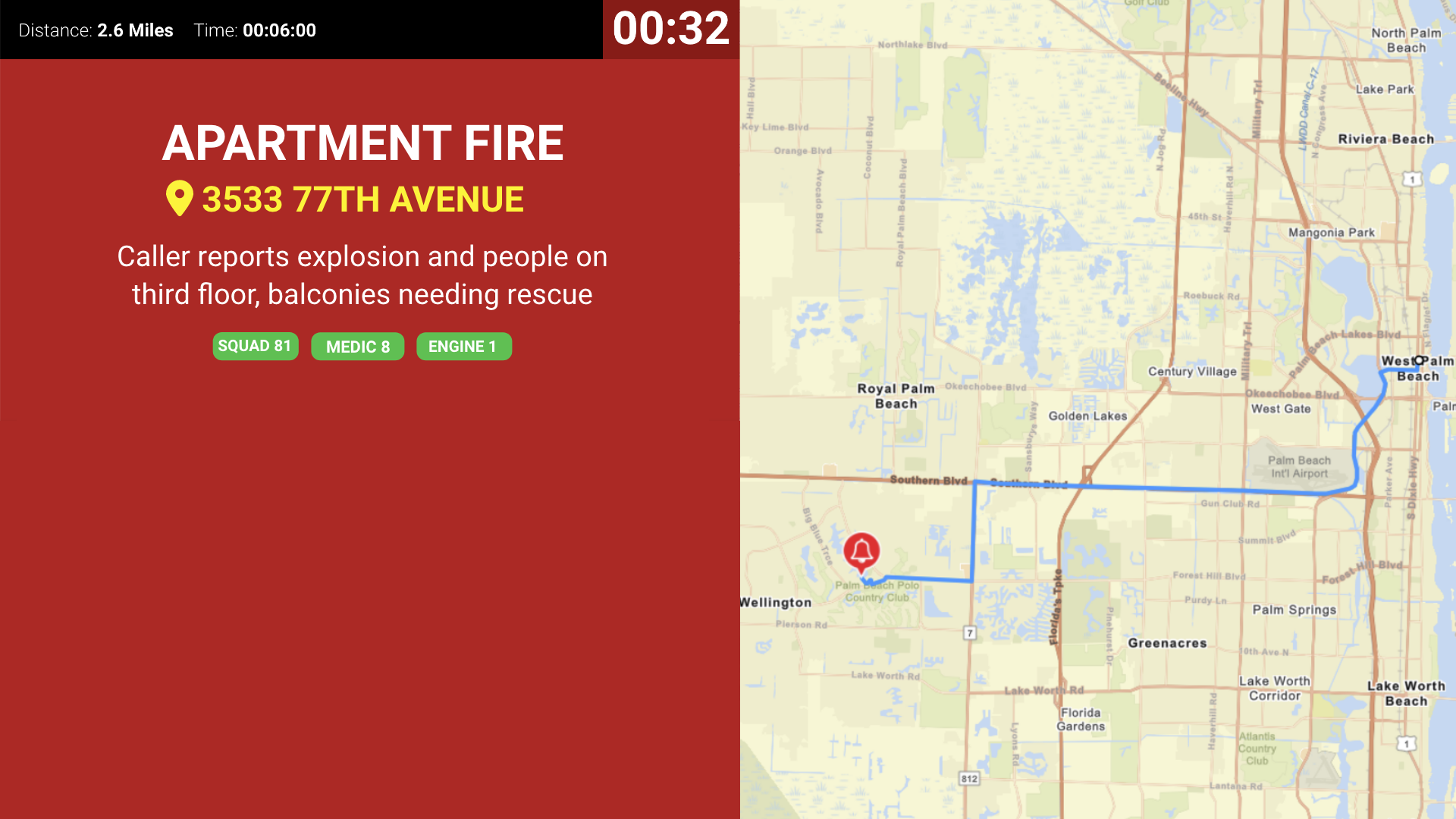
Real-time call details, turnout timer, ETA and distance, custom alert sounds, and mapping from station to scene.
Recent Alarms
What’s been running
Your recent calls as cards or a table, with a plotted map, in several layout and color-coding options.
Alerting
Real-time dispatch information on screen the moment a call comes in.
Key features
- Real-time call information: nature of call, address, units dispatched, and call notes
- Turnout timer
- ETA and distance
- Custom alert sounds — listen to examples
- Maps with the path from station to scene, Google Street View, and other mapping features
- ESRI layers
What we need from you
We generate an API token which you provide to Tablet Command. Email dashboards@firstarriving.com to request your token, then pass it along to your Tablet Command contact.
A note on cost: data and API access may carry an additional charge from the vendor. That’s determined by Tablet Command, not by First Arriving.
Example screens
The screens below are a sample, not the full set. For the current, complete list of alerting screen styles you can use with Tablet Command, see Response & Call Alerting Screen Options.
Recent Alarms
Between calls, Recent Alarms keeps your latest runs on screen — call type, priority, address, units assigned, and time — alongside a map with each incident plotted and numbered to match the list.
Layout options
- Cards in a single column or two columns, depending on how many calls you want visible at once
- Table view with columns for number, type, priority, address, units, and time
- Color-coding by call type — for example, highlighting fire calls so they stand out from EMS runs
- Color-coded unit badges so crews can spot their own apparatus at a glance
- Map beside the list or below it, to suit portrait or landscape screens
What we need from you
Recent Alarms runs on the same Tablet Command connection as Alerting, so if that’s already set up there’s nothing further to configure. Email dashboards@firstarriving.com and tell us which layout you’d like and which screen it should go on.
Example screens
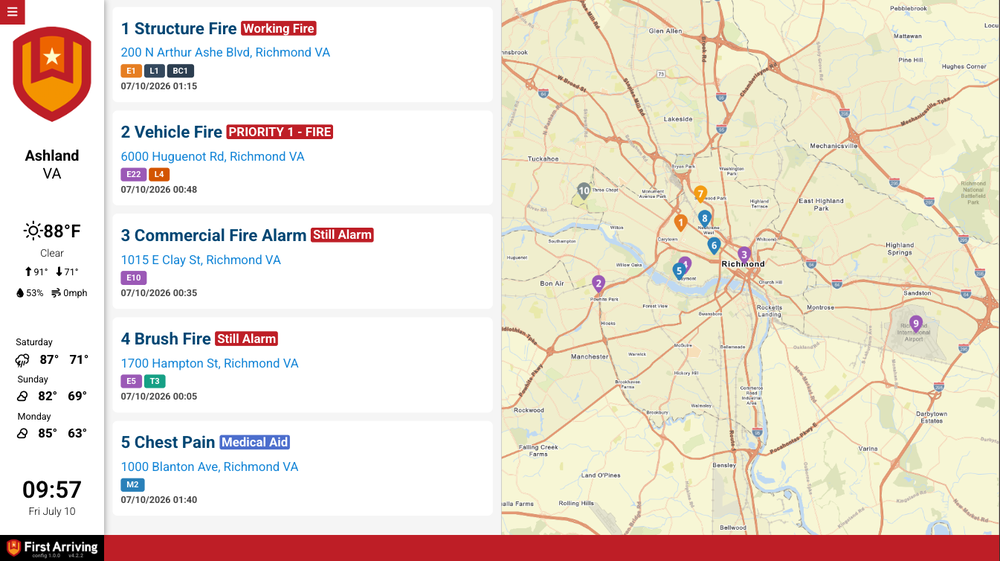
Cards, single column. Fewer calls, larger type — good for a bay screen viewed from a distance.
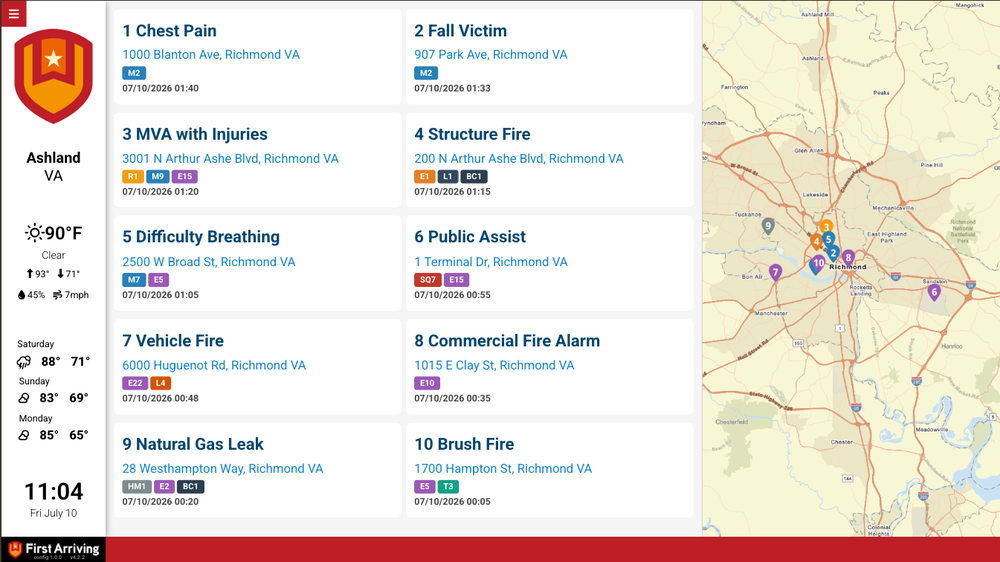
Cards, two columns. Twice the call history in the same space.
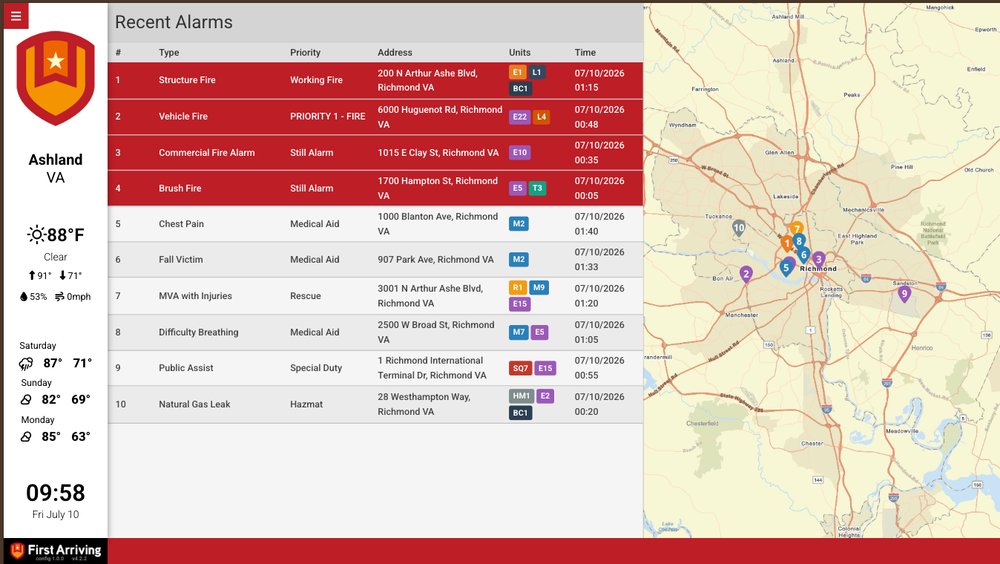
Table, color-coded. Fire calls highlighted so they separate from EMS at a glance.
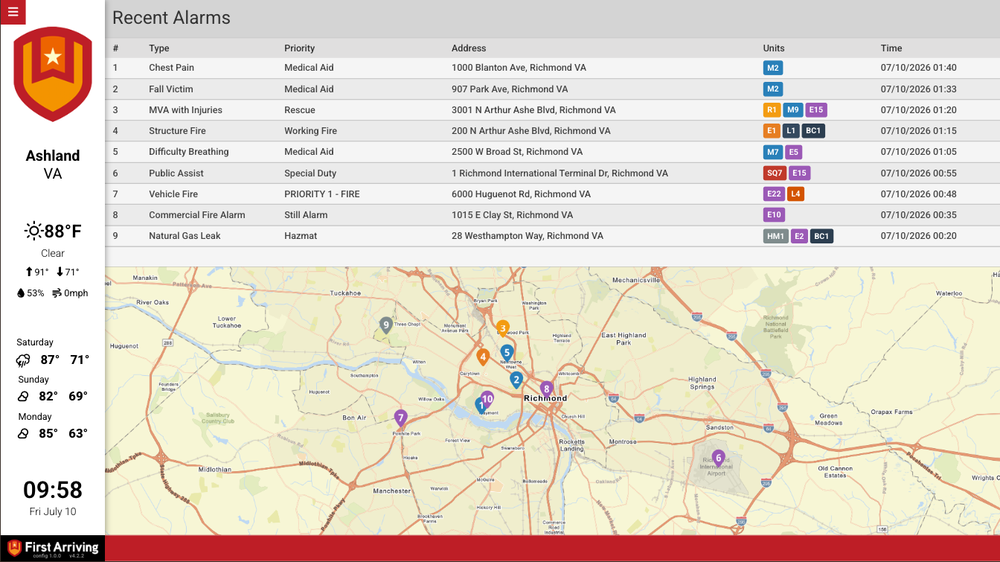
Table above map. Full-width columns with a wide map underneath.
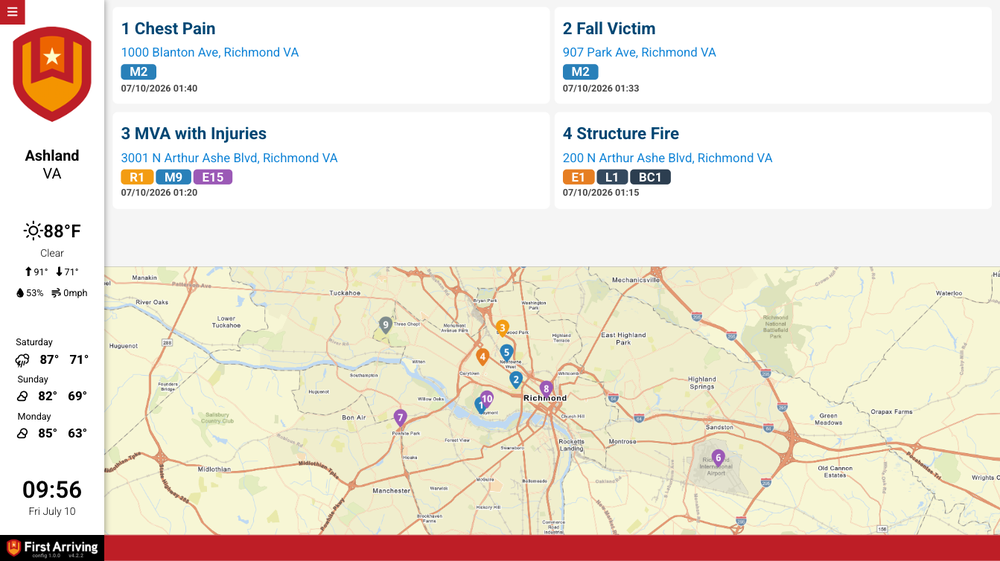
Cards above map. A shorter call list with more room for the map.
Questions about setup, or want help deciding which layout belongs on which screen? Open a ticket at our support center or reach us at dashboards@firstarriving.com and we’ll walk through it with you.