Note: This support document applies to customers in our 3.0 platform who have user accounts enabled.
Content categories are the backbone of how information is organized, filtered, displayed, and discovered across both User Accounts and Dashboards. Categories provide the structure that powers how content flows to the right people, on the right screens, at the right time.
By assigning categories to News, Announcements, Events, Documents, Alerts, and other content types, agencies can organize information by topic or function. This makes it easy for members to quickly find what they need whether they are accessing content on a large-format station dashboard, desktop, tablet, or mobile device.
On Dashboards, content categories allow you to:
Control which types of information appear on specific screens
Group related content for cleaner, more focused displays
Reduce visual clutter by showing only what is relevant to that location or audience
Ensure high-priority updates (training, alerts, incidents, staffing, reminders) surface where they matter most
Within User Accounts, categories power:
Smart filtering and searching
Faster access to critical updates without sifting through unrelated information
Together, content categories create a single, unified content structure that drives consistency across all platforms—ensuring that what appears on dashboards, desktop, and mobile is intentional, organized, and easy to consume.
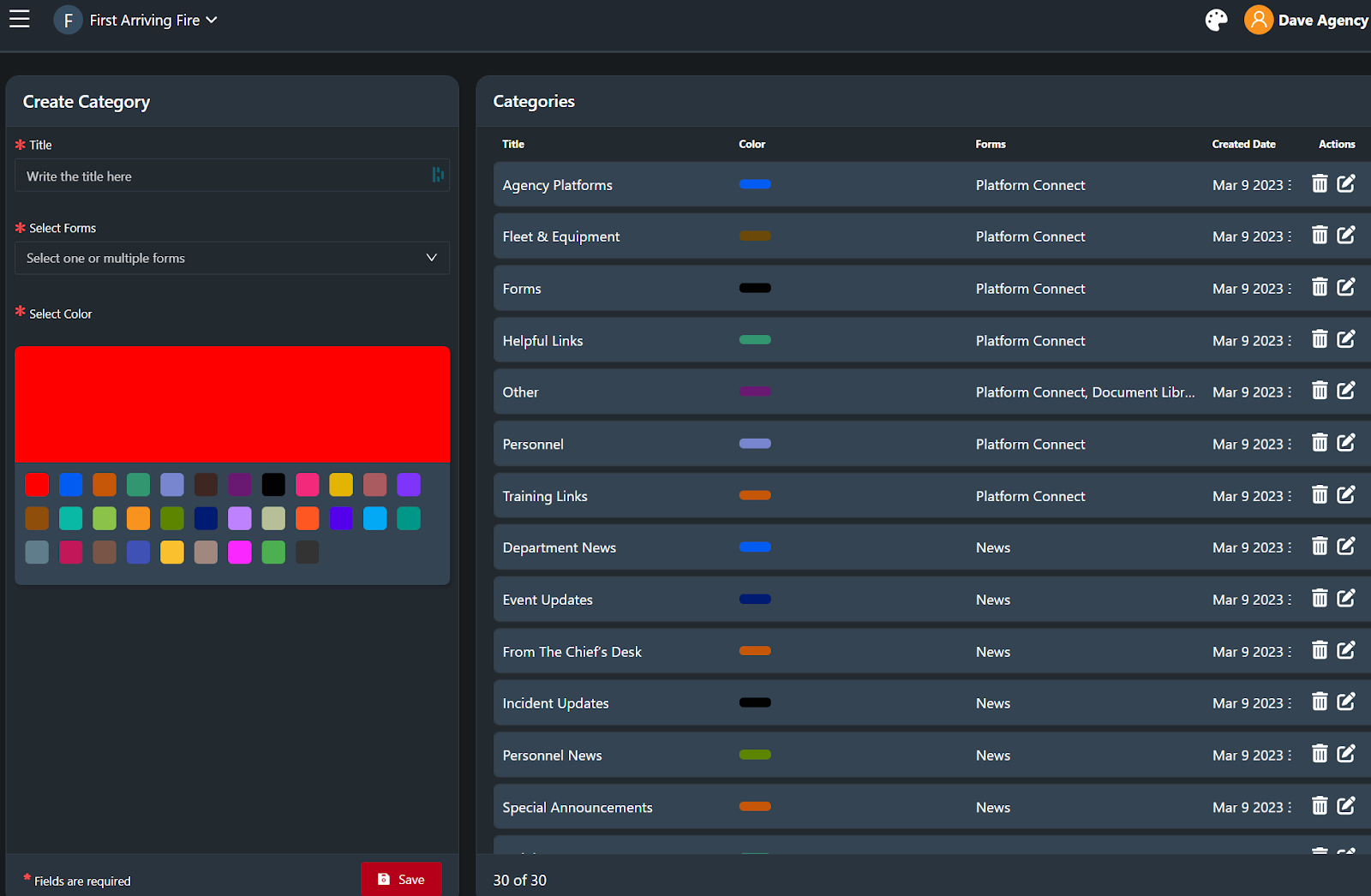
This section explains how categories work, how to create and edit them, how to assign them to content, how to reorder/rename them, and best practices for maintaining a clean information architecture.
1 How Categories Improve Content Organization and Filtering
Categories provide a consistent way to group related content so users can:
Filter content by topic (e.g., Training, Operations, HR & Admin, Events).
Scan content feeds faster by visually identifying category labels.
Segment what appears where, such as:
Training-related items in a Training category
Station-specific items in a Station 1 / Station 2 category
Leadership-only items in a Command Staff or Officers category (future)
Properly managed categories:
Reduce clutter and “noise” in members’ feeds
Make search and filtering more effective
Support future features like group-targeted content and advanced reporting
Example use cases:
Tagging News & Announcements as Training, Policy Updates, Public Events, or Internal Only
Using Event categories such as Training, Meetings, Public Education, Special Events
Structuring Platform Connect links into Operations, HR & Benefits, IT Helpdesk, Forms & Documents
Organizing the Document Library into SOPs, Policies, Forms, Training Manuals, Apparatus & Equipment
2 Creating and Editing Content Categories
Categories are configured within the Admin Panel and can then be applied to multiple content types.
Where categories are used:
News & Announcements
Events
Platform Connect (Web Directory)
Document Library
Required Acknowledgements (applied via the associated content item)
To create a new category select the “Categories” item in the navigation:
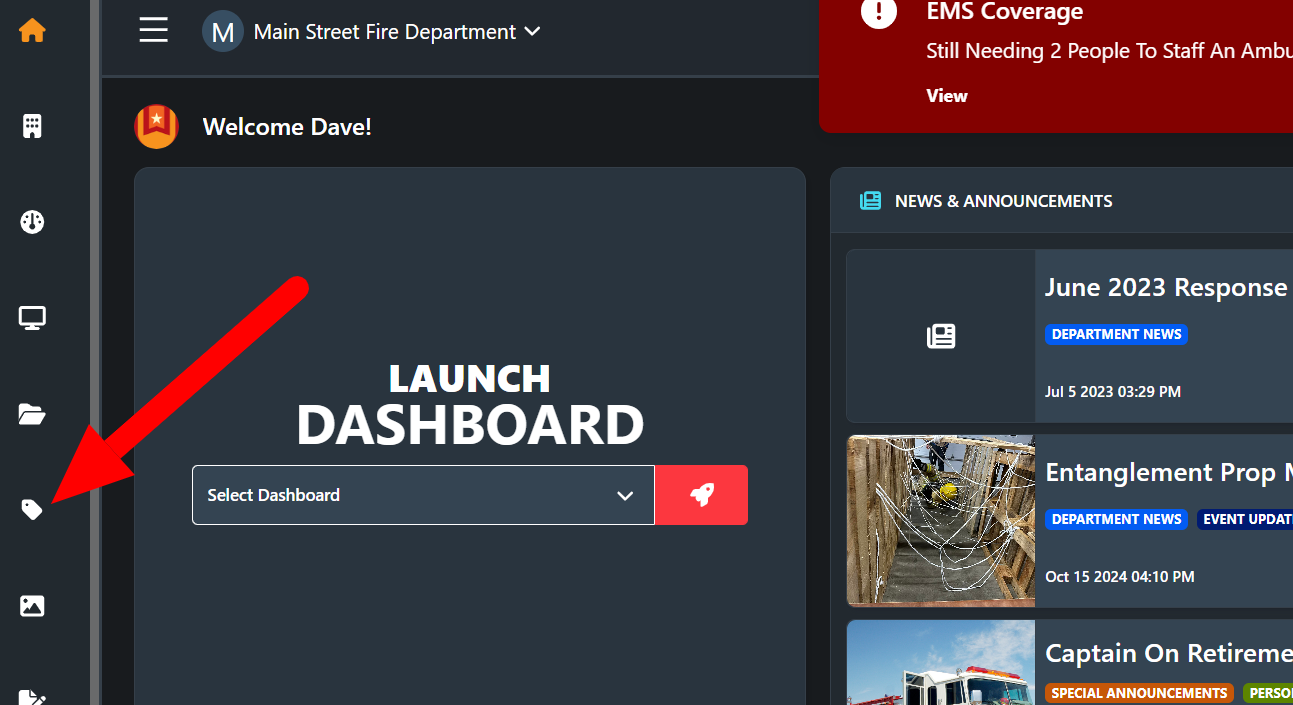
Navigate to Categories in the Admin Panel .
Enter:
Category Name (e.g., Training, Policy Updates, Station 2)
Optional Description (internal use; helps Admins remember the purpose of this category).
Save the category.
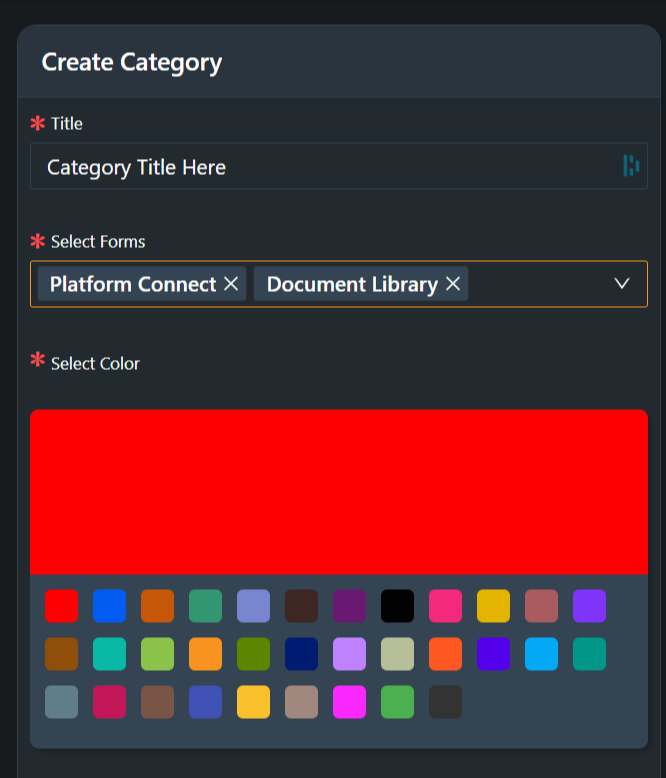
The new category will now be available in the category dropdown when creating or editing content items for that content type.
Editing existing categories:
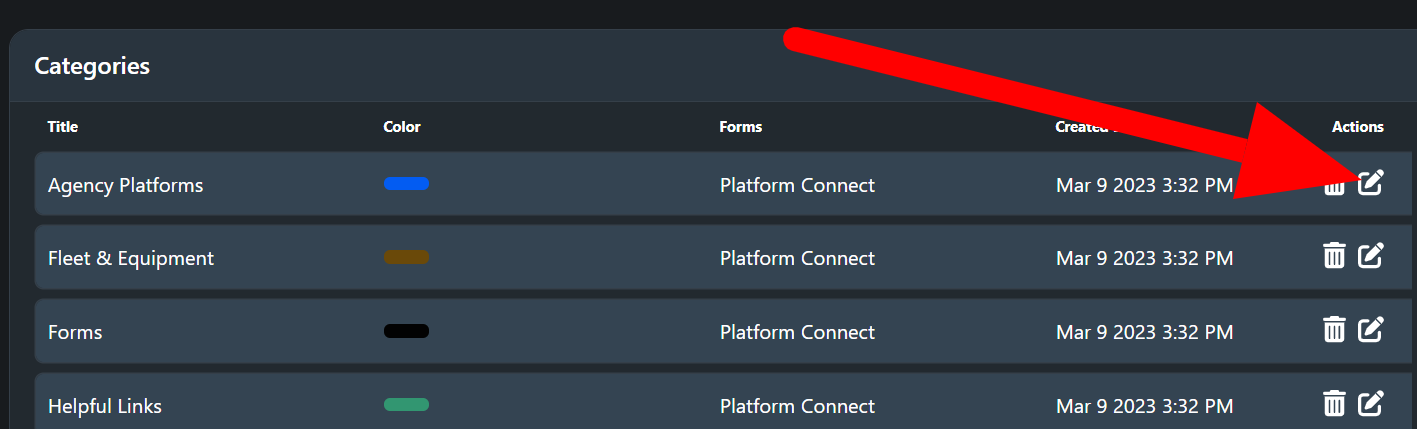
From the category list, locate the category you want to change.
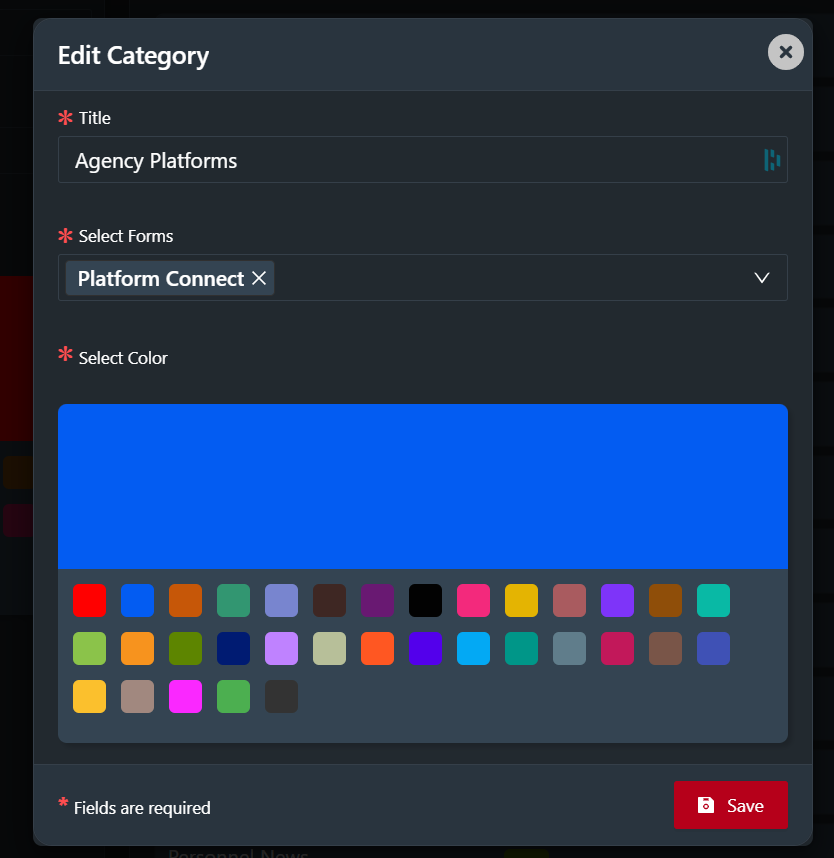
Click Edit.
Update the name or description as needed.
Save your changes.
Important:
Renaming a category will update its name everywhere it’s used, but will not remove the category from any existing content.
3 Deleting Categories (and What Happens to Existing Content)
If a category is no longer needed, you can delete it. Before doing so, consider where it might already be in use.
To delete a category:
Navigate to the category list for the relevant content type.
Locate the category you want to remove.
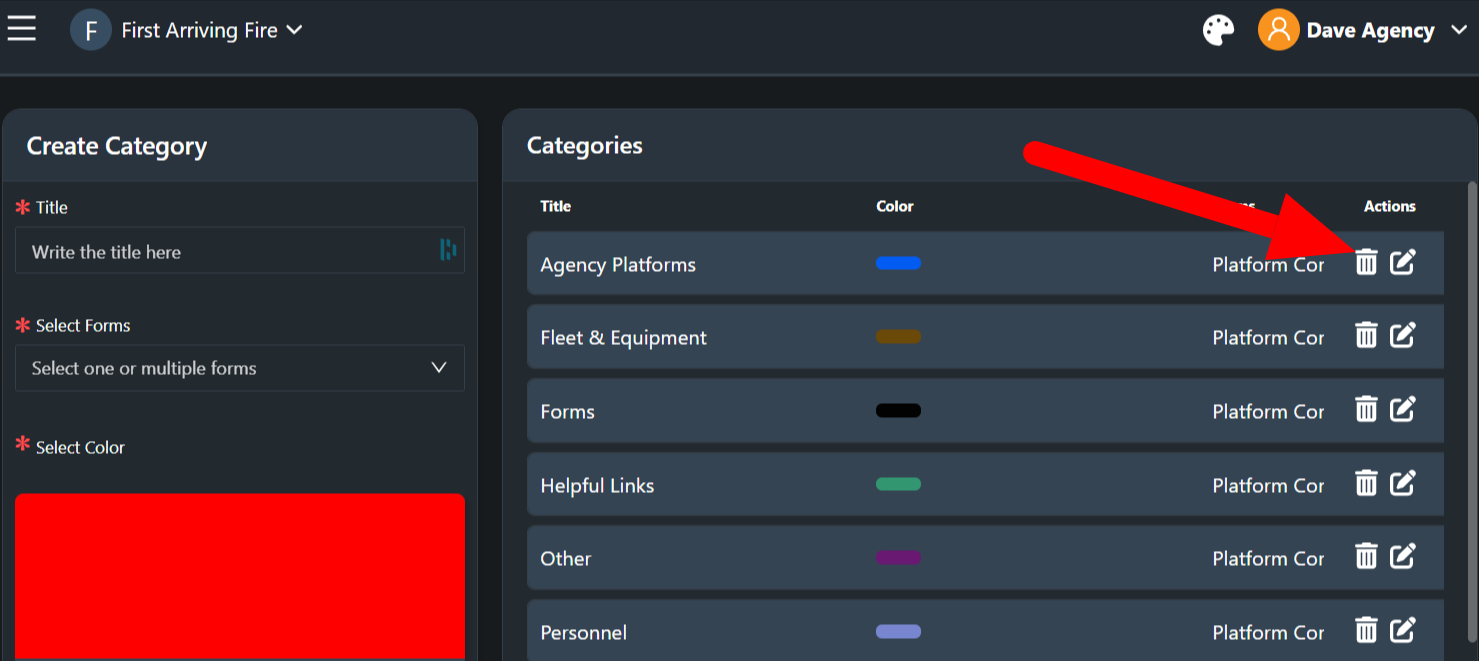
Click Delete or the trash icon.
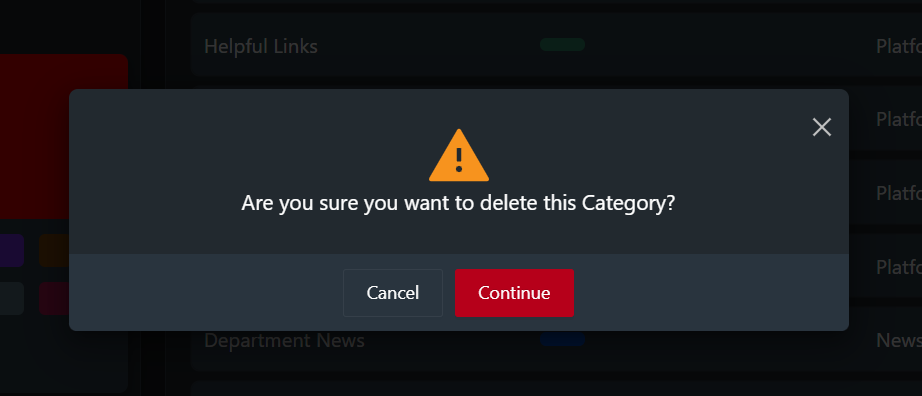
Confirm the deletion when prompted.
What happens to content with a deleted category:
Content previously assigned to that category will typically:
Lose that category association.
The content itself is not deleted — only the category tag is removed.
4 Assigning Categories to Content Types
Once categories are created, Agency Admins and Content Managers can apply them when creating or editing content.
Where categories commonly appear:
News & Announcements: Category selection on the create/edit screen.
Events: Category field for labeling the type of event.
Platform Connect: Categories used to group and filter links (e.g., Operations, Benefits, IT).
Document Library: Categories used to group policies, SOPs, manuals, and forms.
Required Acknowledgements: Use the category assigned to the underlying item (News & Announcement, Event, Document, or Platform Connect link).
To assign a category when creating content:
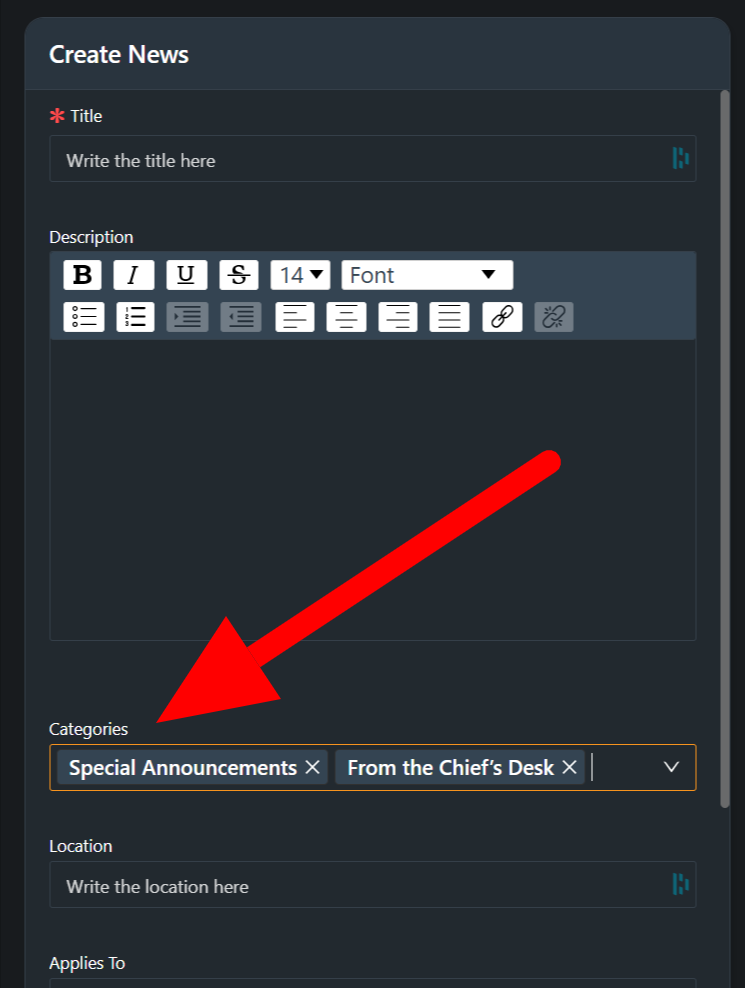
Open the Create screen for the content type (e.g., New Announcement, New Event, New Document).
Locate the Categories field.
Choose the most appropriate category(s) from the list
Save or publish the content.
When a user is logged in, they’ll be able to go to a content category (News & Announcements in this example) and be able to filter by category easily.
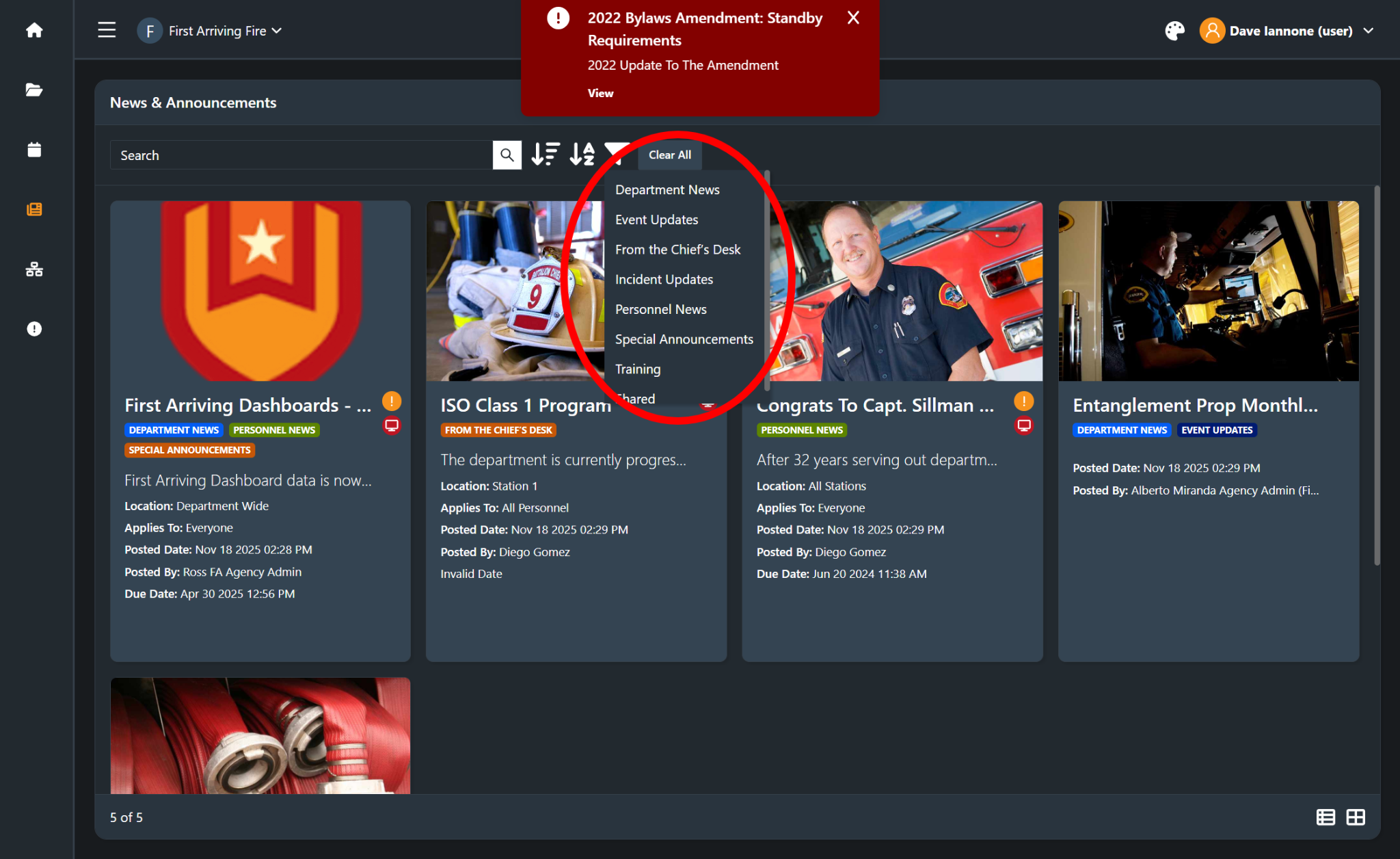
To update categories on existing content:
Open the Edit screen for the content item.
Adjust the Categories selection as needed.
Save your changes.
Renaming categories:
Renaming a category is often preferred over deleting it, especially if it is widely used.
Typical rename examples:
COVID-19 Updates → Health & Safety
Announcements → Agency Announcements
Miscellaneous → General Info
As soon as a category is renamed, all associated content reflects the new name.
5. Best Practices for Clean Information Architecture
Well-designed category structures make the platform easier to use and maintain.
1. Keep Categories High-Level and Meaningful
Avoid overly specific categories that only apply to a single item.
Use labels that any member would understand (e.g., Training, Operations, HR & Admin, IT & Systems).
2. Limit the Number of Categories
Too many categories create clutter and confuse users.
Aim for a manageable set (e.g., 8–15 core categories per content type).
3. Use Consistent Naming Across Content Types
Where possible, use similar category names for:
News & Announcements
Events
Documents
Platform Connect
Example: If you have a Training category for News, also use Training for Events and Documents.
4. Avoid Duplicates or Near-Duplicates
Prevent having both Training and Training Info, or HR and Human Resources separately.
Choose one label and standardize on it.
5. Review Categories Periodically
At least a few times a year, review your category list to:
Retire outdated categories (by renaming/merging rather than deleting when possible).
Add new categories only when truly needed.
Consolidate overlapping categories.
6. Communicate Internal Guidelines
Establish simple internal rules, such as:
“All policy-related items use the Policies & SOPs category.”
“Station-specific content uses a station category plus one functional category.”
Share these guidelines with all Agency Admins and Content Managers.
As your User Account features expand, a strong category structure will make it far easier to manage content across News & Announcements, Events, Platform Connect, Documents, and Required Acknowledgements—ensuring members can quickly find what they need, without being overwhelmed.