This guide is designed for end users who access First Arriving through individual user accounts. It focuses on the core features you will use day to day and is separate from our Agency Admin Guide.
Access your user account at https://portal2.firstarrivingdigital.com on the web via tablet, desktop or mobile, or download our mobile app.(App Store | Google Play)
What’s Included with Your First Arriving Account
Your First Arriving user account gives you secure, role‑based access to the information your agency has chosen to share—whether you’re in the station, in the field, or off duty. At its core, First Arriving connects large‑screen dashboards, desktop and tablet access, and mobile experiences into a single platform designed to keep personnel informed, aligned, and accountable.
With your account, you can view live and scheduled dashboard content, stay up to date on department news and announcements, access important documents, review upcoming events, and interact with connected data from other systems your agency uses. Content is delivered in a consistent, easy‑to‑access format so critical information is available when and where you need it.
Depending on how your agency has configured the platform, your account may also require you to acknowledge specific items—such as policies, announcements, or events—to confirm they have been reviewed. This helps your department ensure important information is communicated effectively while giving you a clear view of what requires your attention.
1. Accessing Dashboard Content
First Arriving gives you access to dashboard content whether you are in the station, in the field, or off duty.
Desktop & Tablet (In‑Station or Office)
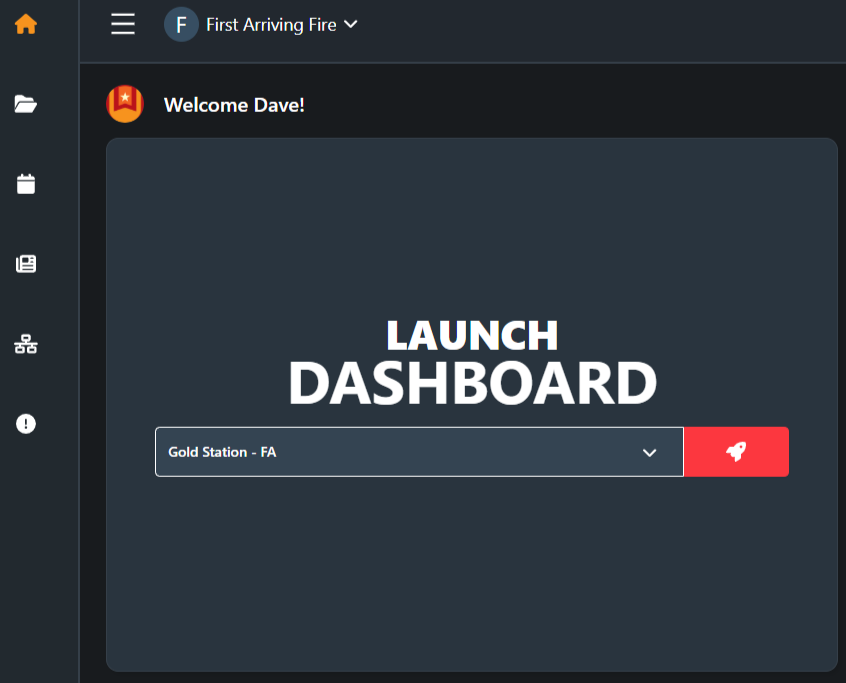
Log in to your user account using your department’s First Arriving portal URL.
Use the Launch Dashboard dropdown to:
Open your department’s live dashboards
Switch between available dashboard views (if applicable)
Dashboards will open in a new tab or full‑screen view for easy visibility.
Mobile App & Mobile Web
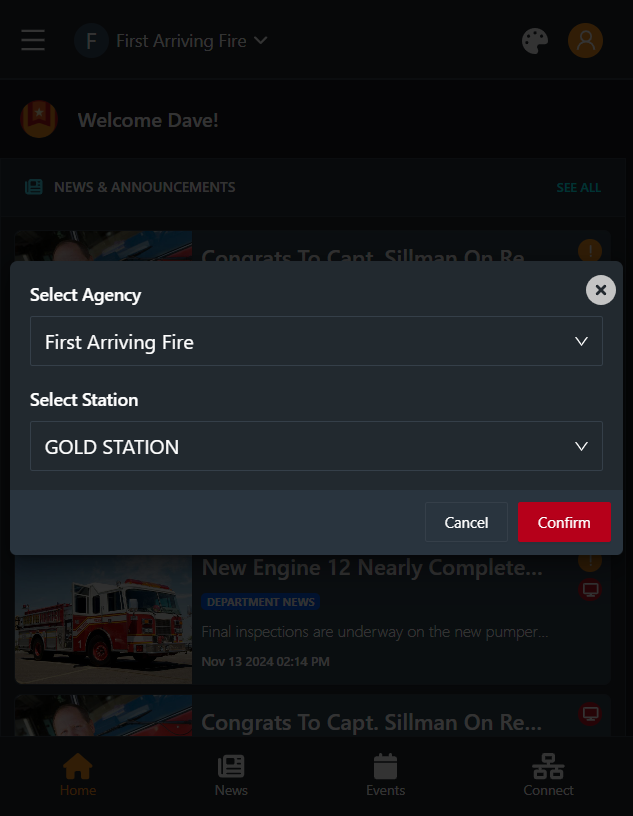
Download the First Arriving mobile app (if enabled by your department), or access via mobile web by going to https://portal2.firstarrivingdigital.com on your phone’s web browser.
Log in using your user account credentials.
Select your agency name and station/dashboard location
From your mobile device, you can:
View key dashboard content
Receive and review updates
Acknowledge required items
Mobile access ensures you stay informed even when you are not in front of a station display.
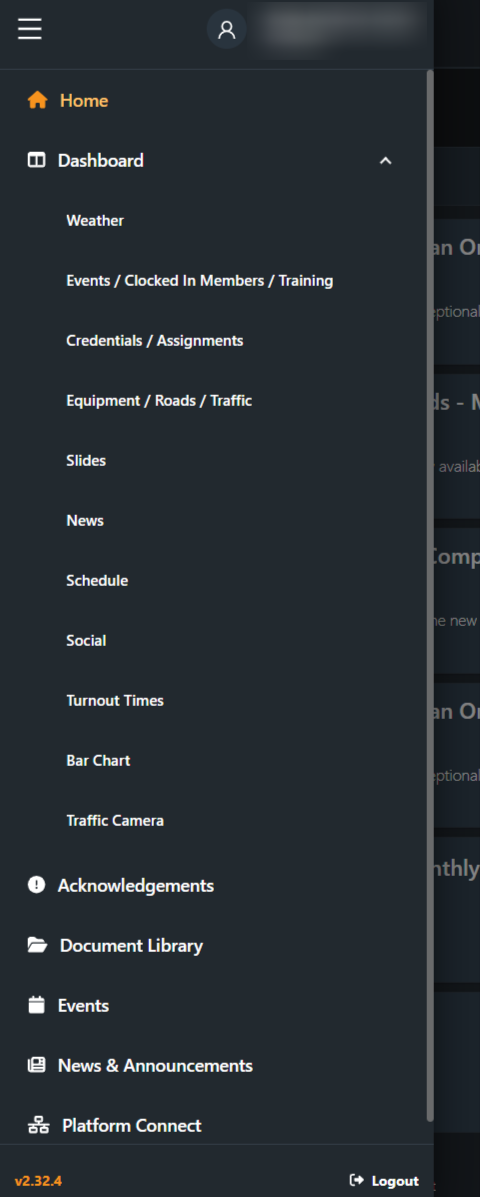
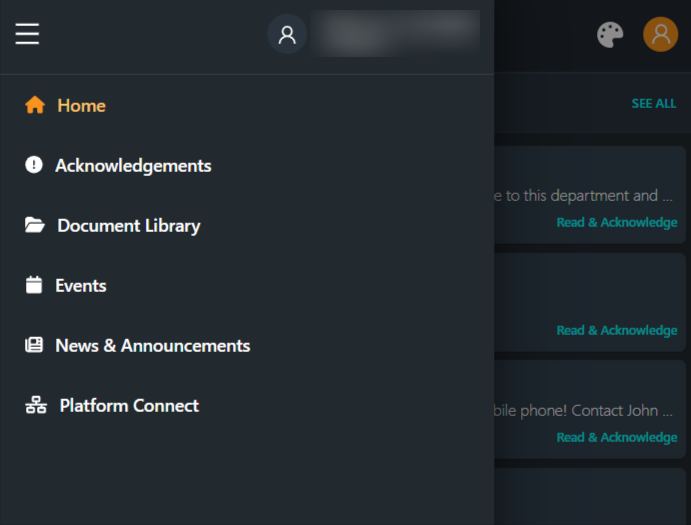
Mobile Navigation to Dashboards and User Account Features. Your Dashboard menu will vary based on your agency’s specific dashboard content.
2. Acknowledgements
Important: Acknowledgements are configured per item by your agency. Some content may require acknowledgement, while other content may not.
Acknowledgements are used to confirm that you have seen and reviewed important information. They help departments ensure critical communications are delivered and documented.
What Acknowledgements Are Used For
Acknowledgements are used to confirm that you have seen and reviewed important information. They help departments ensure critical communications are delivered and documented.
Acknowledgements are optional on a per‑item basis and may be enabled for content in the following areas:
News & Announcements (e.g., chief’s messages, policy updates)
Document Library (e.g., SOPs, SOGs, policies)
Events (e.g., mandatory meetings or training)
Platform Connect items (when applicable)
If an item requires acknowledgement, you must actively confirm that you have reviewed it.
If an item requires acknowledgement, you must actively confirm that you have reviewed it.
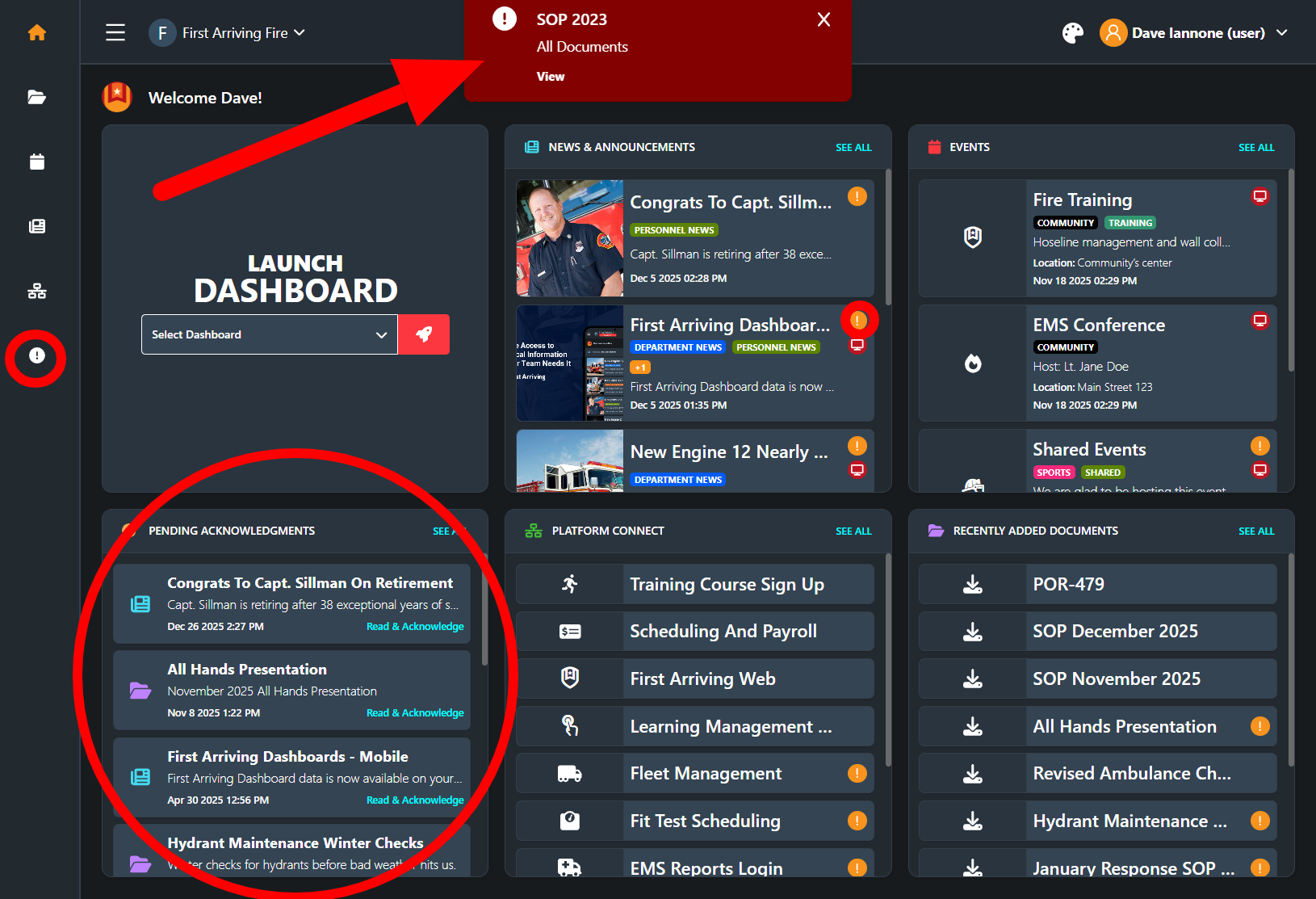
Viewing Your Acknowledgements
Navigate to your Acknowledgements area within the platform.
This view shows:
Outstanding (required) acknowledgements
Items you have already acknowledged
Use this area to quickly see anything that still requires your attention.
On desktop/tablet, pending notifications also show in a red pop up at the top center of the page.
Accessing on Mobile
How to Acknowledge Content
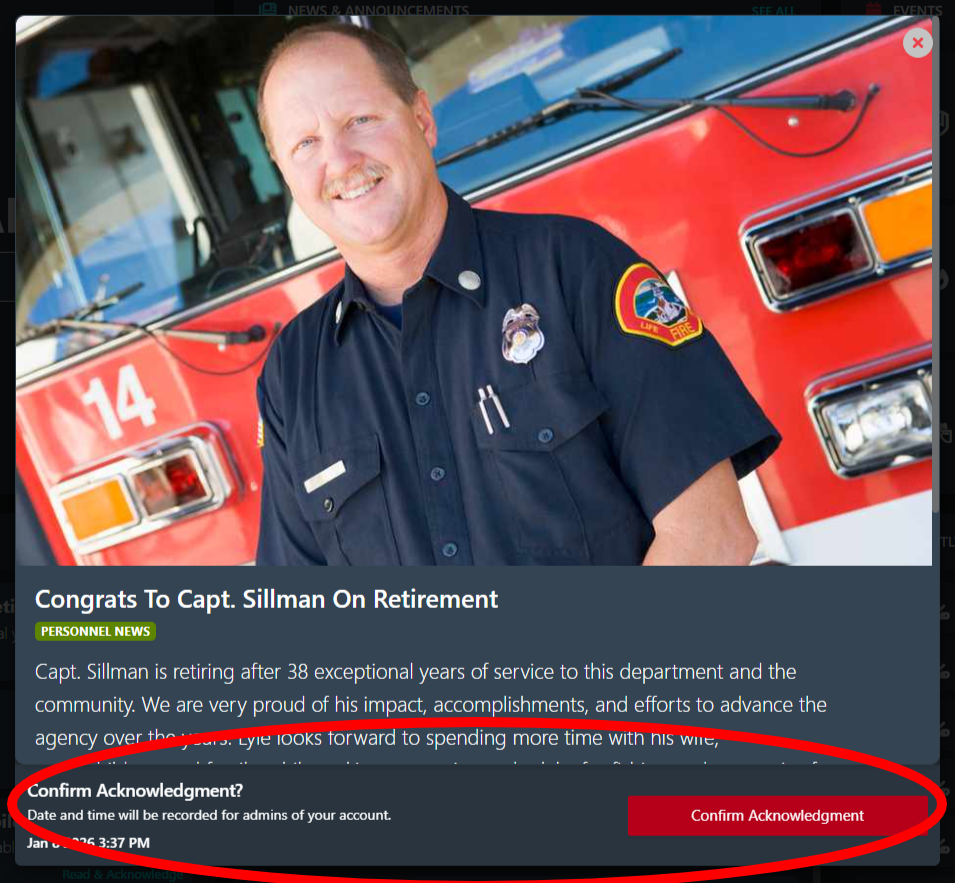
Open the content item (news post, document, or event).
Review the information.
Click the Acknowledge button (wording may vary by content type).
Once acknowledged, the item will be marked as complete.
(Screenshots will be added in this section.)
3. News & Announcements
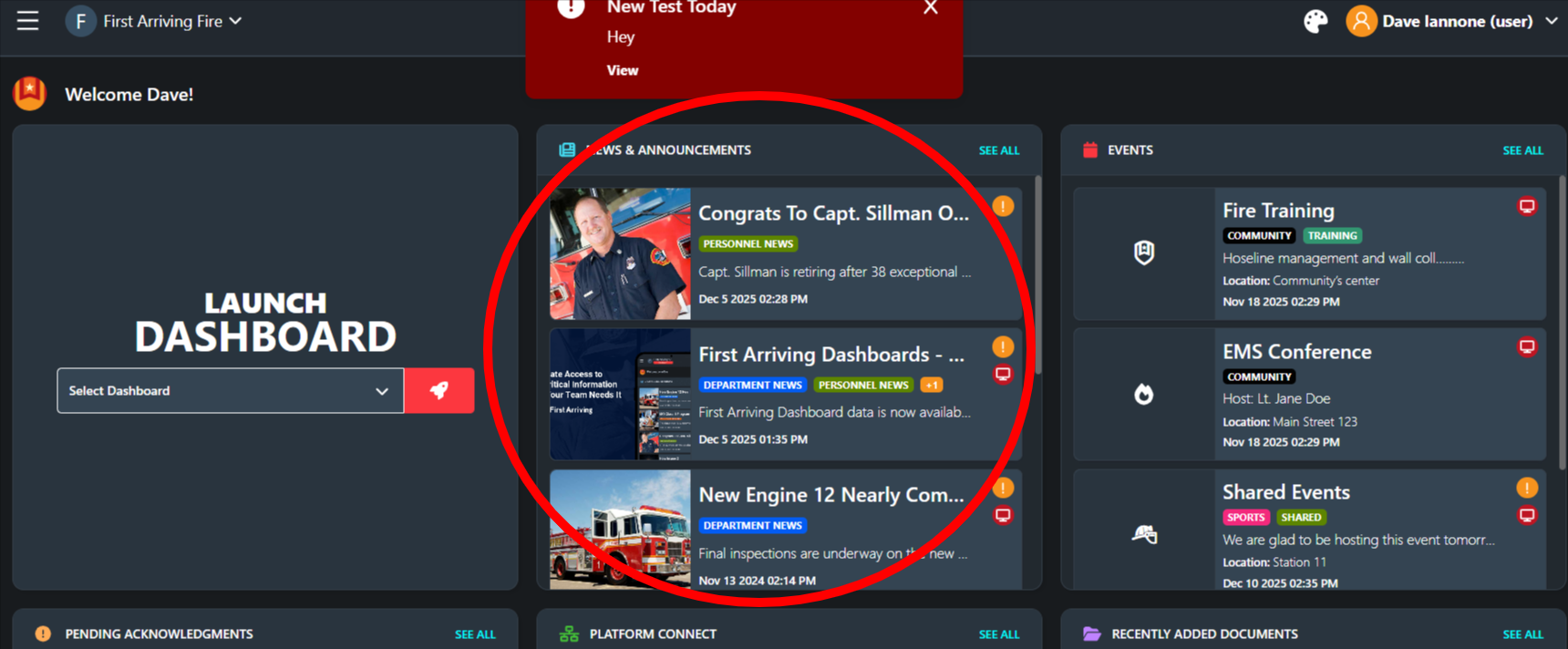
News & Announcements are used to share timely updates and important messages from your department.
What You’ll See
Department announcements
Leadership messages
Operational or administrative updates
Key Actions
Read announcements directly from your user account.
Acknowledge items when required.
Access the same content on desktop, tablet, or mobile.
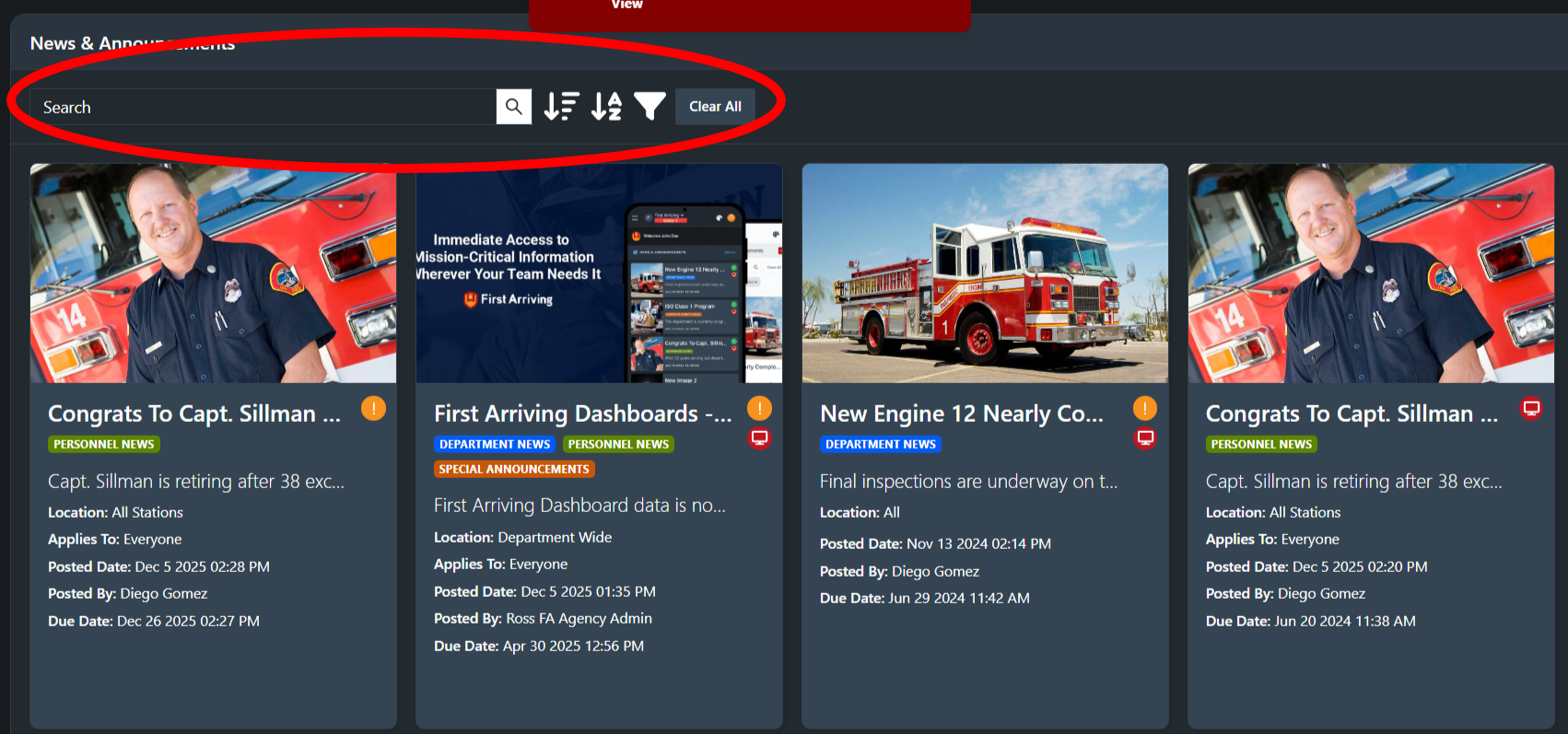
You can also click the “See All” link to browse recent news and announcements, filter by category and search. This “See All” feature is available for all content types.
4. Document Library
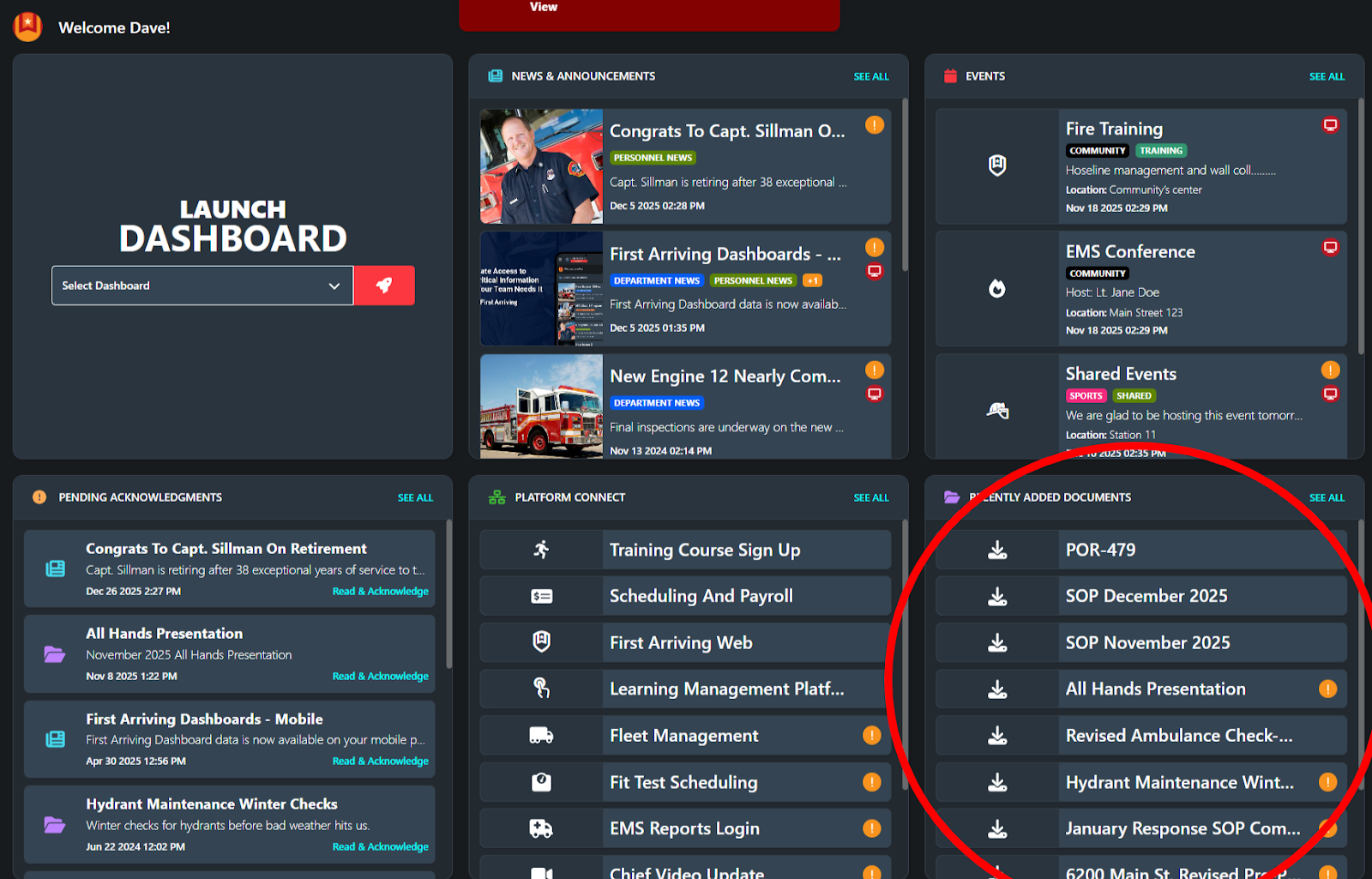
The Document Library is your centralized location for department documents.
Common Uses
SOPs and SOGs
Policies and procedures
Reference documents and manuals
Key Actions
Open and review documents at any time.
Acknowledge documents that require confirmation.
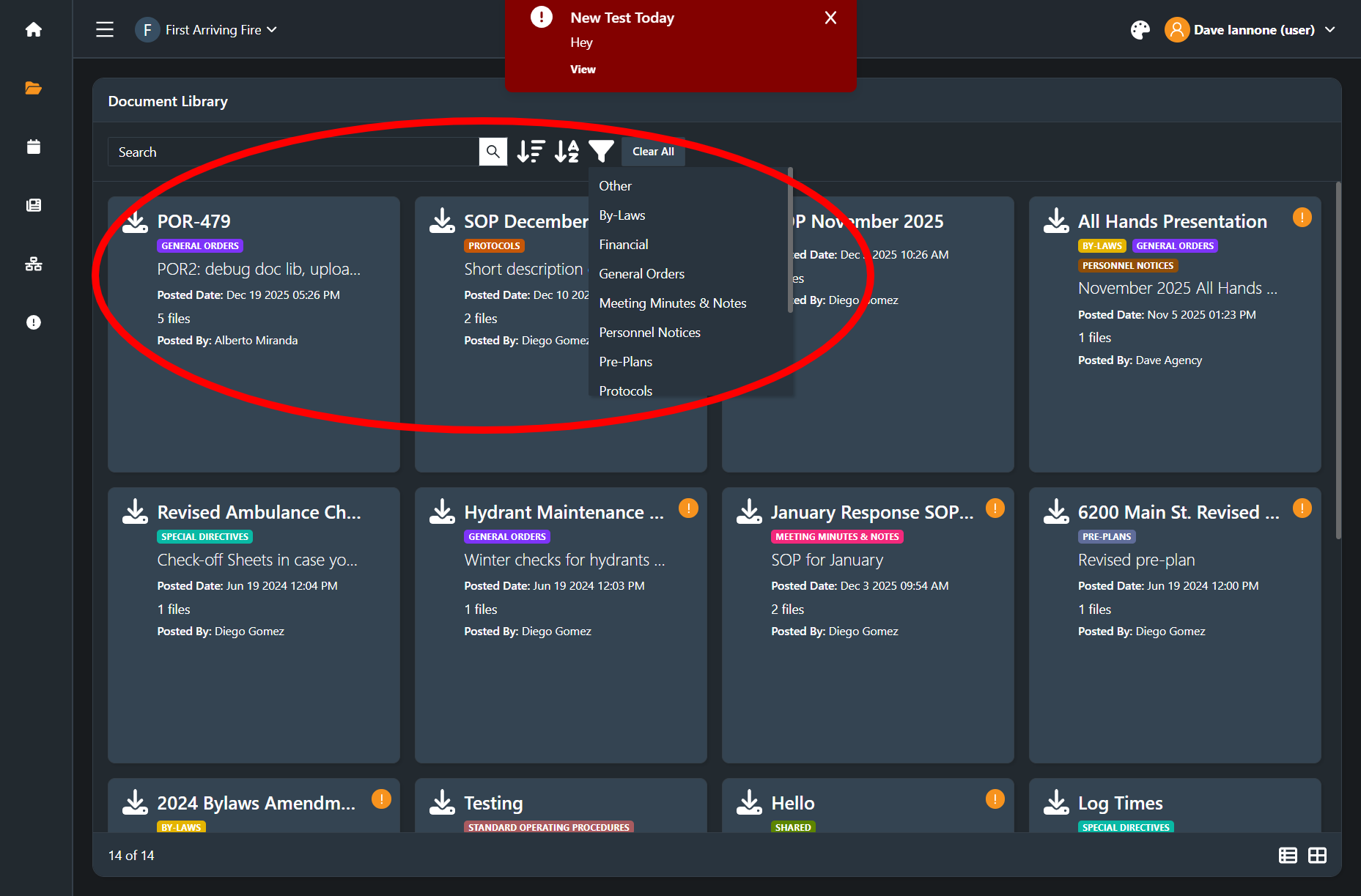
You can also click the “See All” link to browse the document library, filter by category and search.
5. Events
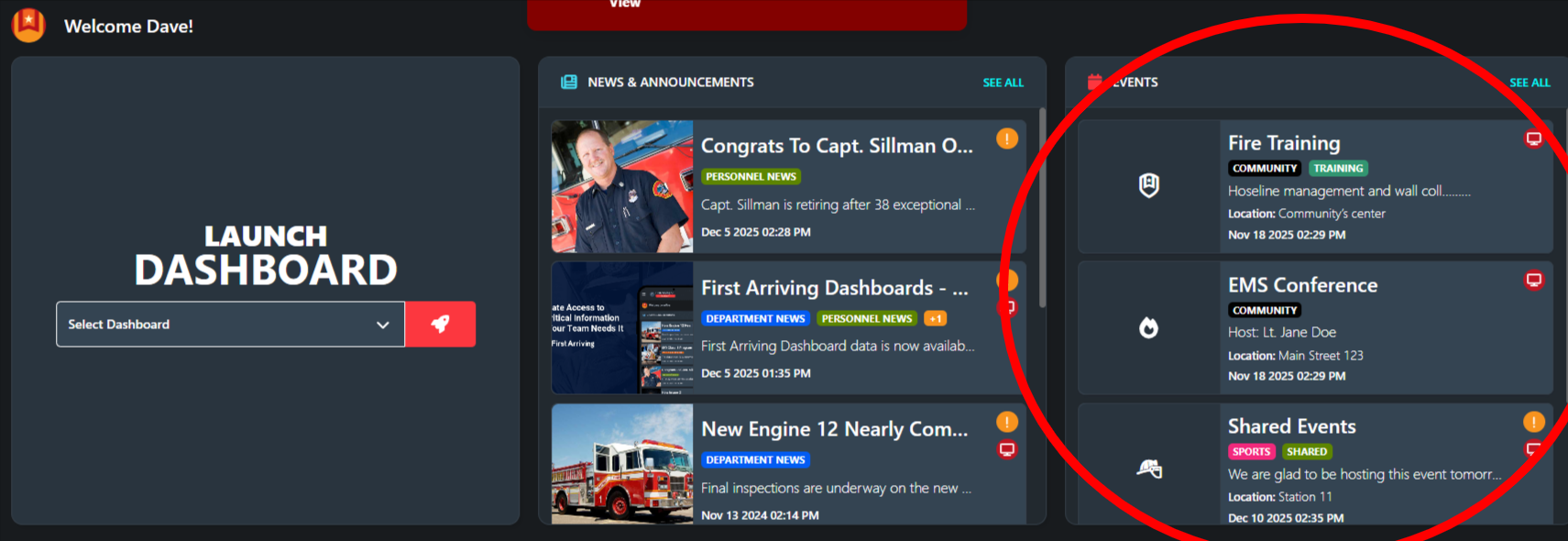
Events are used to share department‑wide activities and important dates.
Examples
Training sessions
Meetings
Special events or deadlines
Key Actions
View upcoming and past events.
Review event details such as time, location, and notes.
Acknowledge events when required by your department.
You can also click the “See All” link to browse events, filter by category and search.
Note that depending on your agency’s Dashboard setup, events may be viewable more readily in your Dashboards.
6. Platform Connect
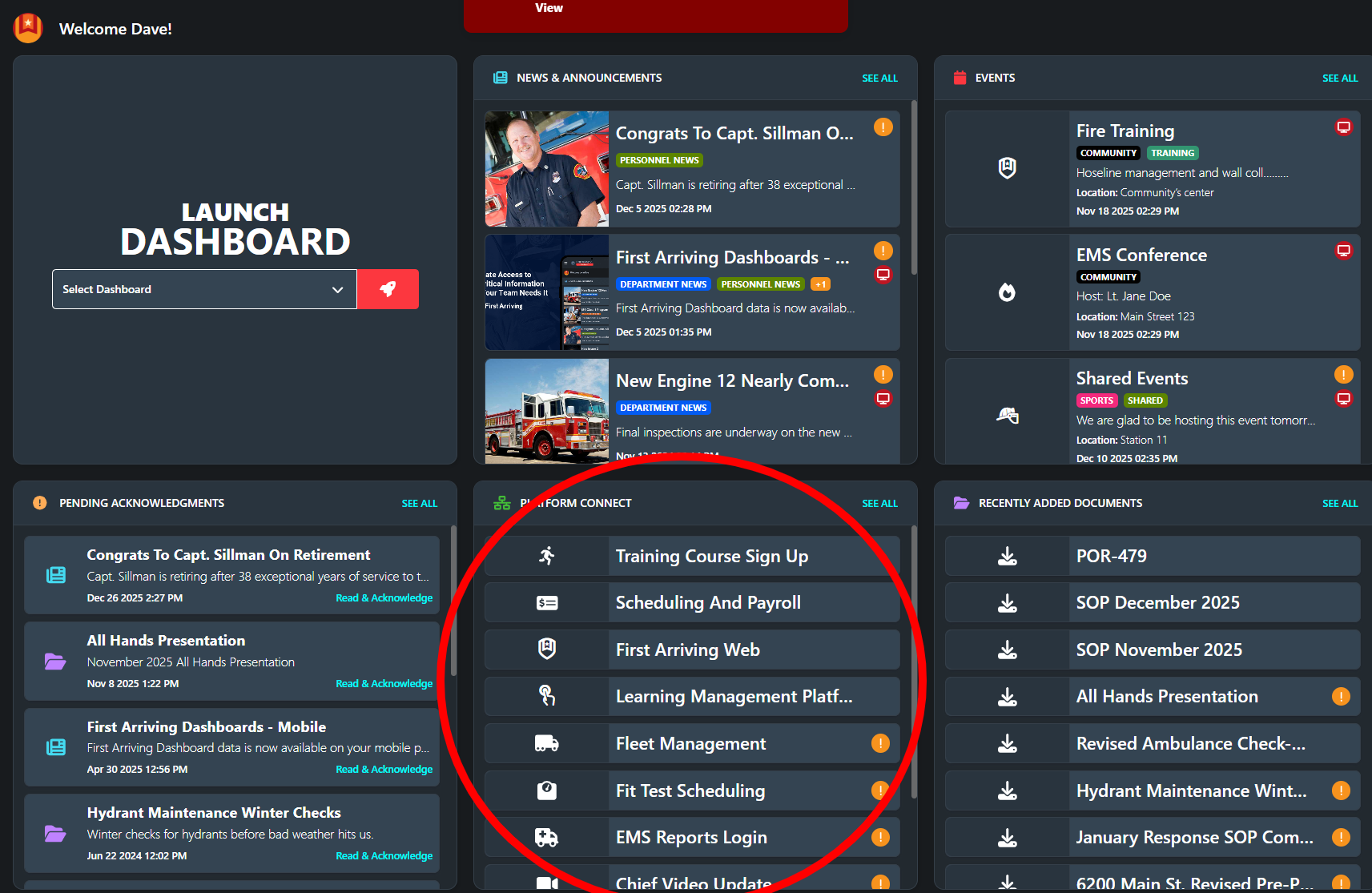
Platform Connect brings information from connected systems into First Arriving.
What This Means for Users
These items are presented directly within First Arriving for easier access, no more having to remember what site to go to for what.
Some Platform Connect items may require acknowledgement, depending on how your department has configured them.
You can also click the “See All” link to browse the platform connect web directory, filter by category and search.
7. Enabling Two-Factor Authentication
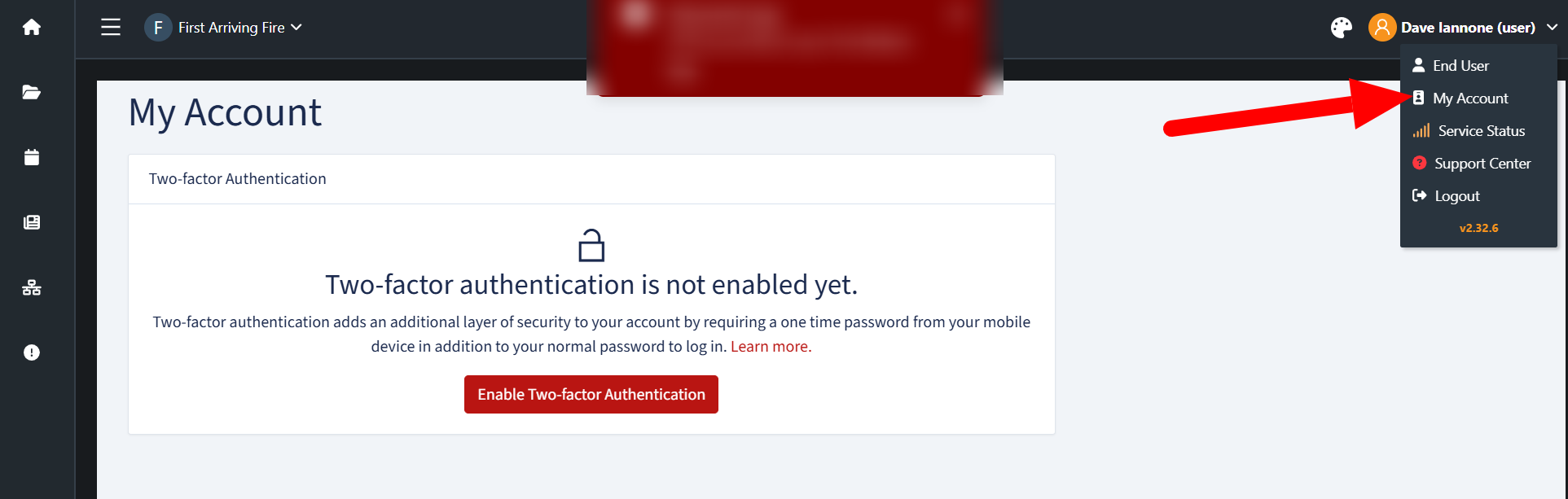
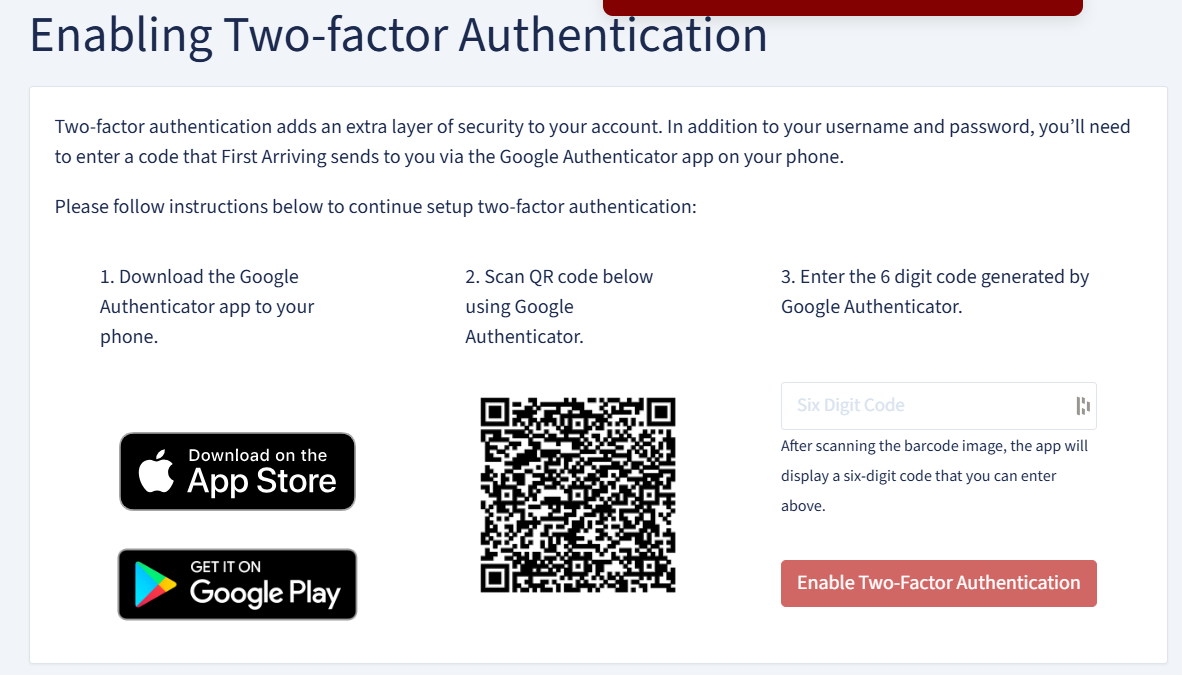
For added security, we strongly recommend enabling two-factor authentication (2FA) by clicking your profile icon, selecting My Account, and turning on two-factor authentication—this helps ensure your First Arriving account is as secure as possible.
Availability of Features
Not all features described in this guide may be enabled or used by your agency.
Each department determines:
Which content types are active
Whether acknowledgements are required
How internal processes and policies are applied within First Arriving
If you are unsure how a feature is being used, or whether action is required on your part, check with your agency administrators or leadership for specific details.
Getting the Most Out of Your Account
Log in regularly to stay up to date.
Check your Acknowledgements area to ensure nothing is outstanding.
Use mobile access to stay informed when you are away from the station.
If you have questions about access or content, contact your department administrator or follow your department’s standard support process.