Overview
Required Acknowledgements allow agencies to ensure that critical information has been viewed and confirmed by personnel. This feature is commonly used for policy updates, operational notices, training reminders, and other time-sensitive or compliance-related content. In addition to tracking acknowledgements.
Agency Admins can also review user activity and last login dates to better understand overall engagement with the platform,
Content Types That Support Required Acknowledgements
Required Acknowledgements can be enabled on the following content types:
News & Announcements – Policy changes, operational updates, reminders, or general notices
Events – Mandatory trainings, meetings, drills, or department-wide activities
Document Library – SOPs, SOGs, policies, manuals, and other reference documents
Each piece of content is managed independently and can have acknowledgements turned on or off based on agency needs. Learn how to create, edit and remove content here.
How to Assign a Required Acknowledgement
When creating or editing supported content, Agency Admins can require an acknowledgement by following these general steps:
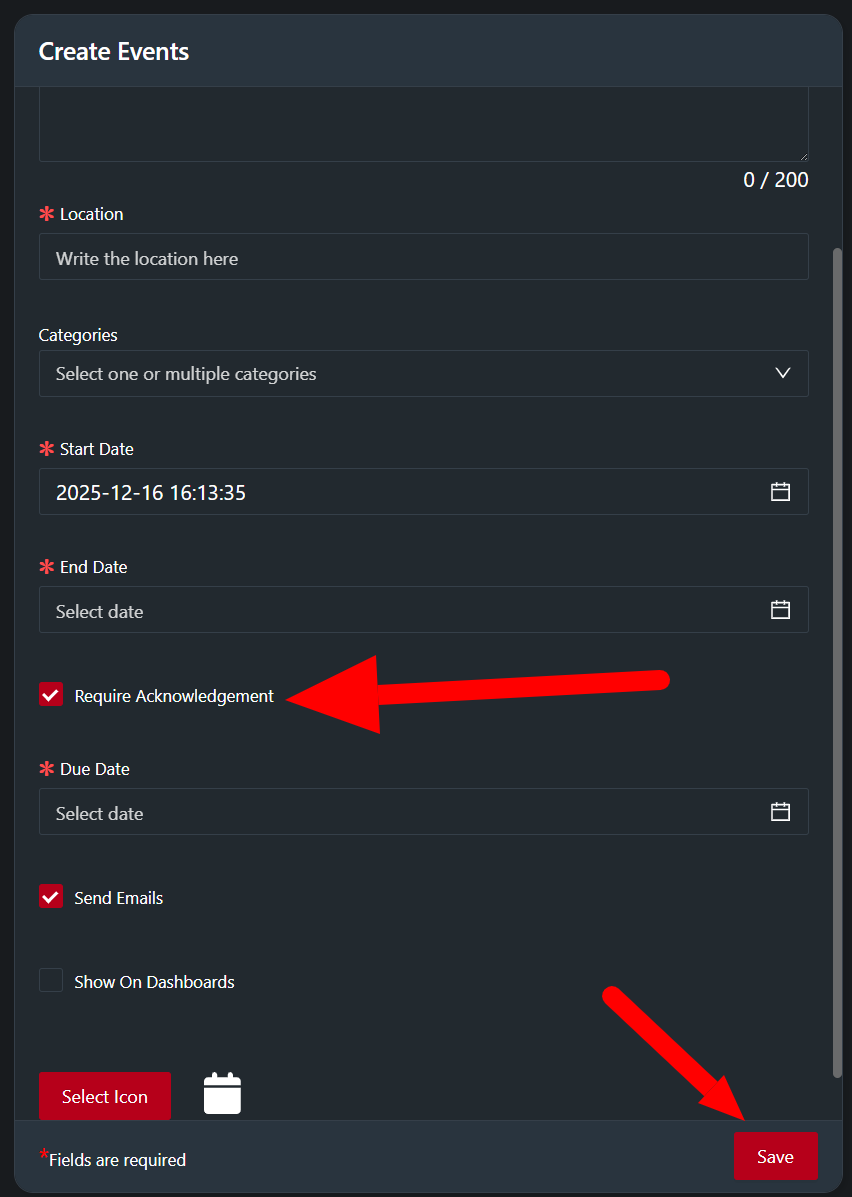
Create or edit the content item (News & Announcement, Event, or Document).
Enable the Require Acknowledgement option within the content settings as depicted in the screenshot above.
Add a Due Date for when the item should be required by.
Save and publish the content by clicking the red save button at the bottom right corner of the submission form..
Once published, users will be prompted to acknowledge the content when they view it,
Users can optionally be sent an email notification of the updated content.
Required Acknowledgements apply globally to all users with access to that content.
User Experience
When a Required Acknowledgement is enabled:
Users must actively acknowledge the content before it is considered complete.
Acknowledgement Pop-Up Notification (Desktop/Tablet)
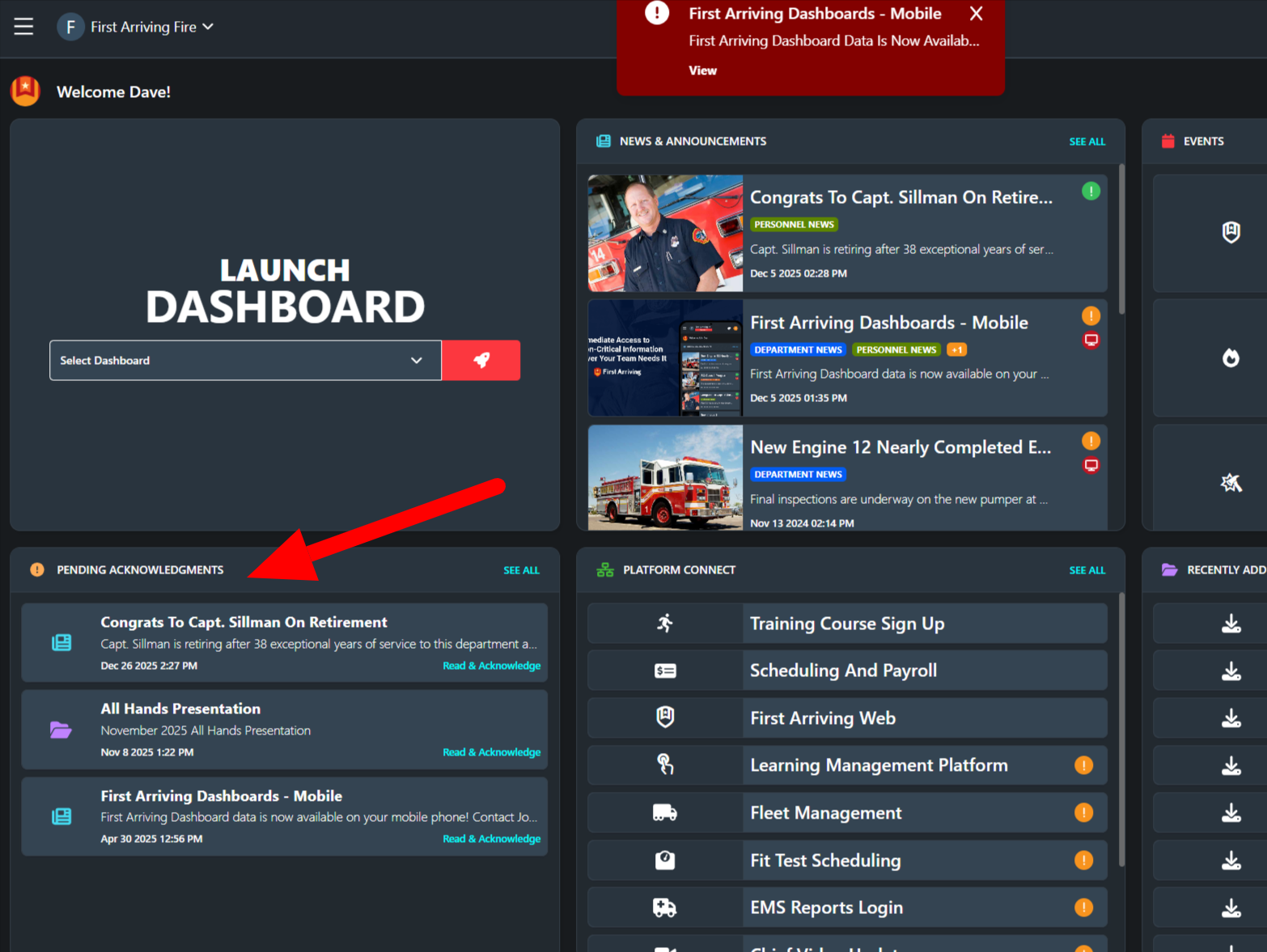
Appears at the center top of the screen when logged in (see screenshots below)

Acknowledgement List (Desktop/Tablet)
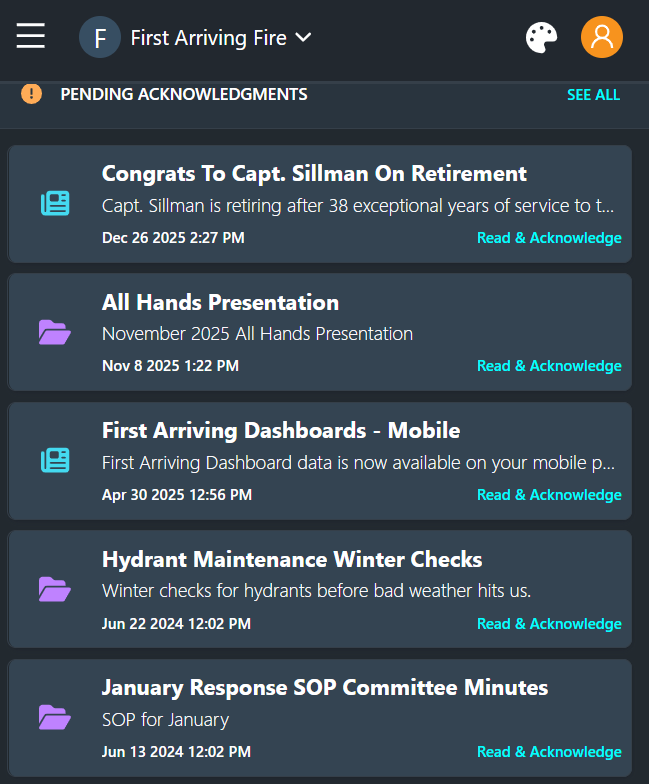
Pending Acknowledgements appear at the bottom left section on desktop/tablet and main page on mobile web/app, as well as available via the menu.
Mobile Home Screen:
User Views & Acknowledges the Content
The Acknowledge link appears at the bottom right of the content window.\
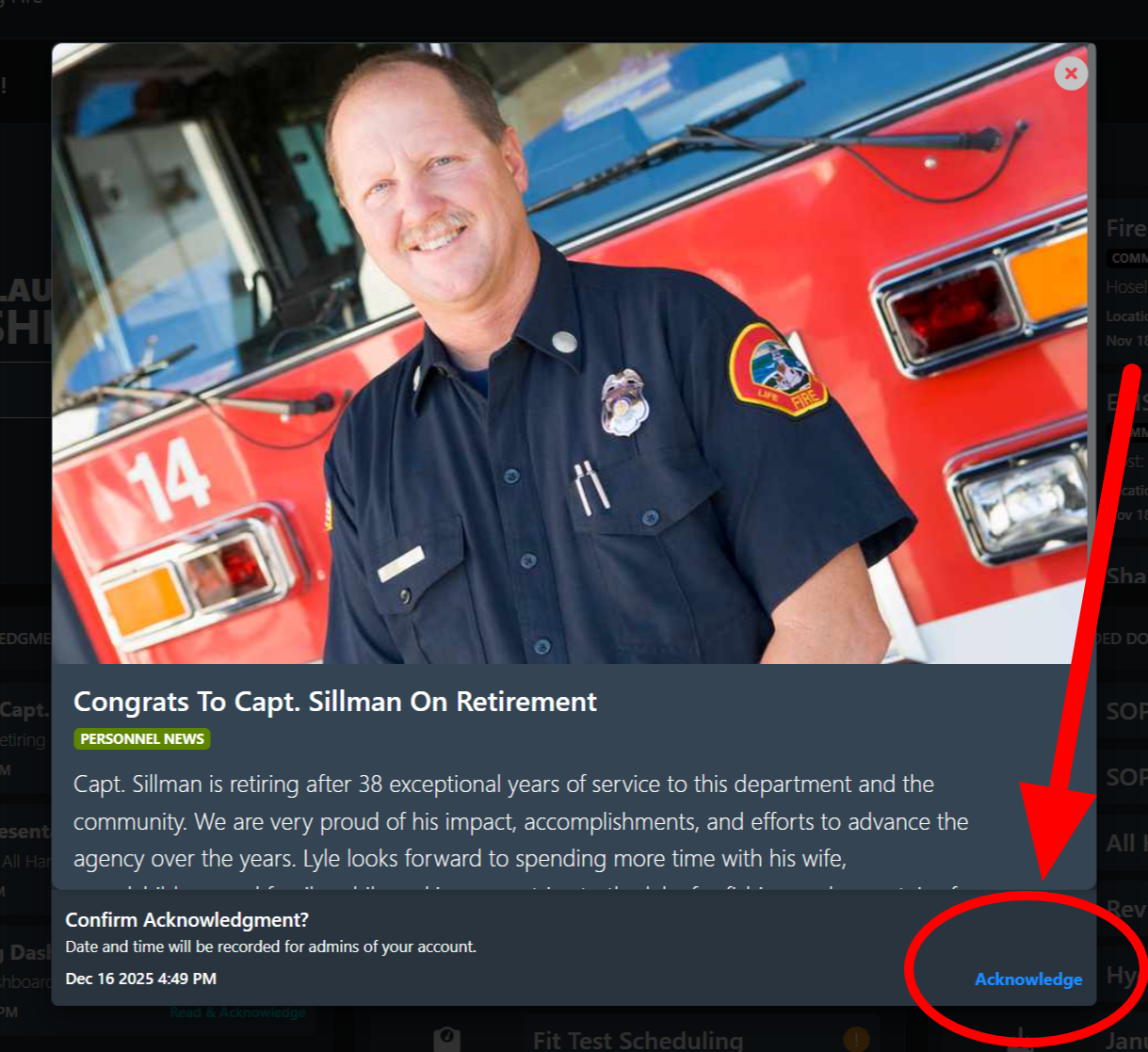
The acknowledgement action is logged in the system.
Content remains visible after acknowledgement, but the requirement is marked as fulfilled for that user.
Tracking Acknowledgements in the Admin Panel
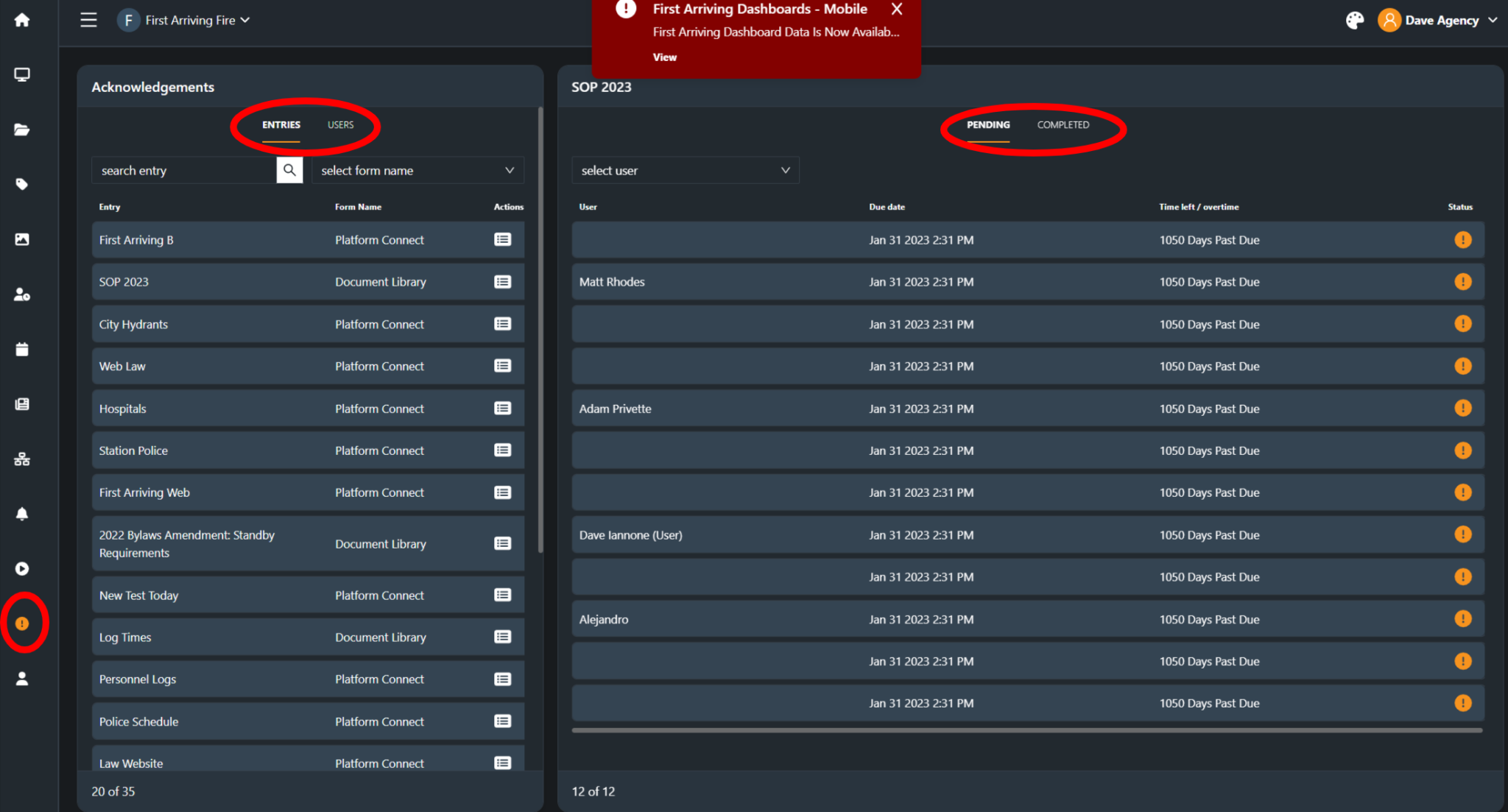
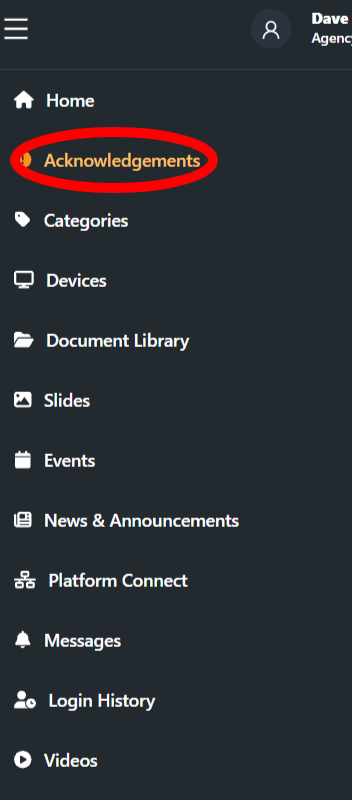
Agency Admins can monitor acknowledgement status directly from the Admin Panel. Tracking is available in two primary ways:
Accessing on Desktop/Tablet
Accessing on Mobile
By Content Item
Admins can view acknowledgement status for a specific piece of content, including:
A list of users who have acknowledged the item
A list of users who have not yet acknowledged the item
Timestamp of when each acknowledgement occurred
This view is useful for following up on specific announcements, events, or documents.
By User (Global View)
Admins can also review acknowledgement activity at the individual user level, including:
All required acknowledgements a user has completed
Outstanding acknowledgements the user has not yet completed
Historical acknowledgement records across content types
This view is helpful for audits, compliance checks, or personnel reviews.
User Activity & Login Visibility
In addition to acknowledgement tracking, the Admin Panel provides visibility into general user activity, including:
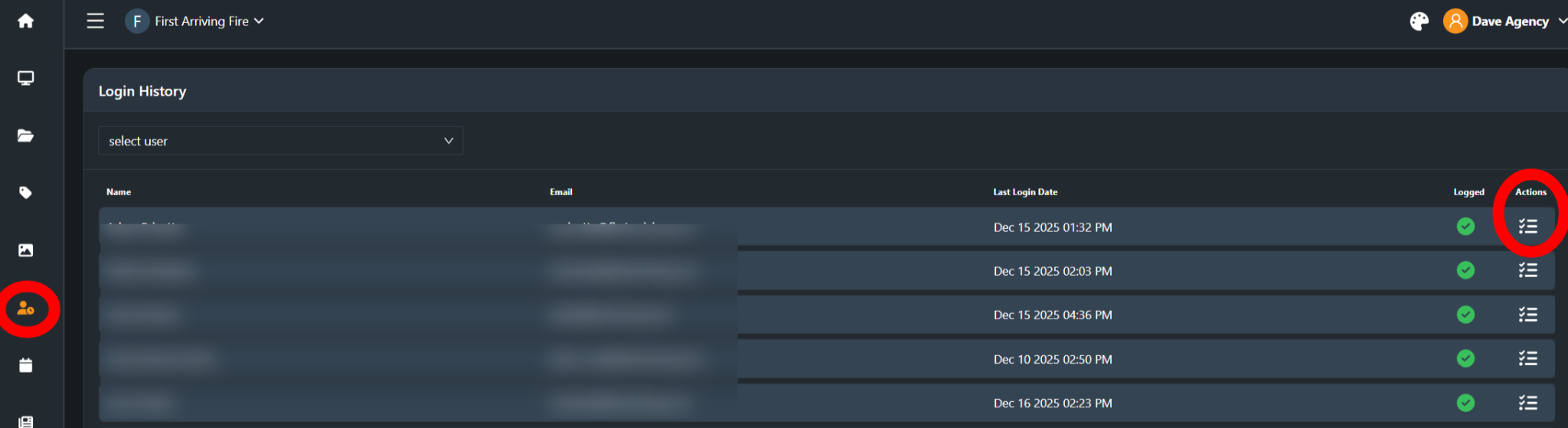
Last login date and time
Confirmation that a user has accessed the platform recently
Context for interpreting acknowledgement completion (or lack thereof)
Individual Login History
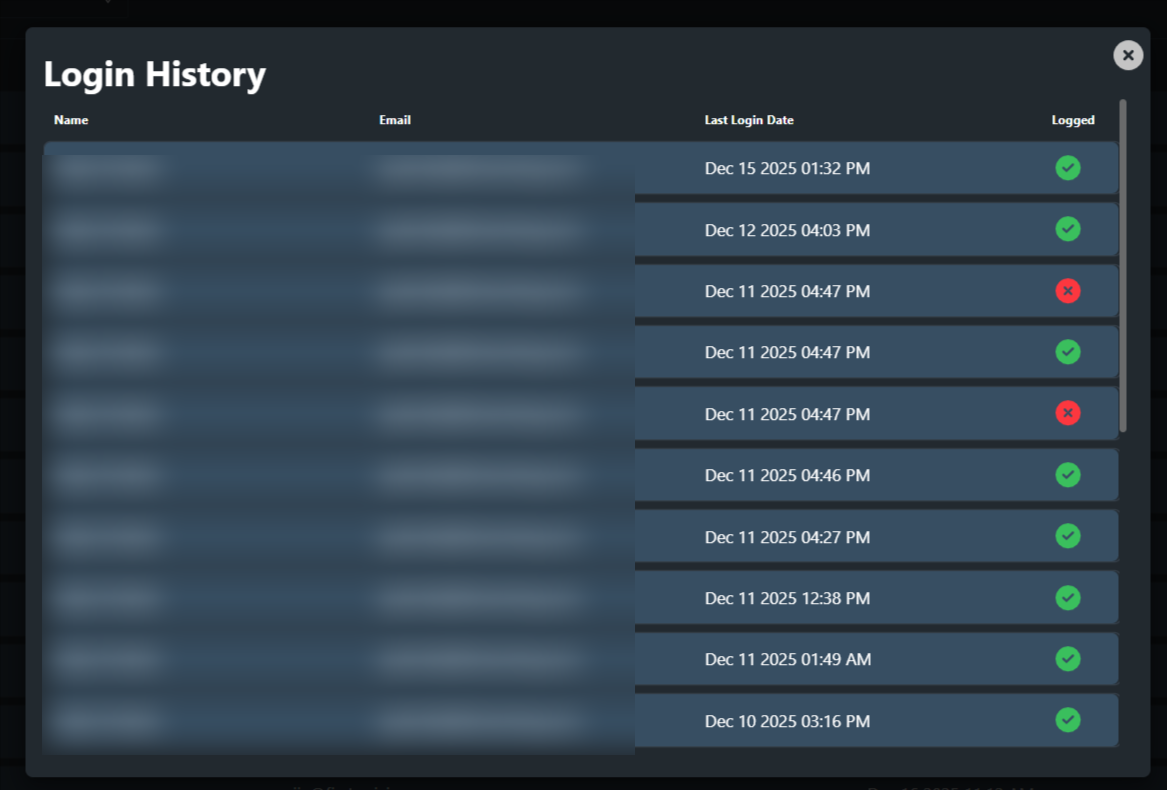
This information helps Agency Admins distinguish between users who have not logged in recently versus users who are active but have not completed required acknowledgements.
Best Practices
Use Required Acknowledgements sparingly and intentionally for high-priority or mandatory content.
Clearly communicate expectations to personnel when acknowledgements are required.
Regularly review acknowledgement and login activity to identify gaps in engagement.
Follow up with users who have not acknowledged critical content, especially if login activity indicates inactivity.