
Integration Guide
Nexgen — alarms and unit status
Put live dispatch notifications and unit availability on the screens in your stations, so crews can see what is coming in and who is free to take it.
What we can put on your dashboard
Real-time dispatch details
What appears on screen when a call comes in.
- Nature of the call
- Incident address
- Units dispatched
- Initial notes and details from dispatch
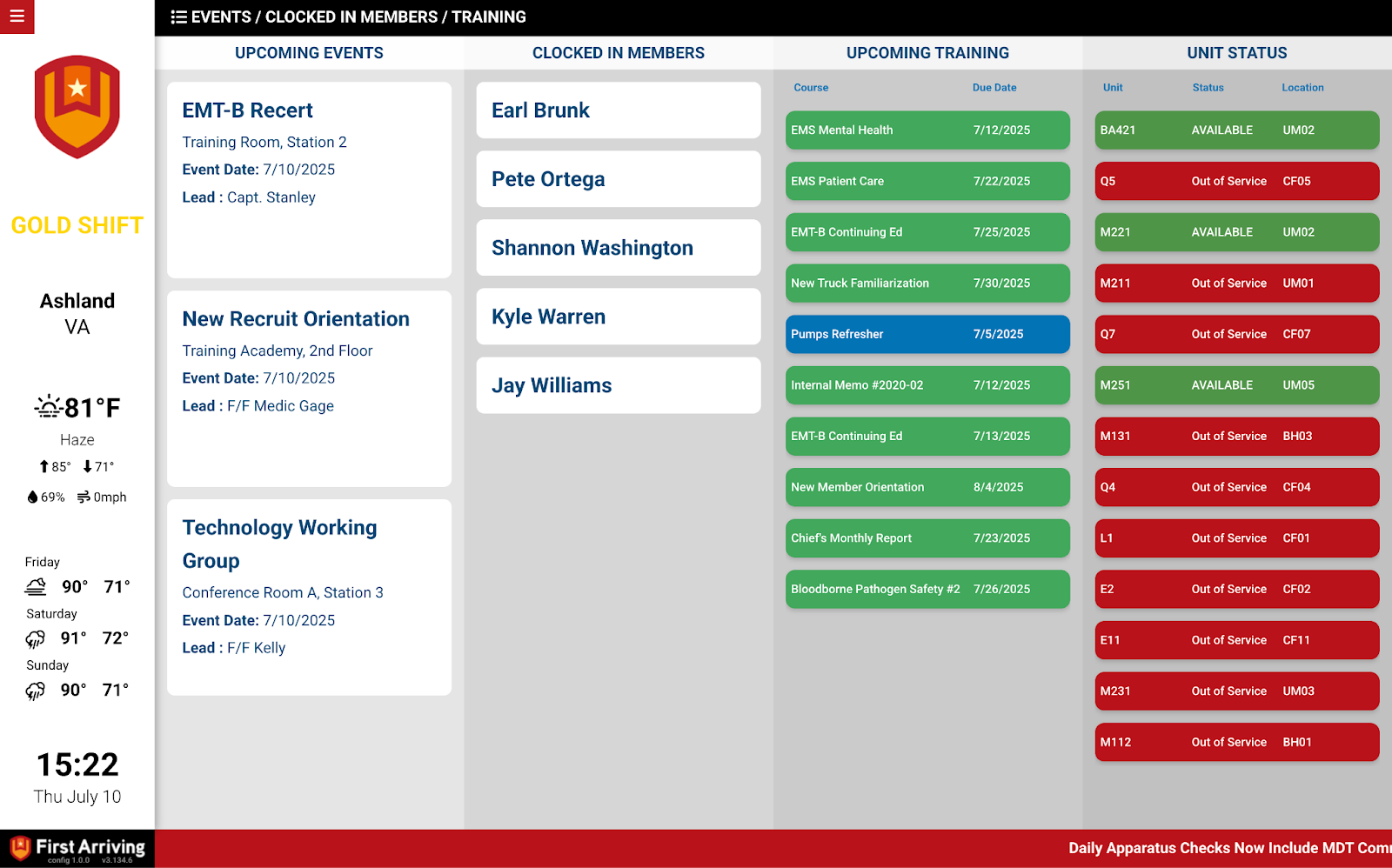
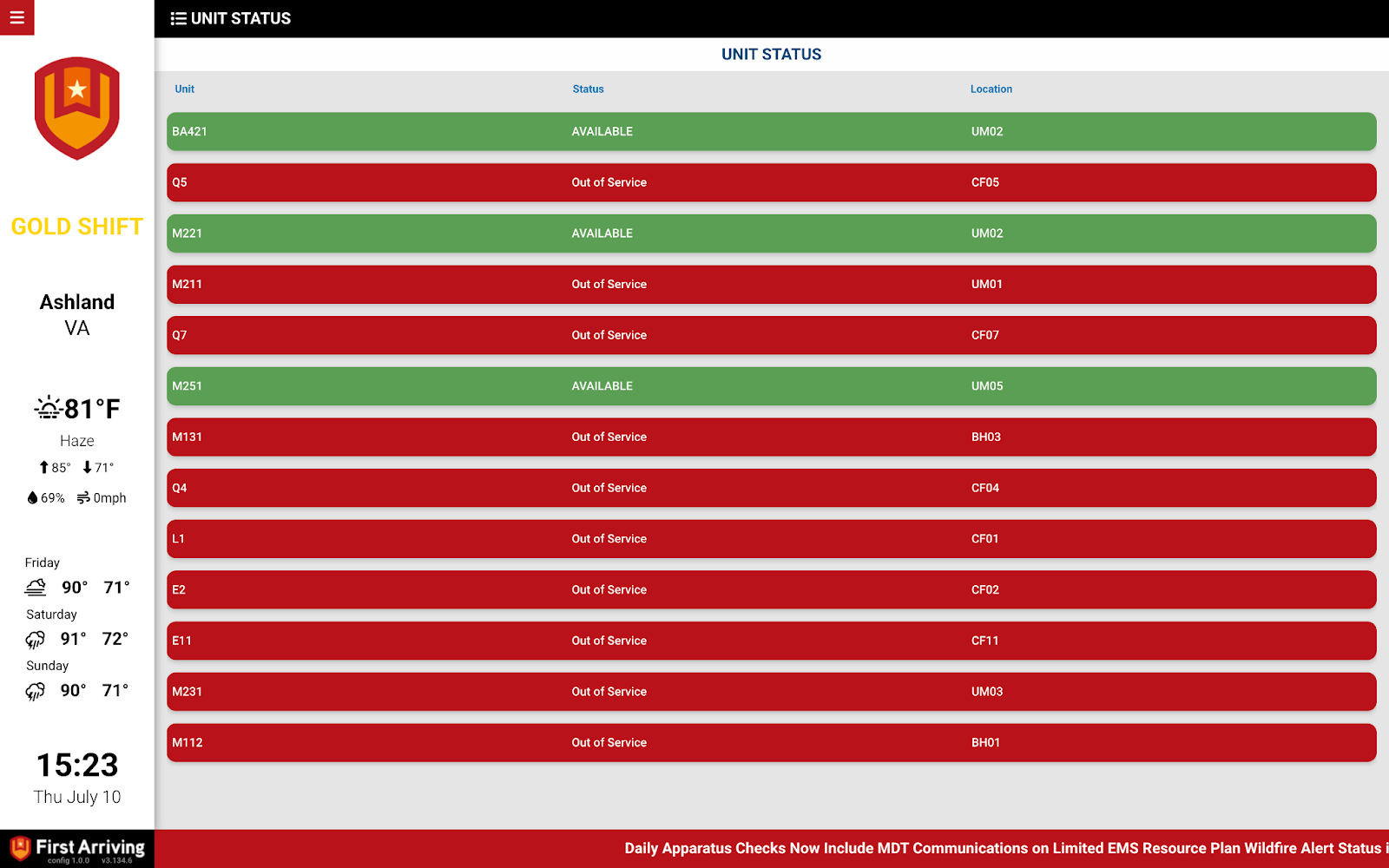
Unit status display
Who is available, and who is already out.
- Unit ID and current status — enroute to quarters, transport, available for call, and so on
- Availability flag (yes or no)
- Filter the list to show all units, only unavailable units, or only available units
Response enhancements
Getting crews out the door and to the scene.
- Turnout timer
- ETA and distance to the incident
- Multiple map display options, including static Google Street View and ESRI layers
What we need from you
Almost nothing — we coordinate the integration directly with Nexgen. You never send us credentials.
About vendor charges: API or data access may incur additional charges, determined by Nexgen and not by First Arriving.
Compatible views
Four alerting layouts, plus a unit status screen.
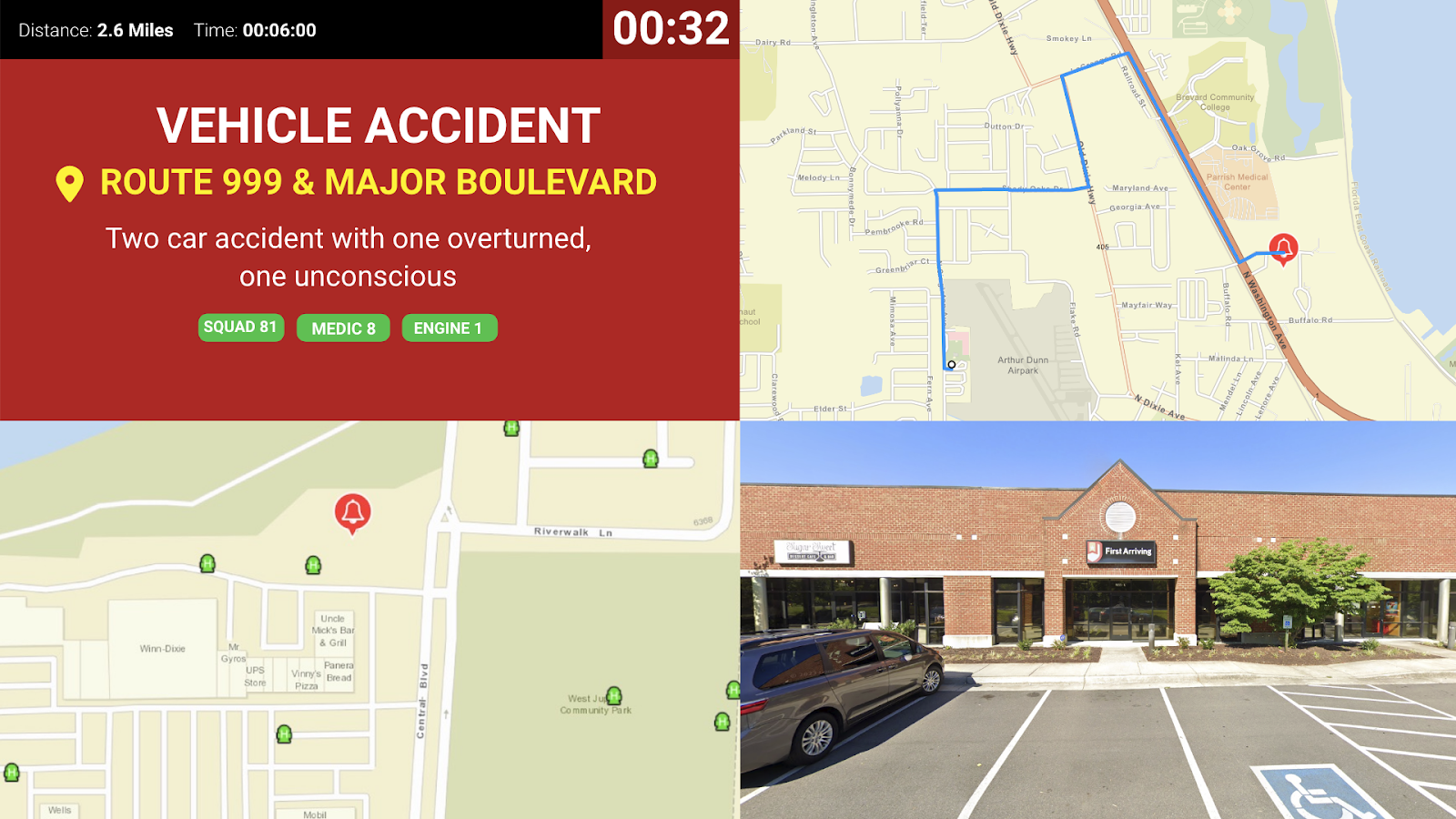
Four-panel view
Call information, directions, hydrant map, and Street View together.
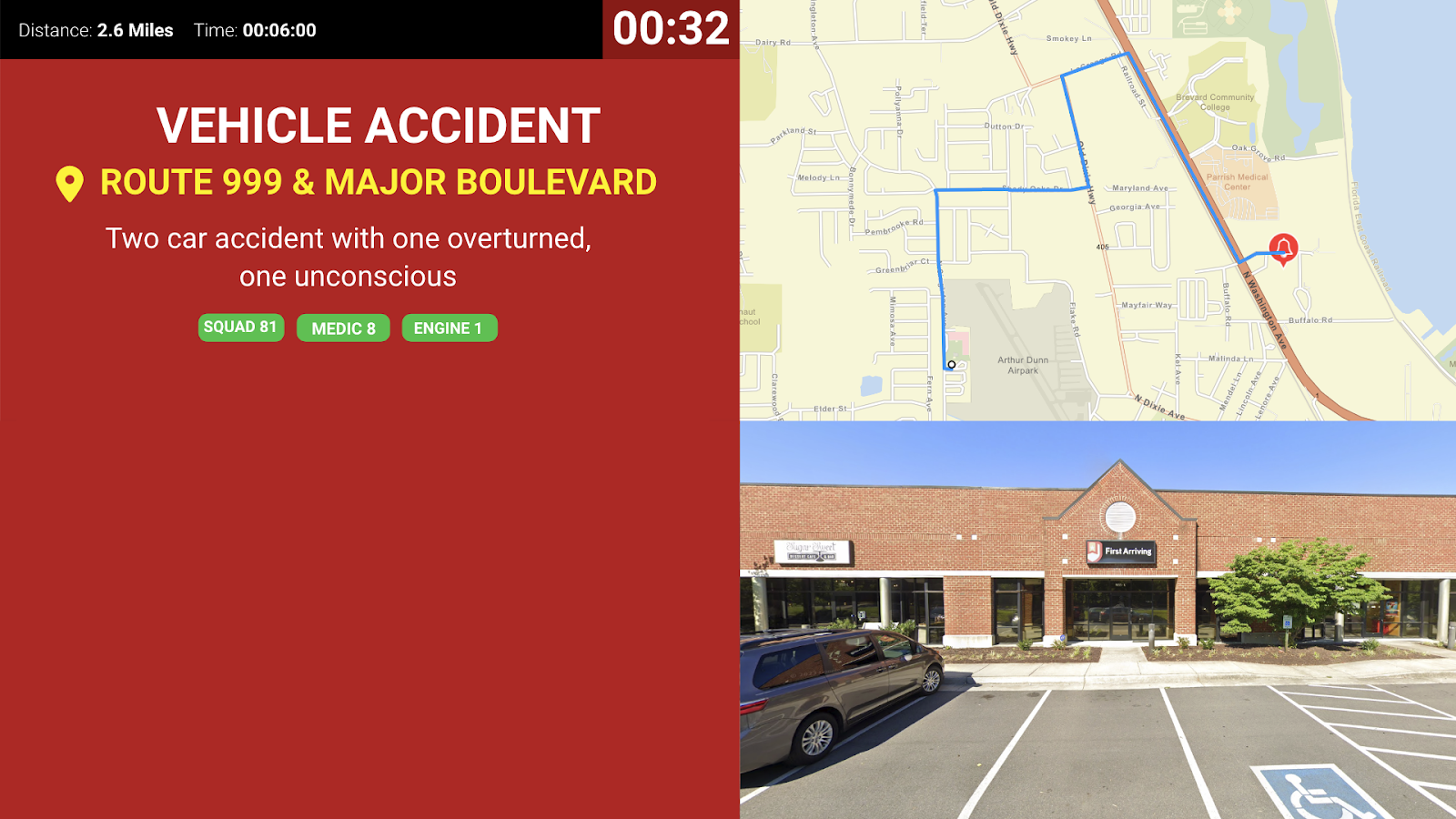
Three-panel view
Call information plus two half-height views of your choosing.
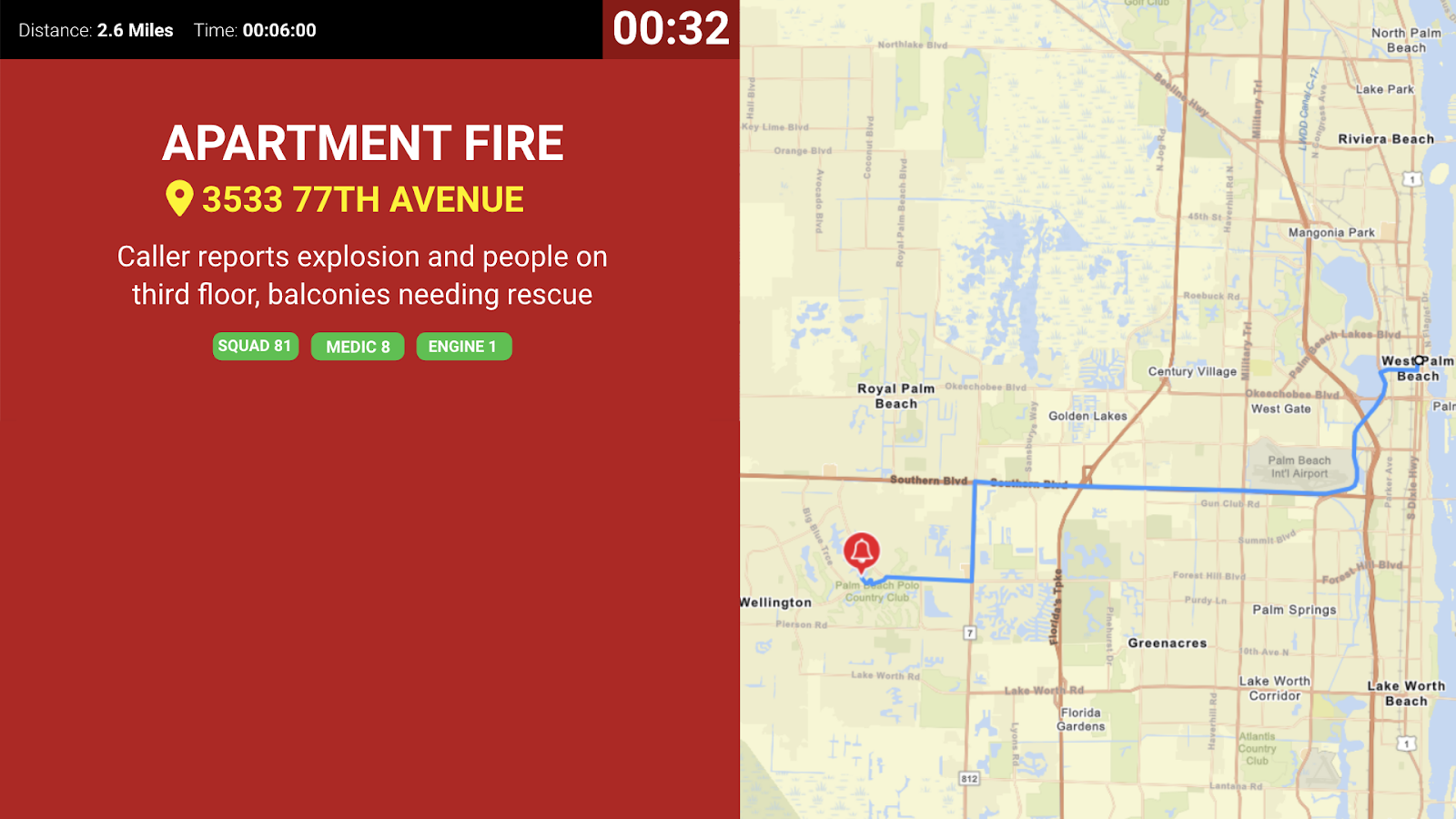
Two-panel view
Call information on the left half of the page. The right side carries one full-height view — directions, Street View, or the hydrant map.
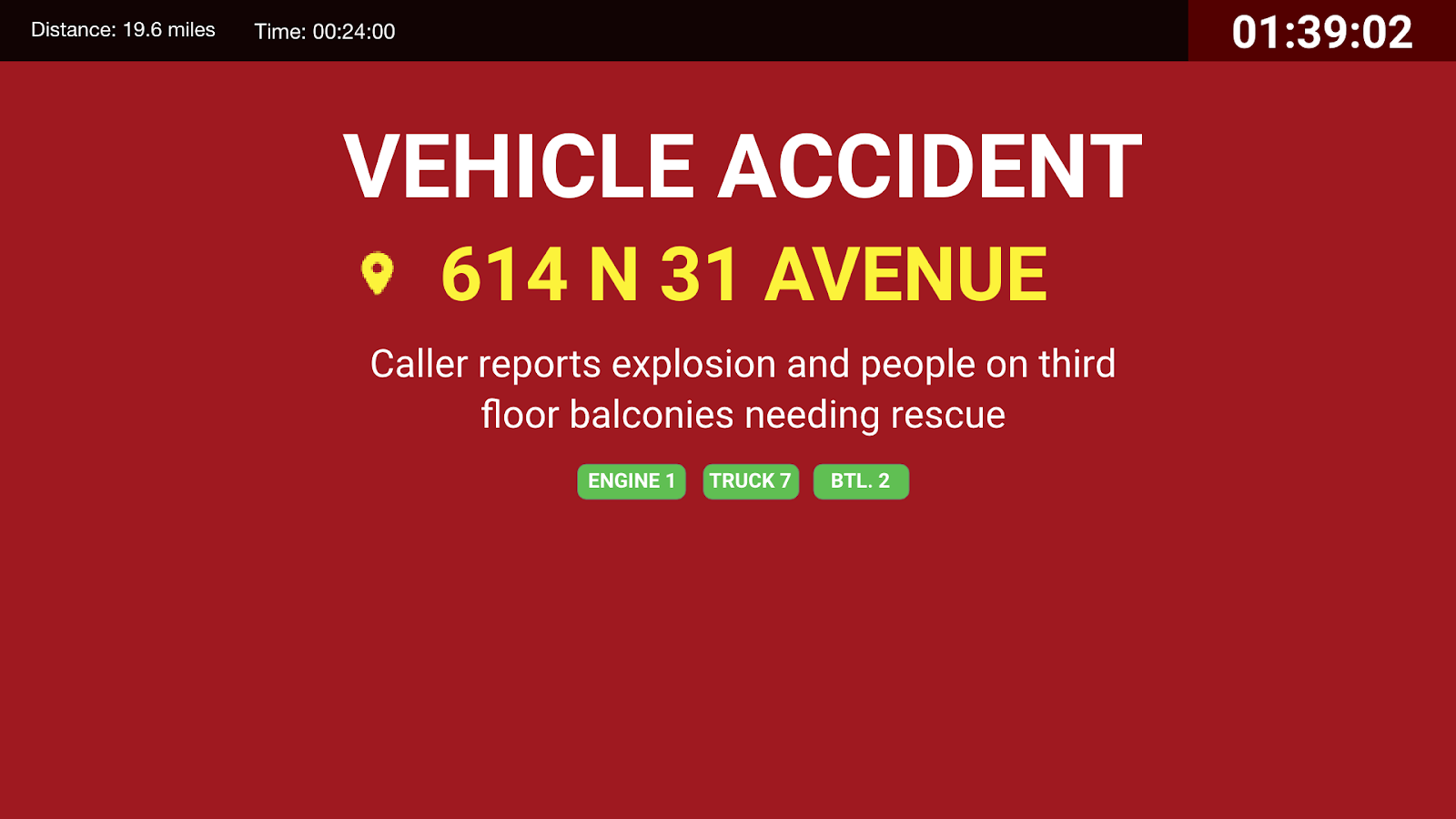
Single-panel view
Call information only.
Unit status
A dedicated screen showing which units are out and which are available.
Street View needs its own Google key: Street View is provided by Google Maps and requires a separate Google Maps API key.
The screens below are a sample, not the full set. For the current, complete list of alerting screen styles, see Response & Call Alerting Screen Options.
Secondary notification only: our platform is built for secondary notification of alarms and situational awareness. Always rely on your CAD or dispatch center for primary dispatch information.
Questions about setup, or want help deciding which view belongs in which station? Open a ticket at our support center or reach us at dashboards@firstarriving.com and we’ll walk through it with you.