
Integration Guide
Southern Software CAD
First Arriving’s integration with Southern Software brings several things from CAD onto your screens at once — what you’re responding to, where every unit is, and which dispatches haven’t been cleared. Hot List items can go on the screens too.
What we can put on your dashboard
Four separate feeds, each configured on its own.
Real-time alarm notification
What appears when a call is dispatched.
- Nature of call
- Address
- Units dispatched
- Notes from dispatch
- Mapping options are covered in Response & Call Alerting Screen Options
Hot List
Hot List items displayed directly on your dashboards.
- Type
- Location
- Start date and time
- End date and time
Unit Status
Where your units are, as a scrolling ticker or fixed on the right side of the screen.
- Show all units in service, or only units on a call
- Unit ID and unit
- Status — enroute, arrive, clear, and so on
Ongoing Calls
Dispatches that haven’t been cleared yet.
- Call type
- Address
- Dispatched day and time
What we need from you
Both steps happen on the Southern Software side — you don’t need to send us credentials.
About vendor charges: any fees for data or API access are set by Southern Software, not by First Arriving.
Example screens
The screens below are a sample, not the full set. For the current, complete list of alerting screen styles, see Response & Call Alerting Screen Options.
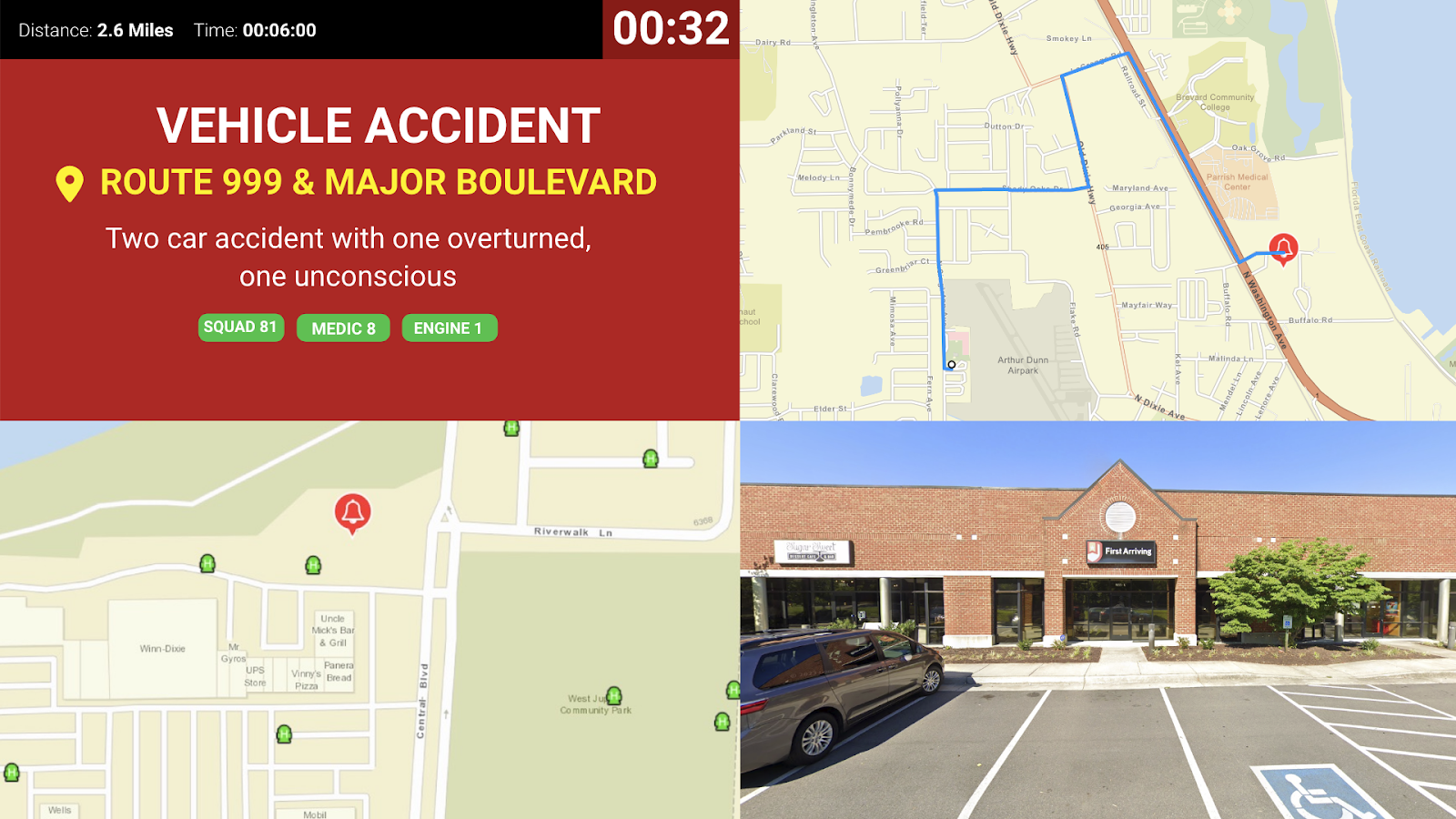
Option 1: Four Corners
Incident details, hydrants, routing with Google Street View, turnout clock, and units dispatched. Optionally who’s responding, if your integration supports it.
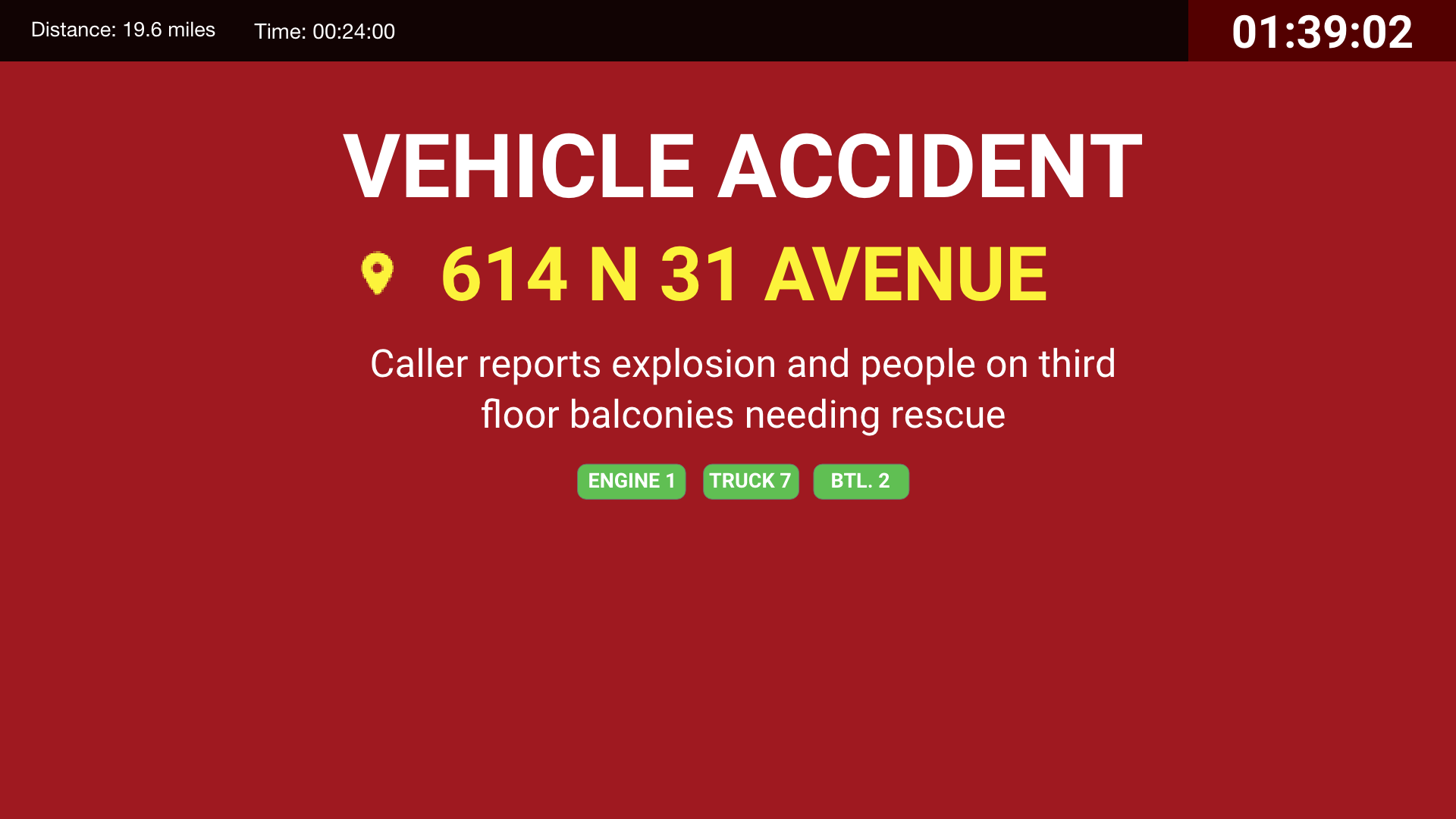
Option 2: The Basics
Incident details, units dispatched, turnout clock, time and distance. Optionally who’s responding, if your integration supports it.
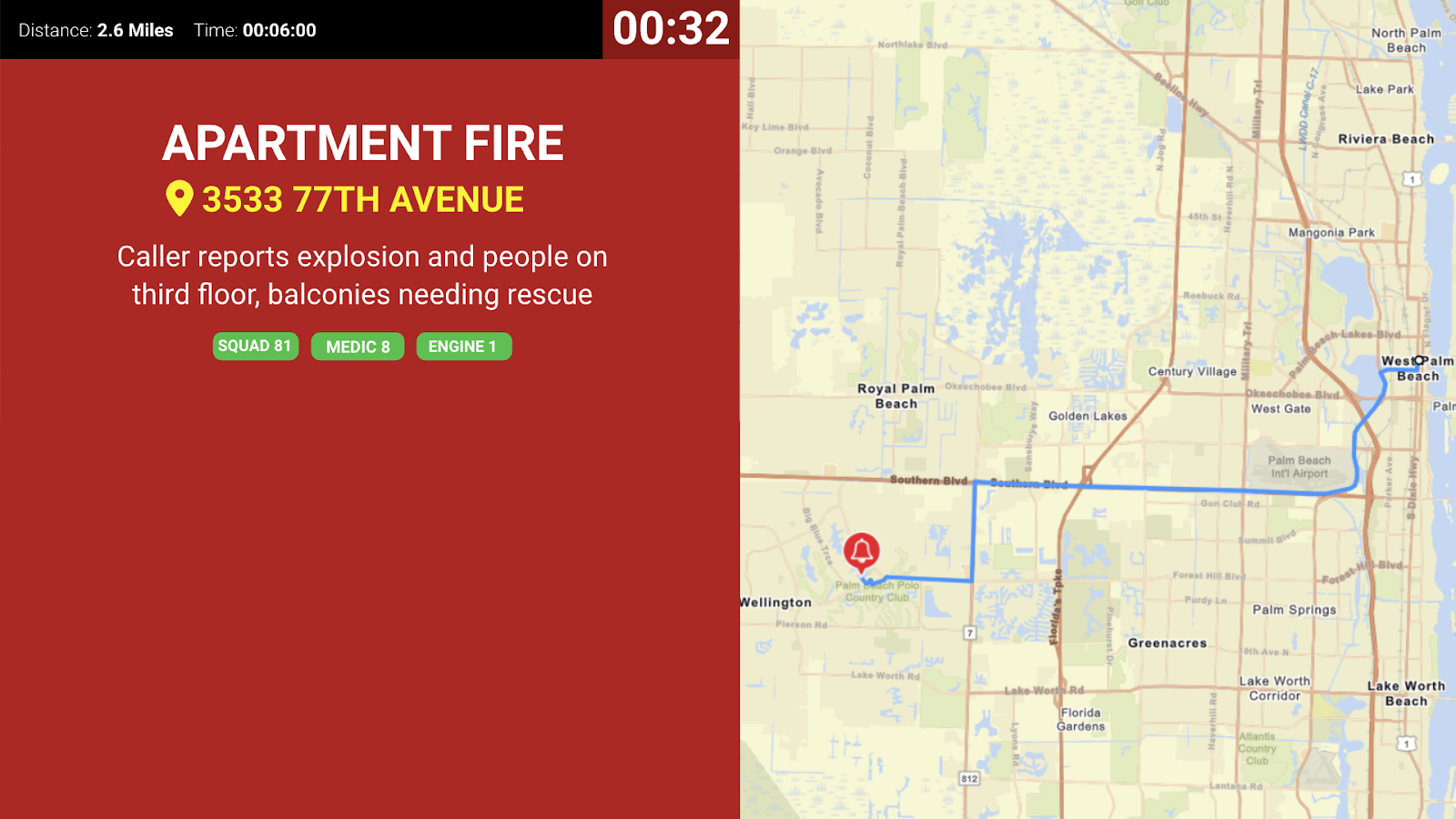
Option 3: Two Sides
Dispatch information including units responding, call details, turnout time, distance, and a larger routing map. Optionally who’s responding, if your integration supports it.
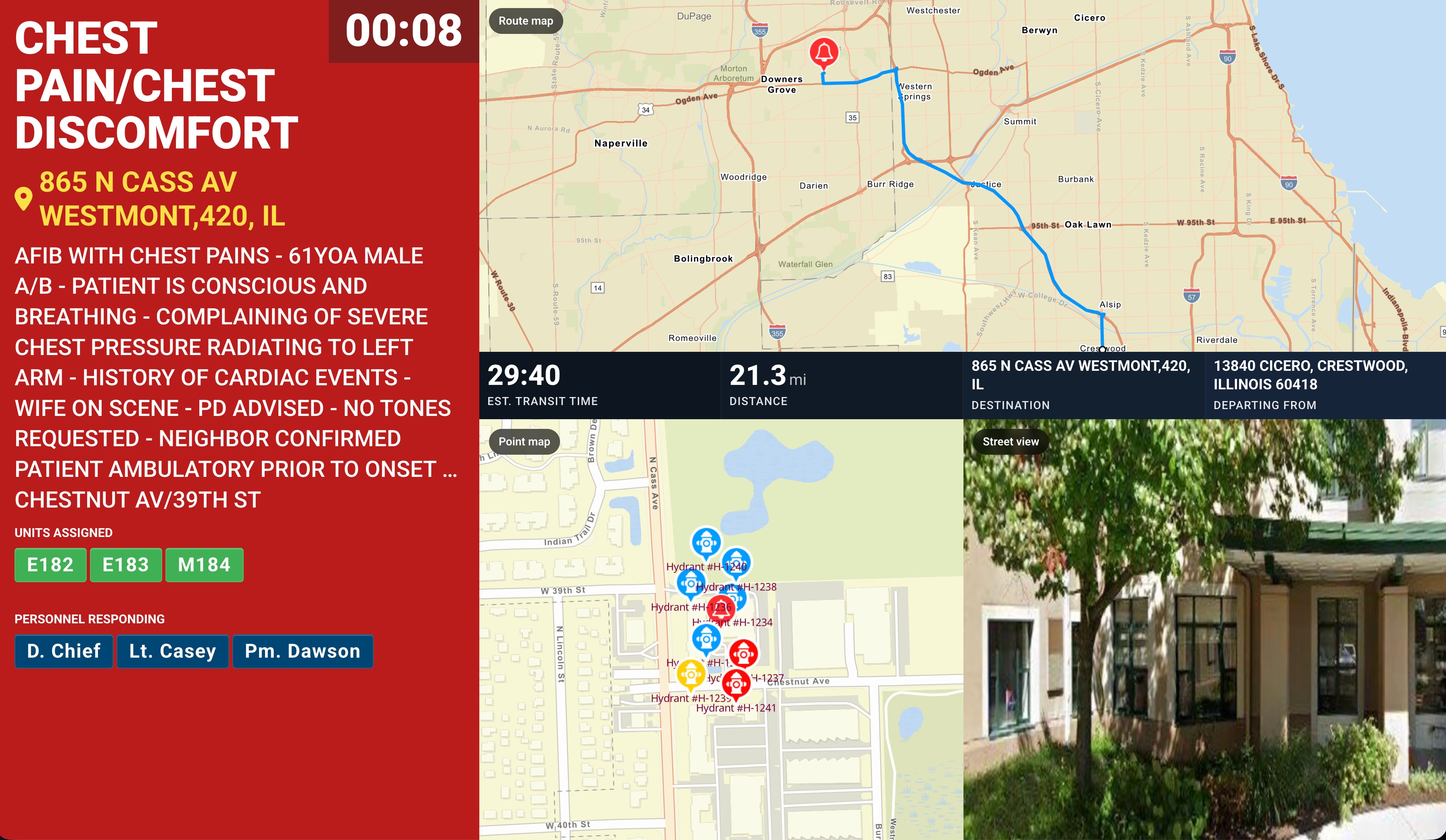
Option 4
Dispatch information including units responding, call details, turnout time, distance, hydrant layers, street view, and a routing map. Optionally who’s responding, if your integration supports it. Available with a red or black background.
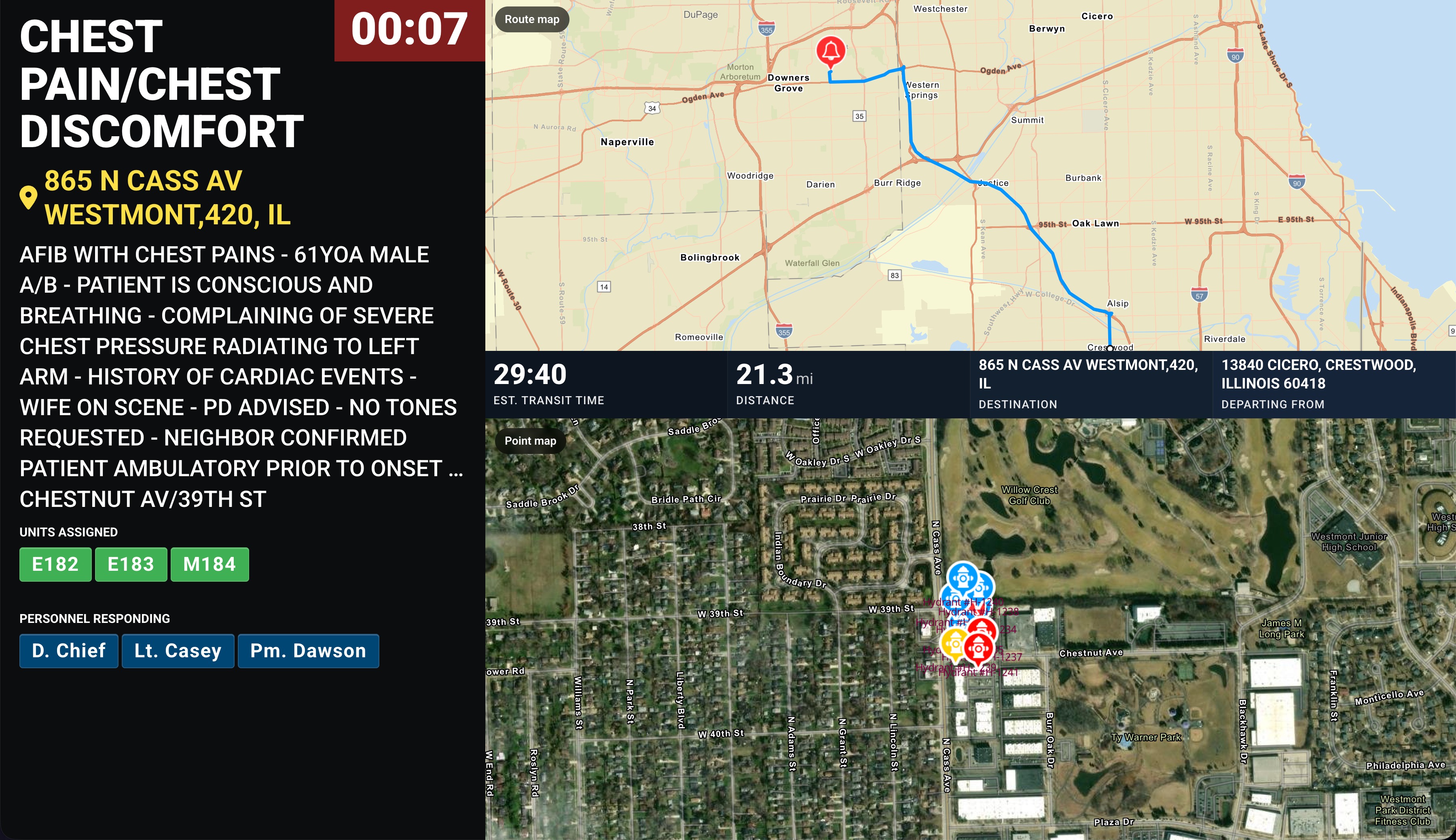
Option 5
Dispatch information up top including units responding, call details, turnout time, distance, hydrant layers, and street view — no routing map. Optionally who’s responding, if your integration supports it. Available with a red or black background.
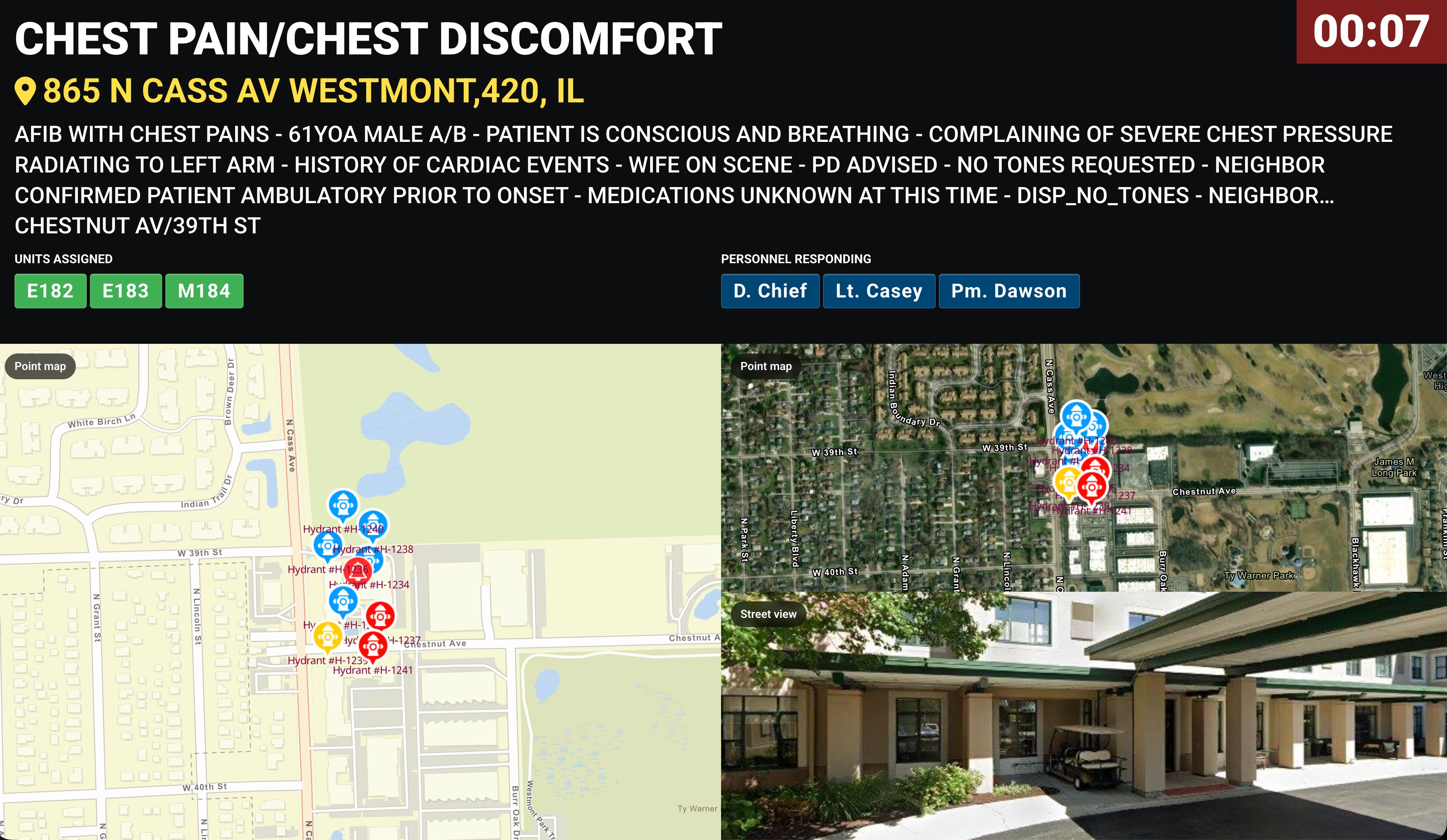
Option 6
Dispatch information on the left including units responding, call details, turnout time, distance, and a routing map. Optionally who’s responding, if your integration supports it. Available with a red or black background.
Secondary notification only: our platform is built for secondary notification of alarms and situational awareness. Always rely on your CAD or dispatch center for primary dispatch information.
Questions about setup, or want help deciding which alerting screen belongs in which station? Open a ticket at our support center or reach us at dashboards@firstarriving.com and we’ll walk through it with you.