Integration Guide
Schedule2.IT Integration
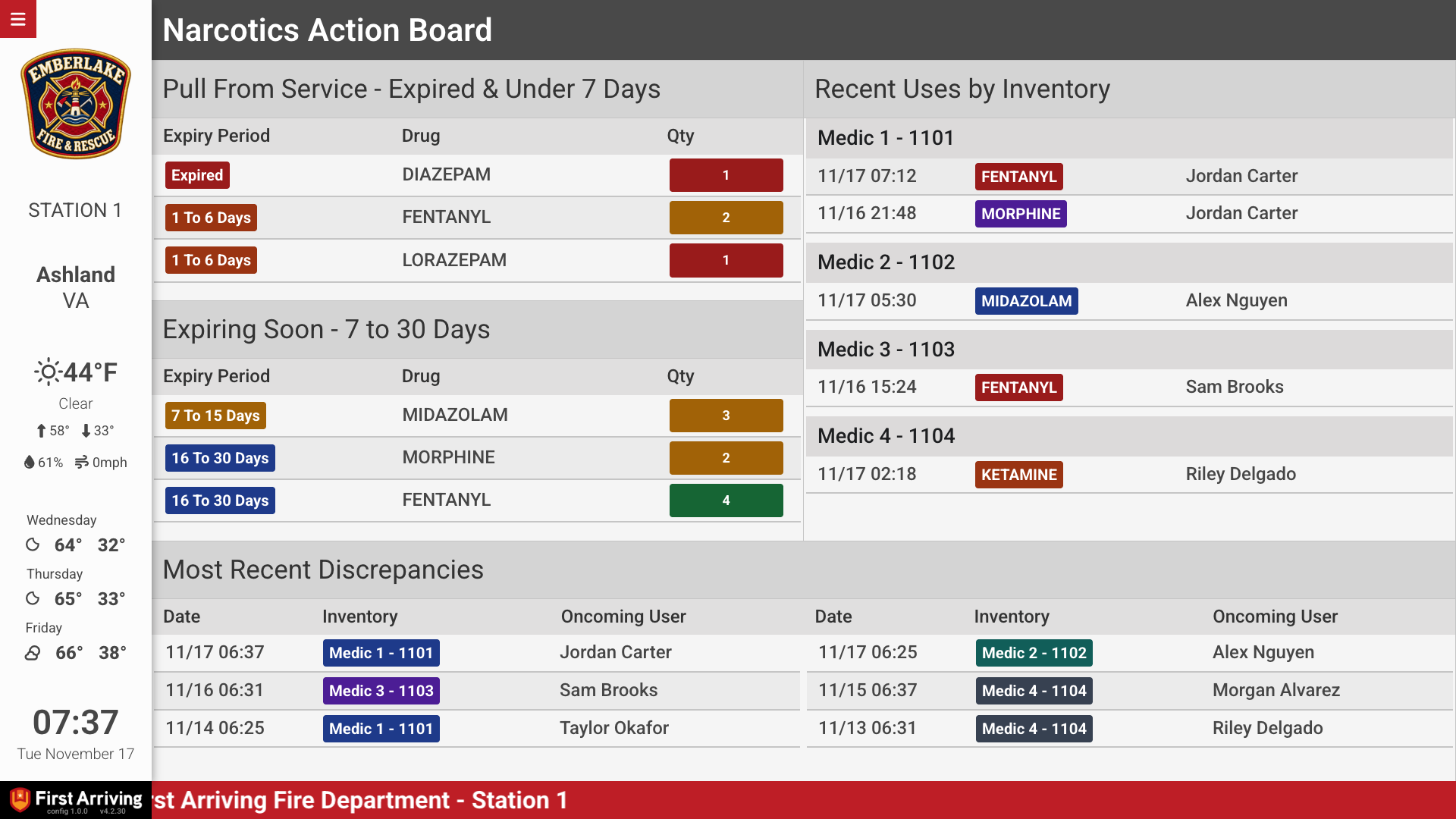
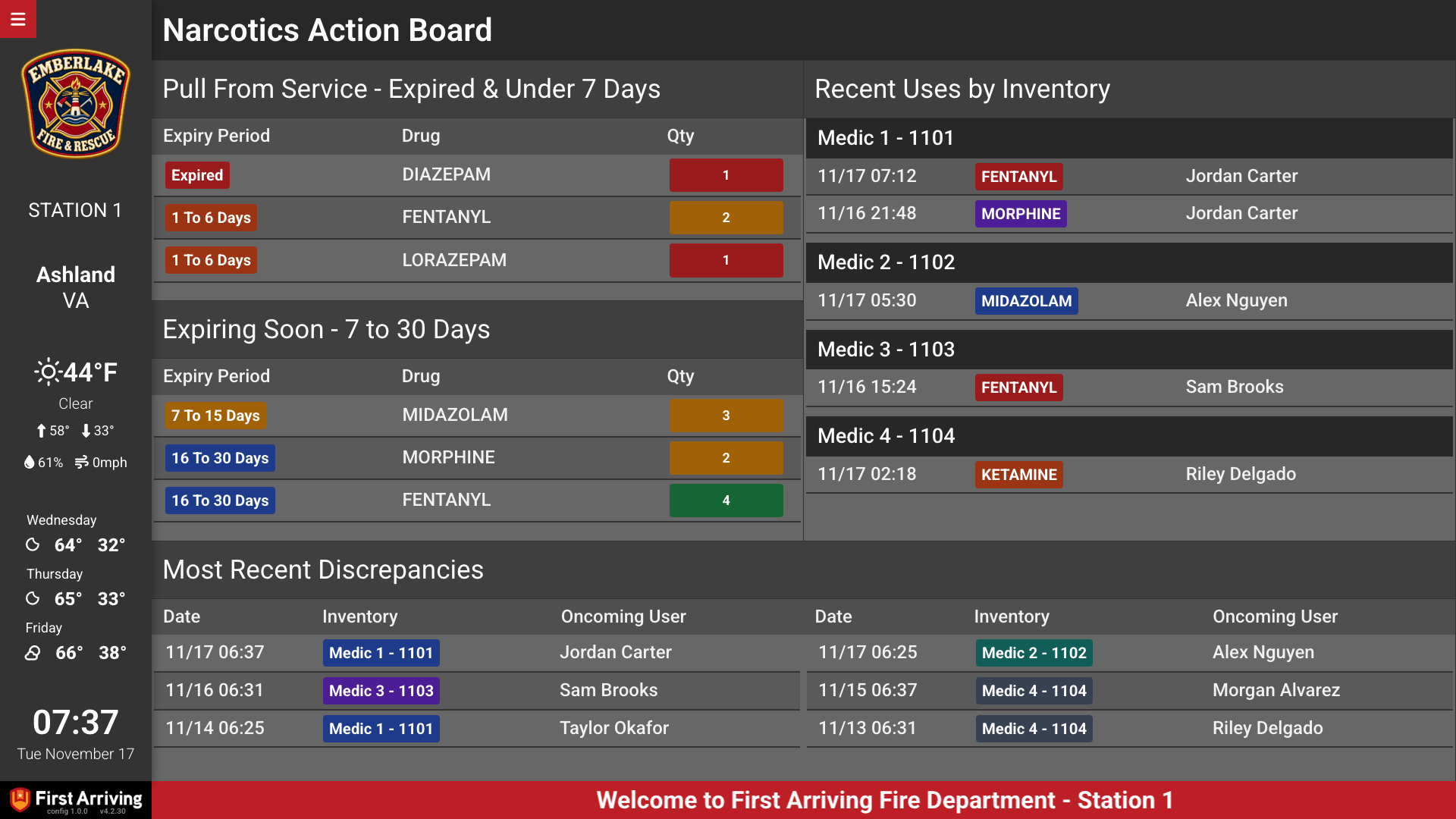
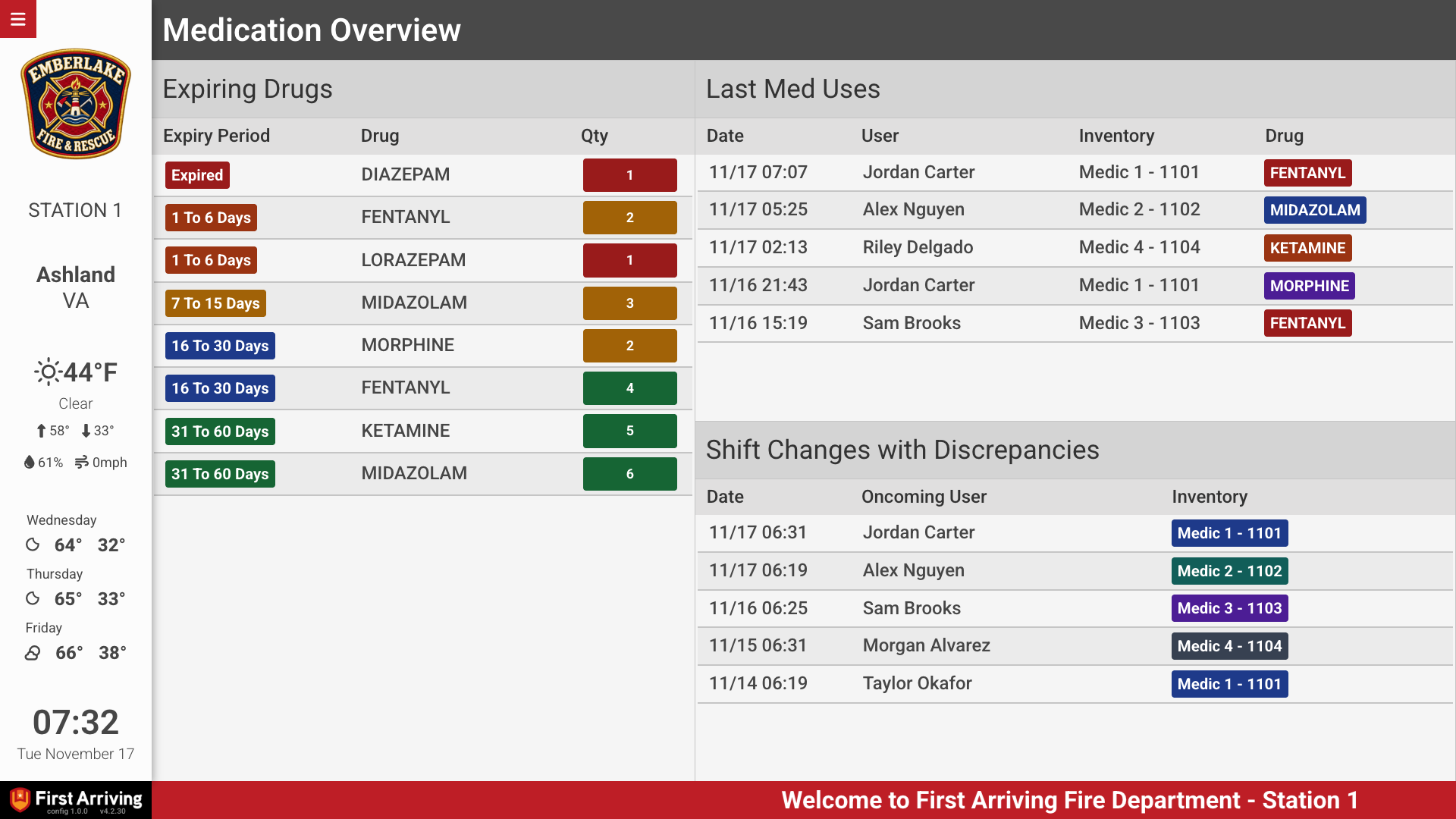
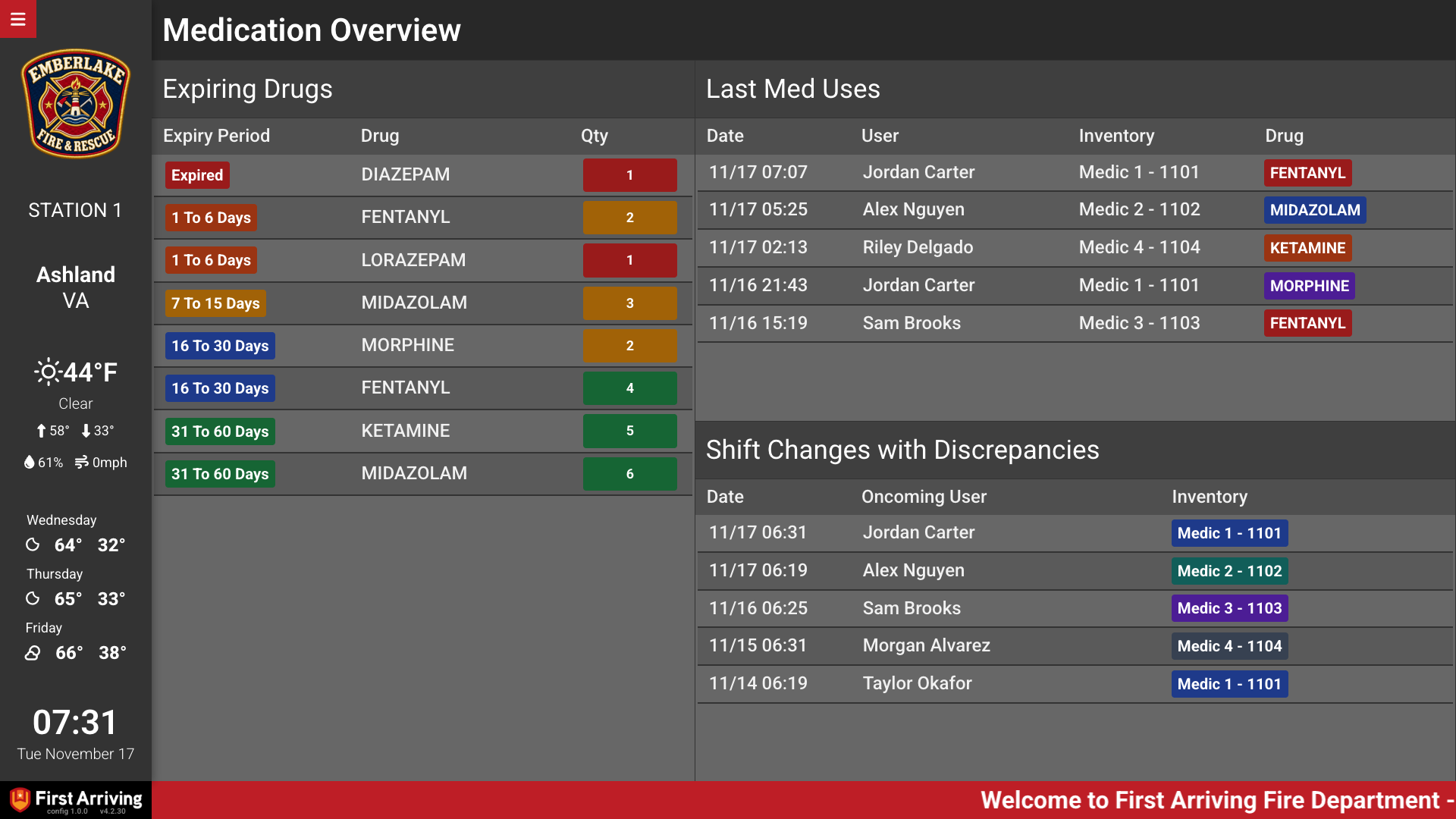
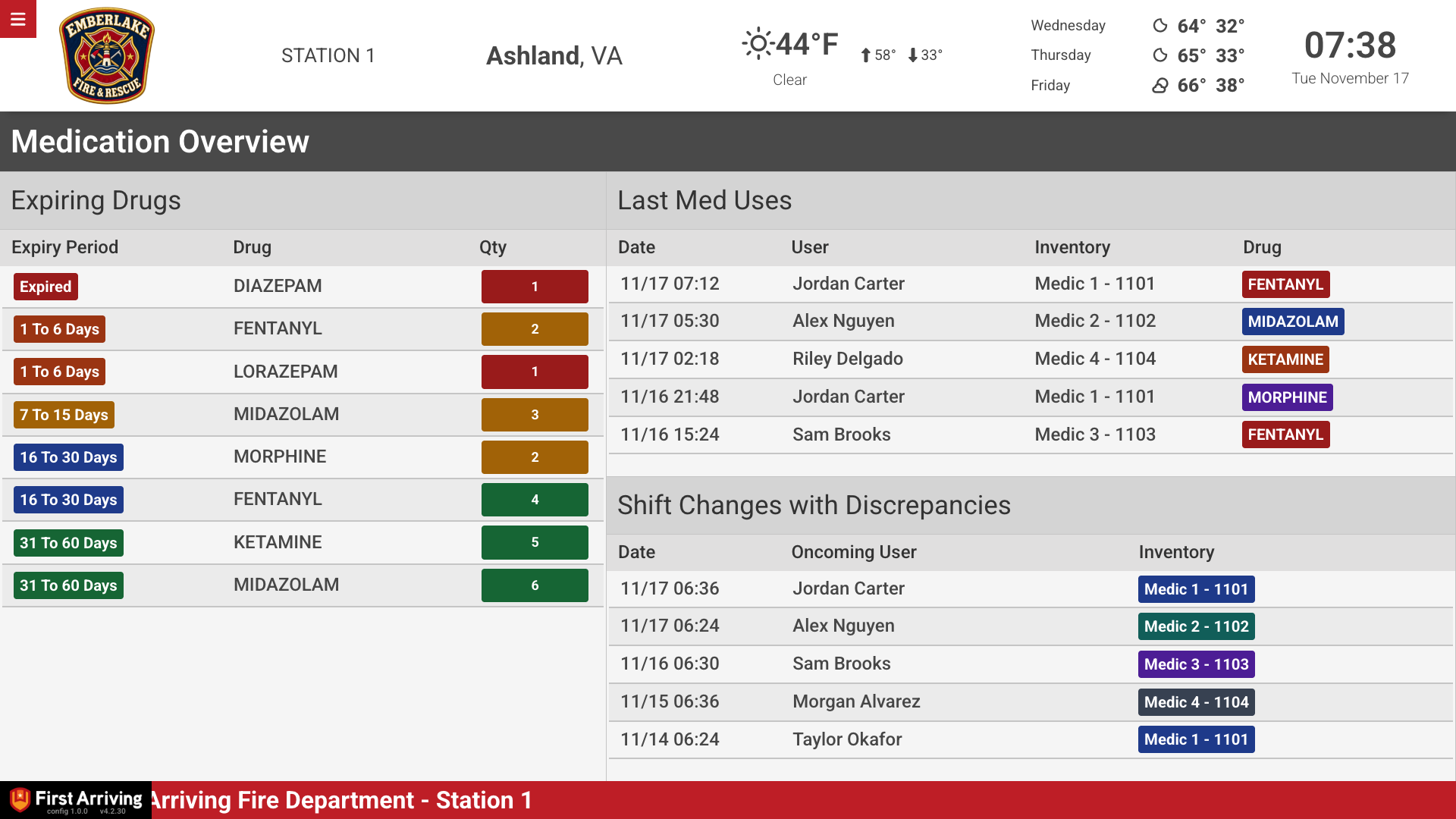
Show your Schedule2.IT controlled-substance tracking on station screens: recent medication uses, shift changes where a crew reported a discrepancy, and vials that are expired or expiring soon, so a problem gets noticed while there's still time to act.
What we can put on your dashboard
Medication use
- Five most recent medication uses
- Medication
- Inventory name
- Date and time
Shift-change discrepancies
- Five most recent shift changes with a reported discrepancy
- Inventory name
- When it happened
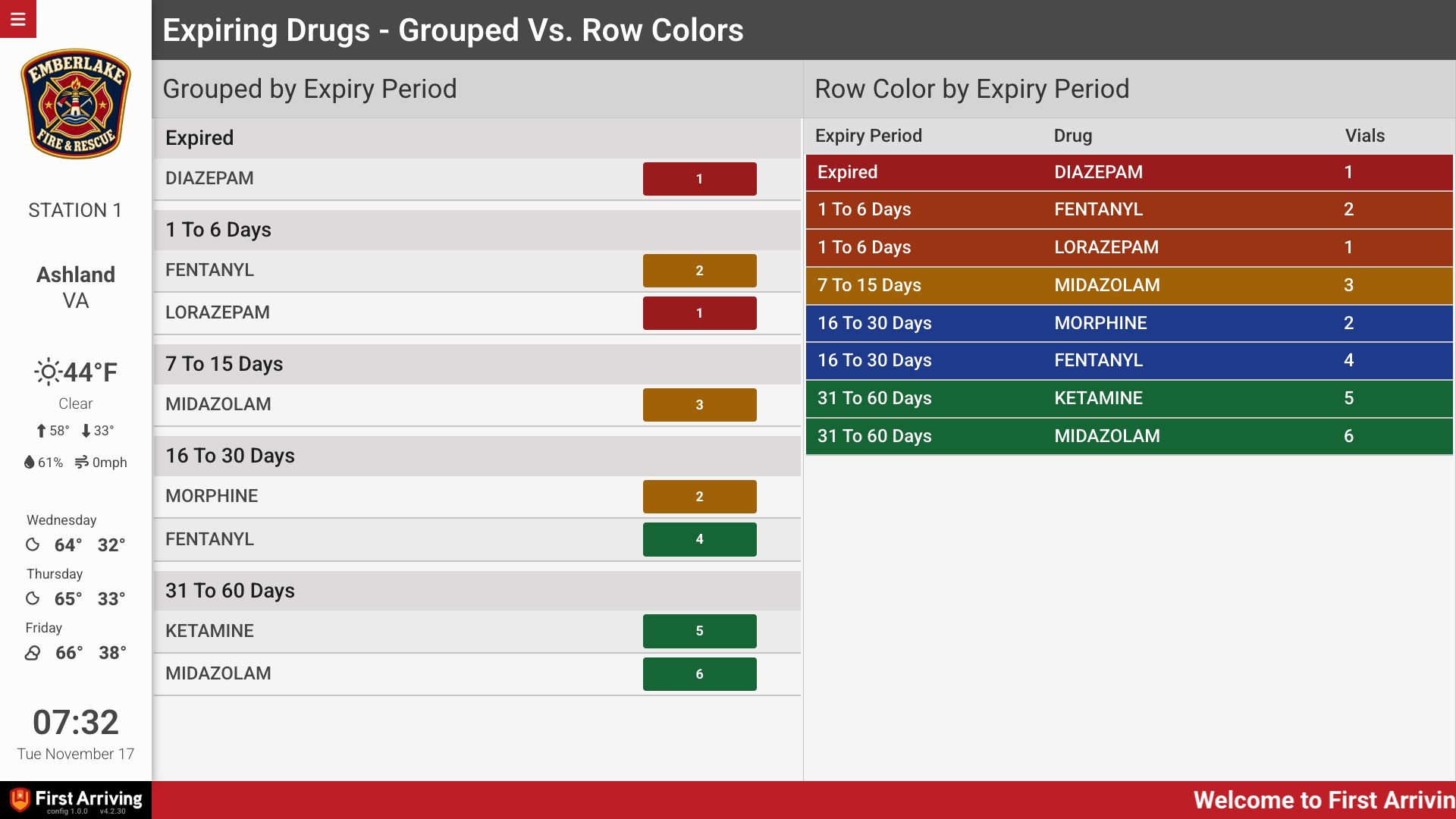
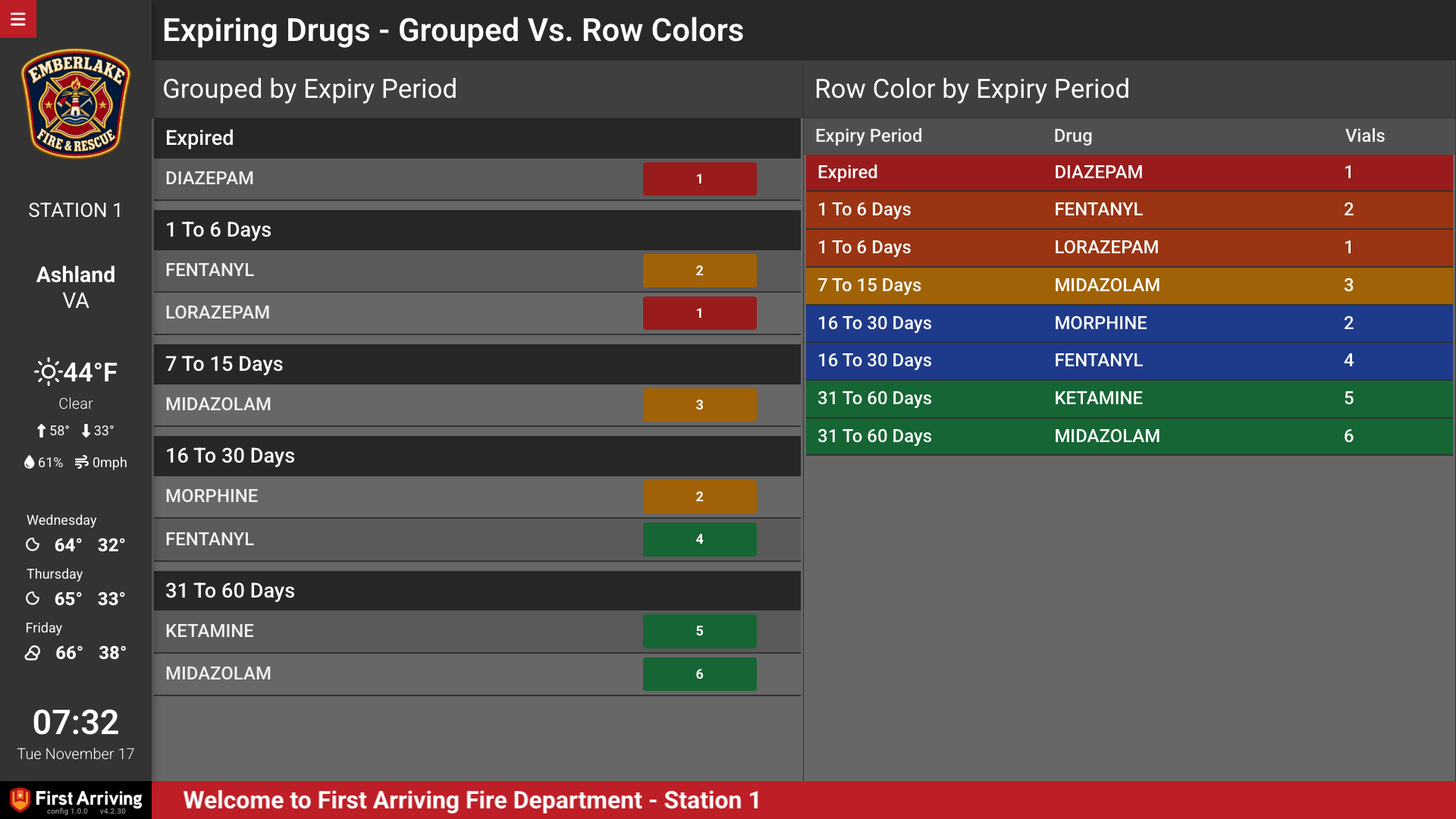
Expirations
- Vial counts by medication
- Already expired
- Expiring in 1–6 days
- Expiring in 7–15 days
- Expiring in 16–30 days
- Expiring in 31–60 days
What we need from you
You need a Schedule2.IT account with agency Admin access. You connect the integration yourself in Schedule2.IT, so you don't send us any credentials.
Example screens
Questions about setup, or want expirations on one screen and medication use on another? Open a ticket at our support center or reach us at dashboards@firstarriving.com.