
Integration Guide
First Due
The integration between First Arriving and First Due brings real-time alerting, scheduling, and assets to your dashboards — plus scheduled report deliveries for anything else in your First Due data. Set up one or all four, and mix them on the same screen or split them across stations.
What we can put on your dashboard
Each of these is set up independently, with its own requirements. Jump to the one you need: Alerting · Scheduling · Assets · Ad Hoc Reports
Alerting
Calls, the moment they drop
Real-time incident details, turnout timer, ETA and distance, and mapping from station to scene.
Scheduling
Who’s on today
Rosters, shifts, and assignments in grouped or flat table views, color-coded by unit or position.
Assets
Rigs, gear, and open work
Apparatus status, overdue checklists, and work orders on the screen instead of in a queue.
Ad Hoc Reports
Anything else in First Due
Build a report on any First Due data and have it delivered to us automatically on a schedule.
Alerting
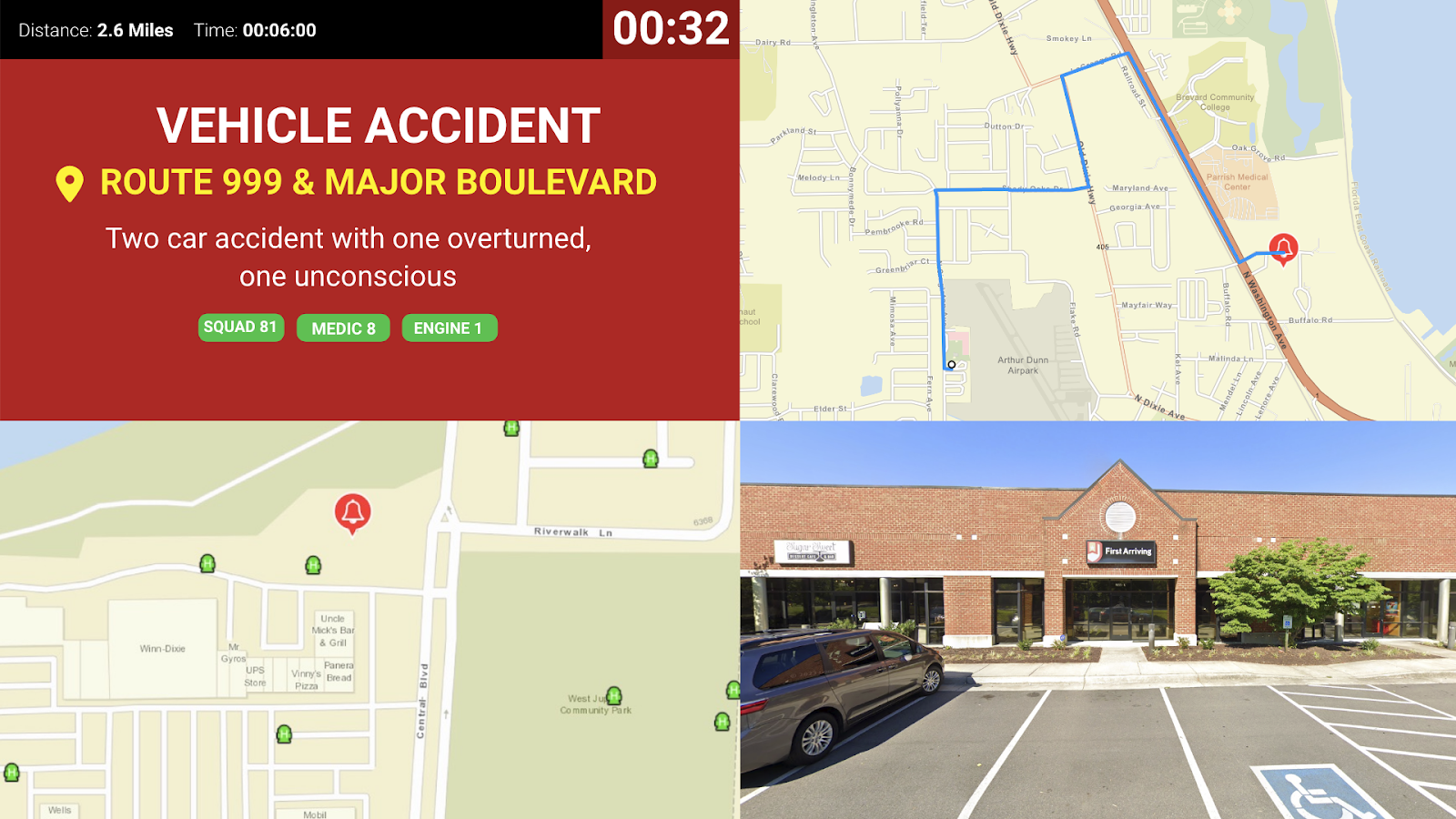
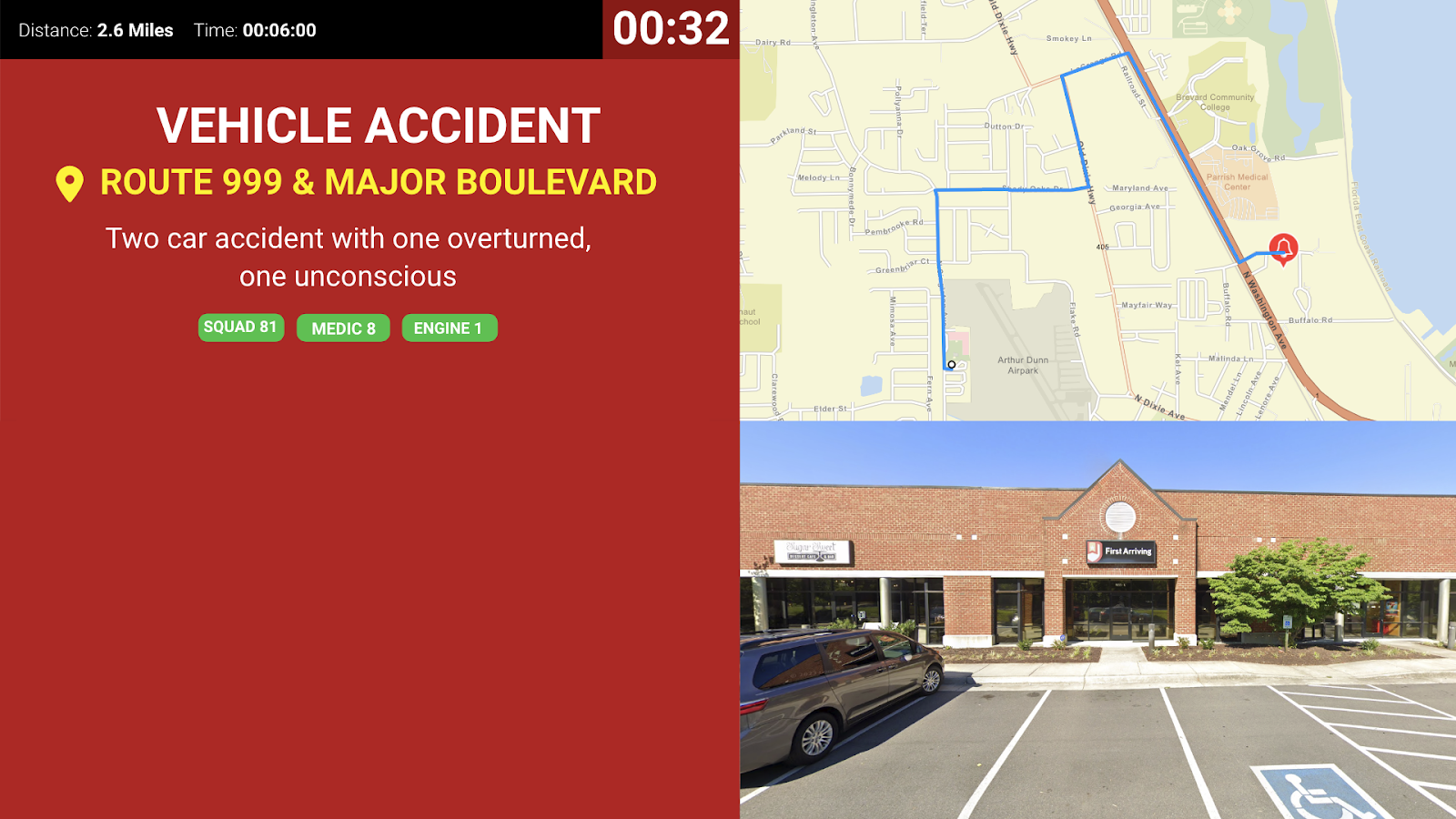
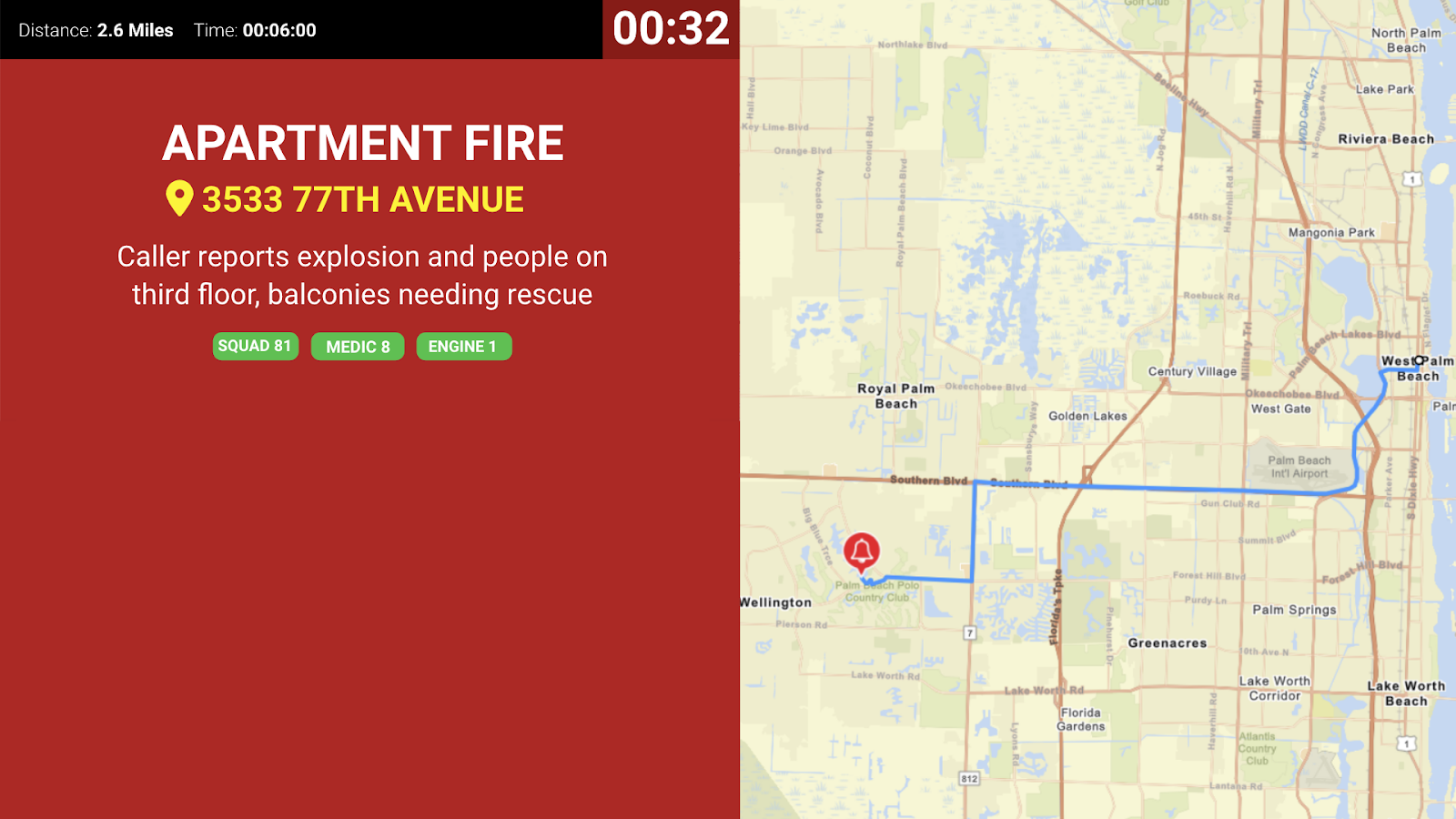
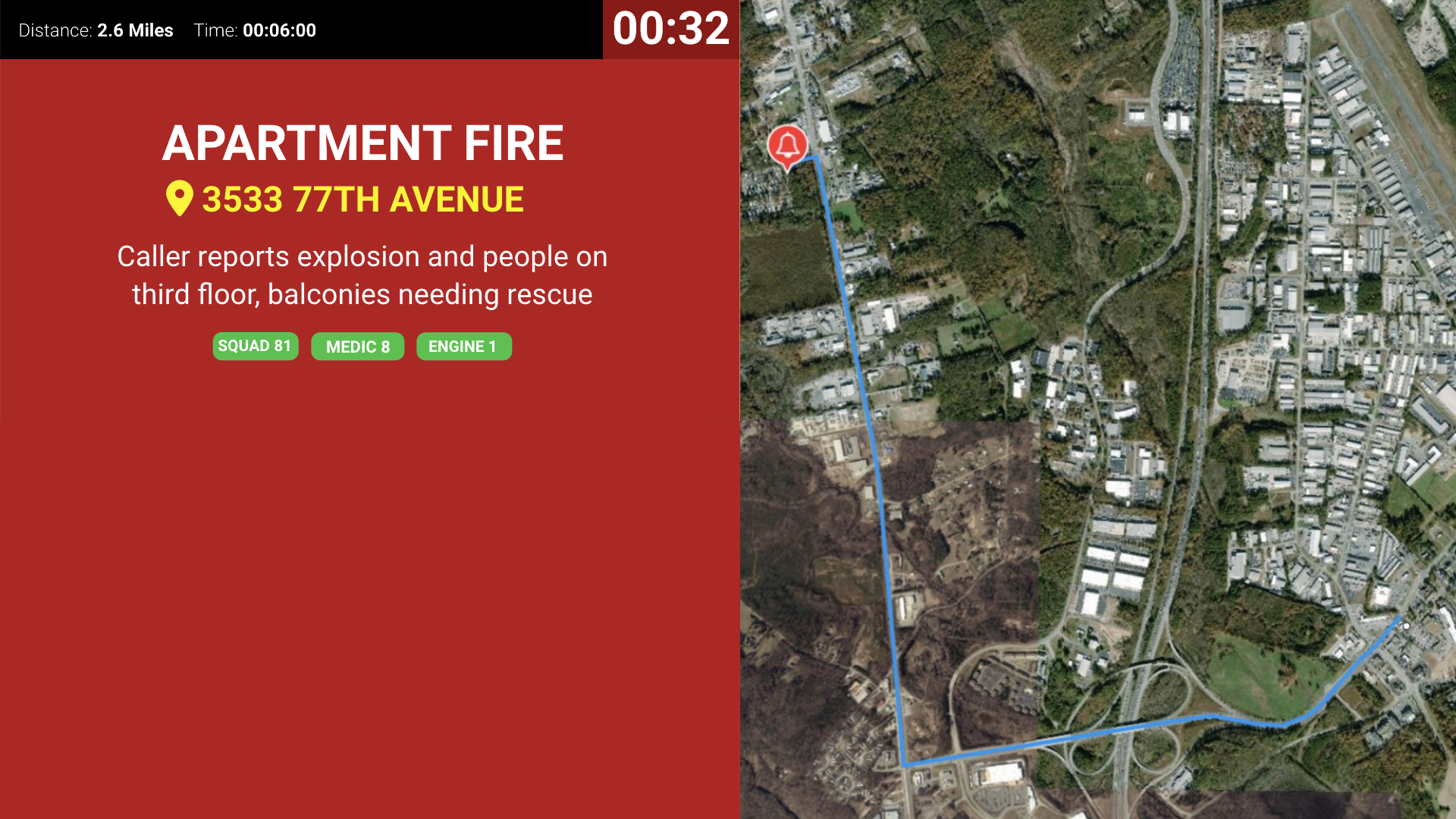
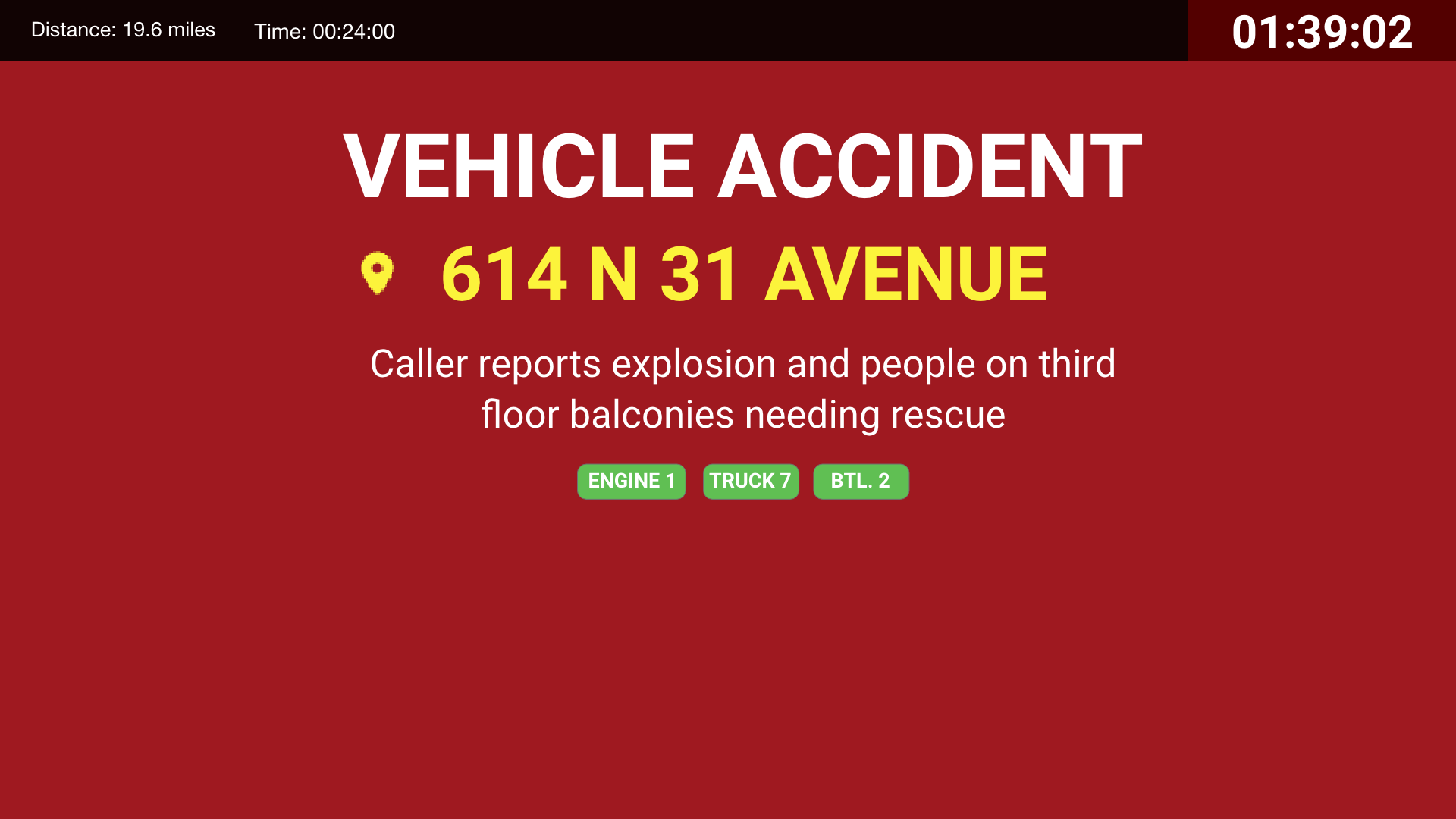
Real-time alerts for active incidents, giving crews instant access to critical call details while they’re responding.
Key features
- Real-time call information: address, nature of call, units dispatched, and call notes
- Turnout timer
- ETA and distance
- Custom alert sounds — listen to examples
- Mapping with the route from station to scene, Google Street View, and other mapping features
- ESRI layers
What we need from you
First Due requests the token on your behalf — you don’t need to generate anything yourself. Contact your First Due account manager to start the process, and they’ll reach out to dashboards@firstarriving.com to complete it.
Compatible views
The screens below are a sample, not the full set. For the current, complete list of alerting screen styles you can use with First Due, see Response & Call Alerting Screen Options.
Scheduling
Connects First Due’s scheduling and staffing data to your dashboards, pulling rosters, shifts, and assignments into display-friendly formats that can be grouped, styled, and placed next to your other integrations.
This integration is enabled via an API connection with First Due, where we pull data from their API.
Key features
- Both 1-day and multi-day roster views — yesterday, today, tomorrow
- Grouping by First Due schedule names, typically named by unit
- Optional display of positions or roles
- Custom color coding per unit or position
- Show or hide entries based on schedule name
What we need from you
There are two ways to connect scheduling. Either works — pick one.
- Shared URL. Create an external sharing link from your First Due scheduling module and email it to dashboards@firstarriving.com. Your First Due account manager can help you set this up.
- API. Ask your First Due account manager for an API username and password, then send them to us through the First Arriving Secrets Tool and paste the generated link into a ticket at our support center — please don’t email credentials directly. Full instructions: Sending First Arriving sensitive information. Email dashboards@firstarriving.com to start the process.
Compatible views
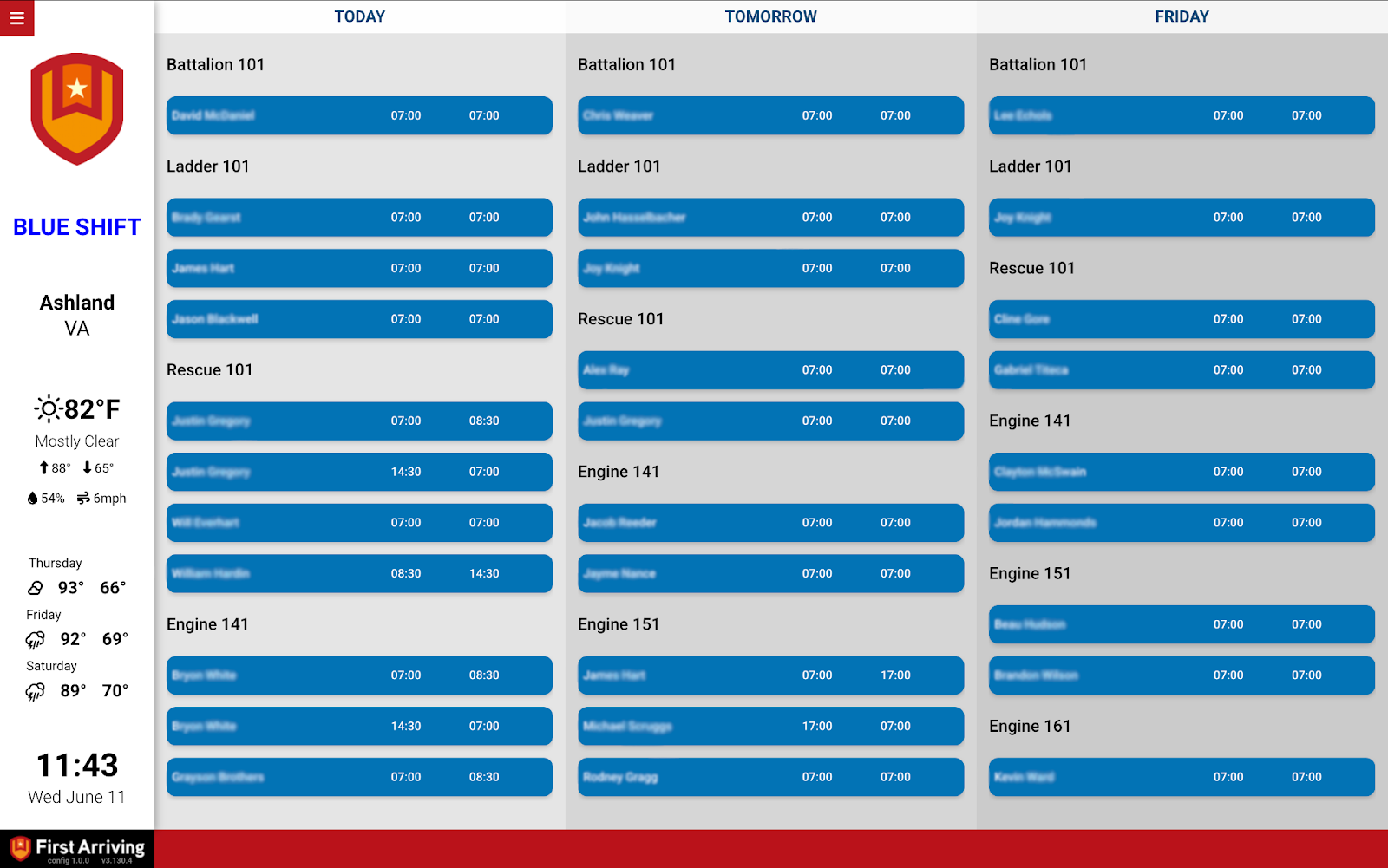
Group table view. Units grouped by schedule name. Color-code by unit or position, and sort by station, schedule, position, or name.
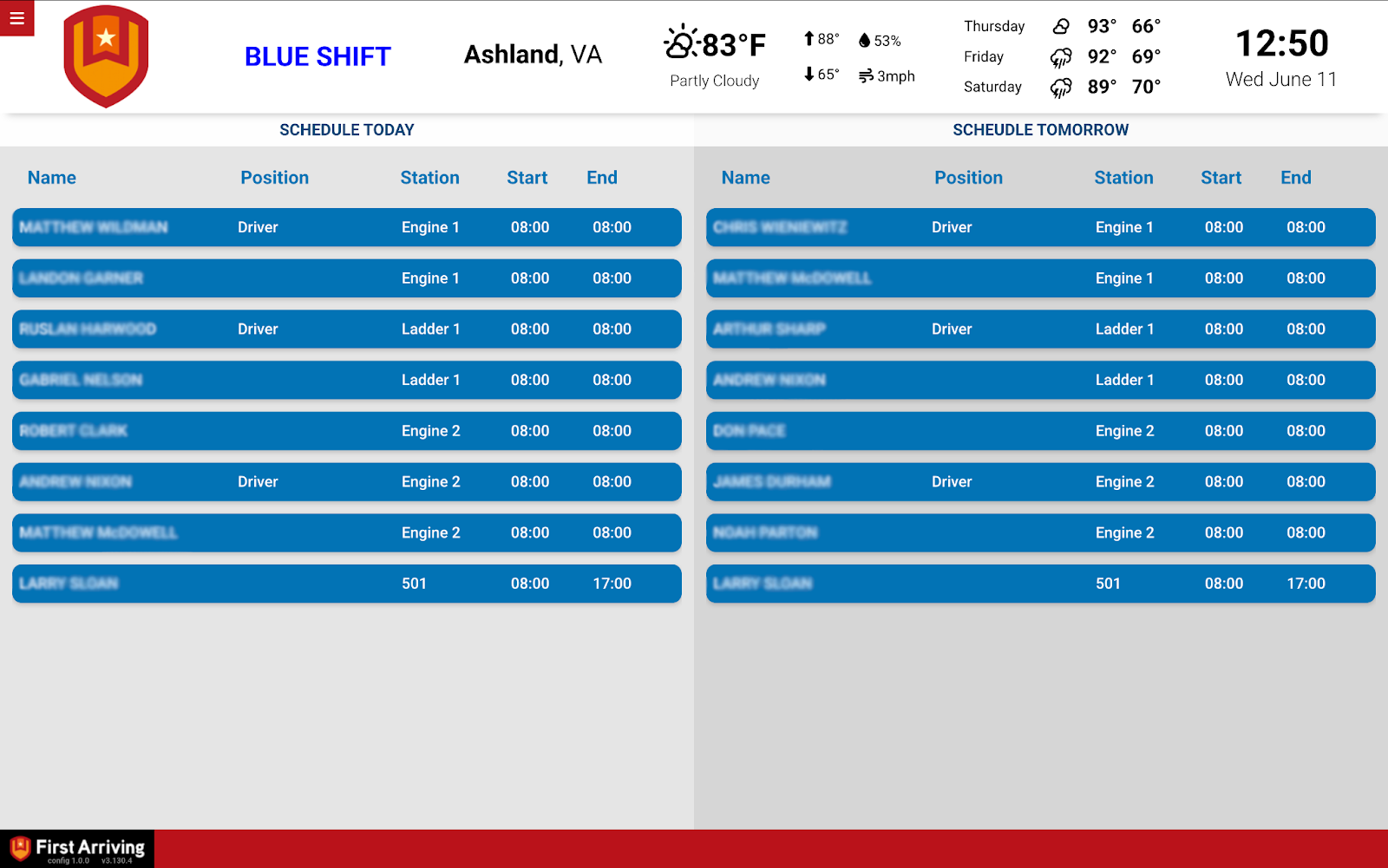
Standard table view. No grouping. Color-code by unit or position, and sort by position or schedule.
Assets
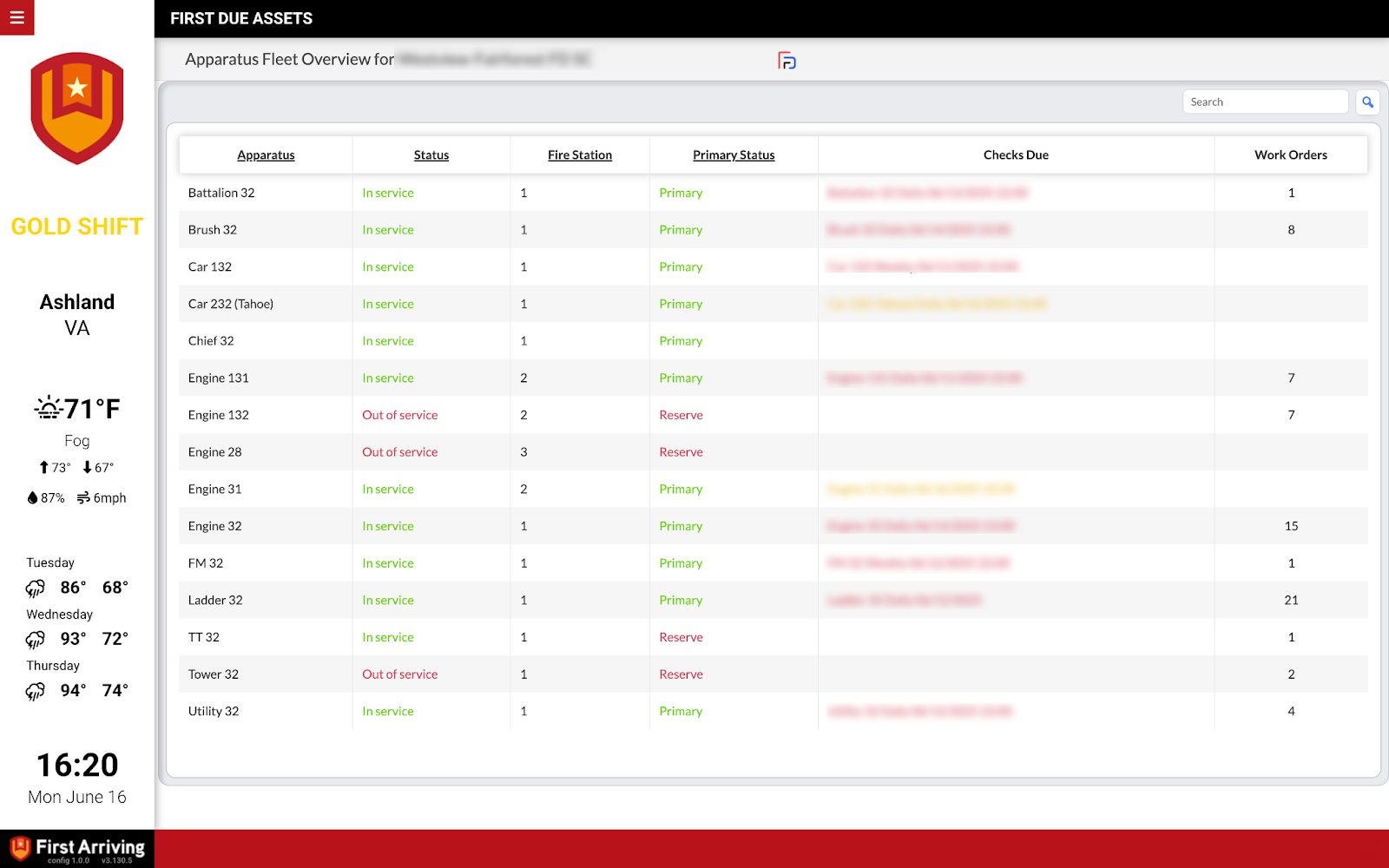
Lets you manage and display equipment, apparatus status, and overdue tasks directly on your dashboard.
Key features
- Apparatus
- Status
- Overdue checklists
- Work orders
What we need from you — asset and equipment management
Create an external sharing link from your First Due asset module and email it to dashboards@firstarriving.com. Your First Due account manager can help you set this up.
A note on cost: data and API access may carry an additional charge from the vendor. That’s determined by First Due, not by First Arriving.
Compatible views
Ad Hoc Reports
First Due Ad Hoc Reports can feed data to First Arriving through automated recurring report deliveries. This is the most flexible option: if the data lives in First Due and isn’t covered by the integrations above, a scheduled report can usually get it onto your dashboard.
Common examples
- A report built from All Scheduling to drive an on-duty crew display
- A report built from Incident Report Apparatus to provide operational timestamps for response statistics
How to set it up
After setup: First Due generates and delivers the files automatically on your schedule, and we ingest the latest data to keep your dashboards and station displays current. Nobody has to remember to run anything.
Questions about setup, or want help deciding which of these belongs on which screen? Open a ticket at our support center or reach us at dashboards@firstarriving.com and we’ll walk through it with you.