
Integration Guide
Bryx / Bryx911
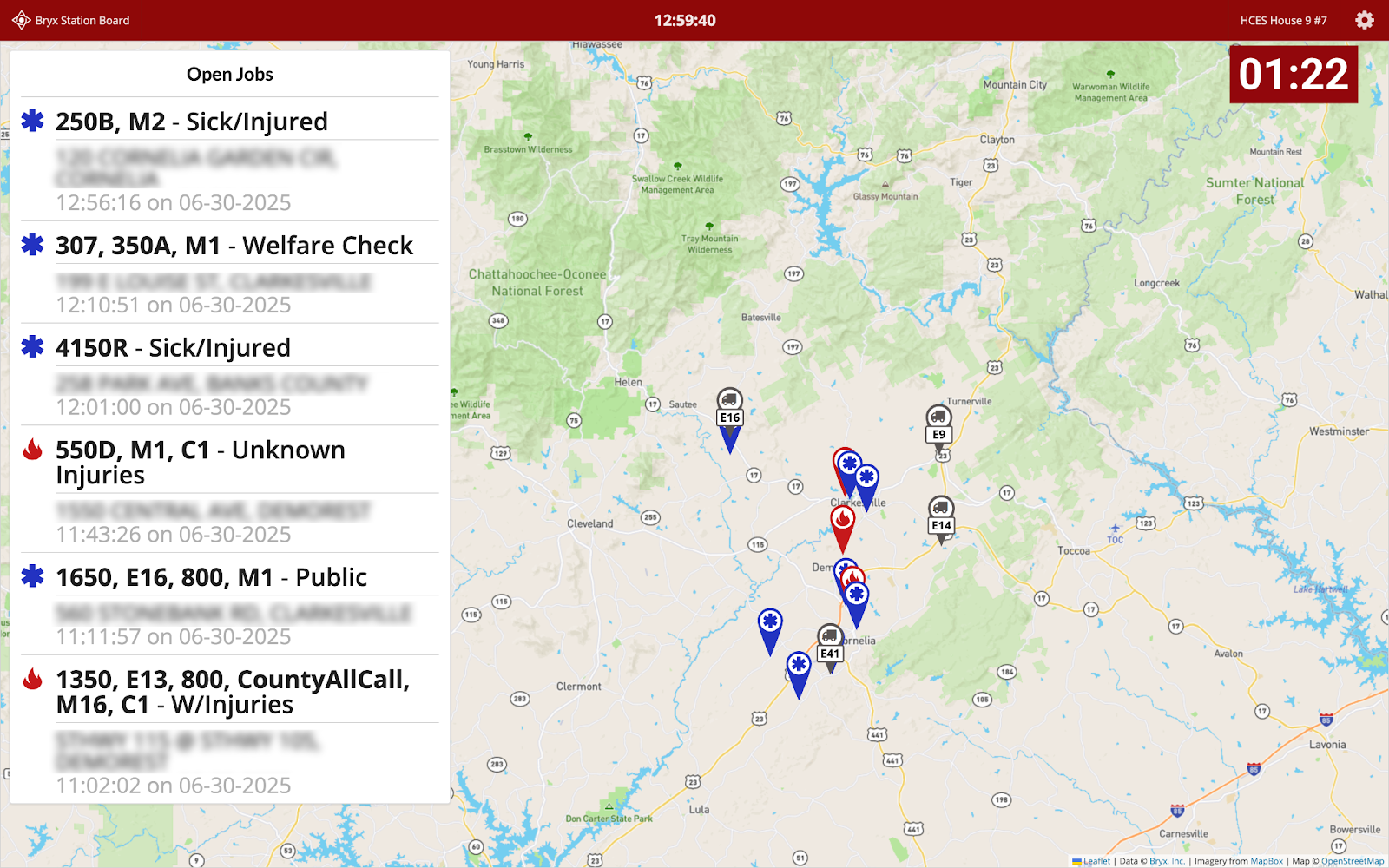
Put your Bryx Station alerting board on the screens in your stations, with Bryx’s own mapping and a First Arriving turnout timer alongside it — and a toggle back to the Station Board for group messaging.
About Bryx. Headquartered in Rochester, NY, Bryx is an employee-owned technology company and a trusted leader in reducing emergency response times. Their free Bryx 911 mobile app and Bryx Station alerting system offer alerting, messaging, and communications tools for first responders, and their patented, data-driven solutions are proven to save time where time matters most.
What we can put on your dashboard
Key features
Bryx drives the alerting display; we add the timer and the dashboard around it.
- Real-time alerting with Bryx mapping integrated
- First Arriving turnout timer
- Toggle back to the Bryx Station Board to view group messaging
What we need from you
Two prerequisites on the Bryx side, then two details for us.
Before you start: you need to be a current or in-process Bryx customer, and the Bryx Station Board feature has to be enabled on your account.
Example displays with Bryx integration


Questions about setup, or want help deciding how the Station Board sits alongside the rest of your dashboard? Open a ticket at our support center or reach us at dashboards@firstarriving.com and we’ll walk through it with you.