
Integration Guide
Google Street View
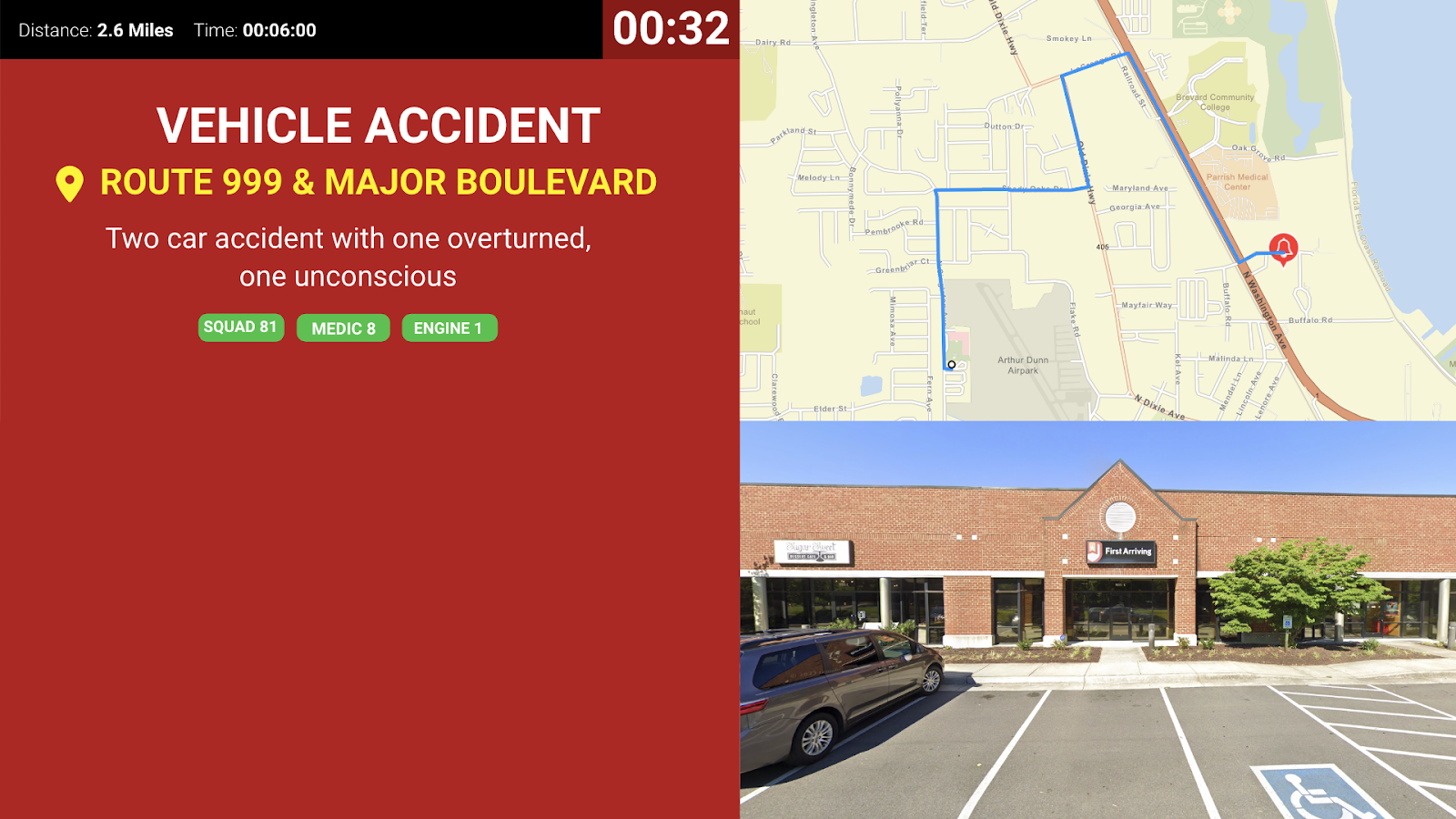
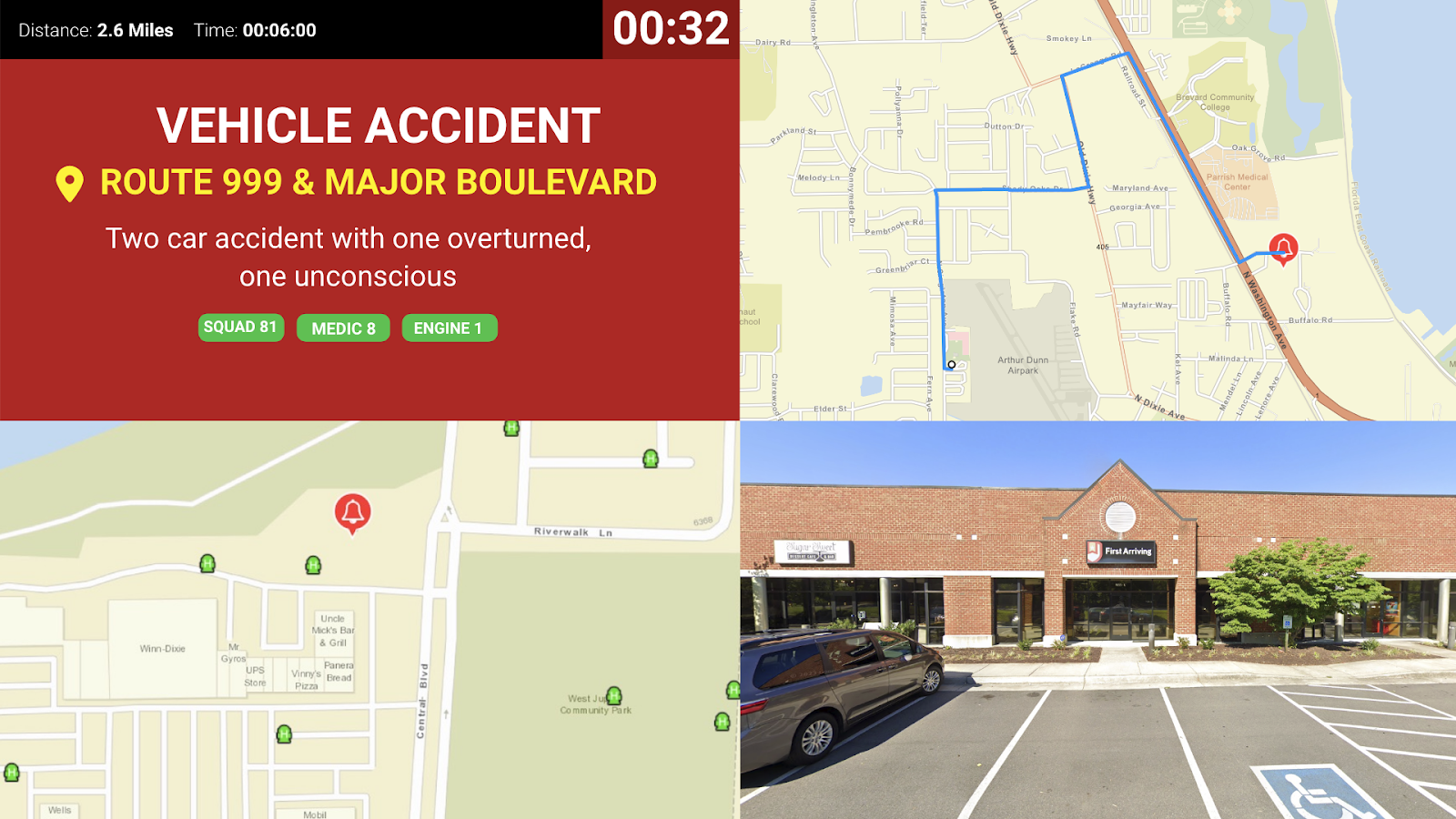
Show crews a photo of the address they are responding to, right on the alarm screen. They know what they are looking for before they arrive — call after call. Available as a still photo or as an interactive 360° view members can pan and navigate.
What we can put on your dashboard
Default
Static Street View
A still image of the incident address. Shown at half screen or quarter screen depending on what else is on your alarm screen.
Optional
Interactive 360°
Shown automatically with the alert, same as the still photo — just a panorama members can pan and navigate for a richer view of the same address.
What we need from you
Street View images come from Google Maps Platform using your agency’s own Google Cloud account, so Google bills you directly.
Still photos: what it costs
10,000 / Month
Your free allowance
Google gives every account 10,000 free Street View images a month. The counter resets on the 1st.
$7 per 1,000
If you go over
Images beyond 10,000 cost $0.007 each. The rate drops as your volume increases.
What counts as one image
One image request equals one billable view.
- A call is dispatched and the dashboard shows one Street View photo for that address → 1 image
- A screen displays three different angles of the same address → 3 images
Will you actually hit the limit?
Almost certainly not. 10,000 images a month works out to roughly 330 calls a day. An agency with 50 calls a day uses about 15% of the free allowance.
Interactive 360°: what it costs
Google prices the 360° view separately from still photos, and it costs more.
5,000 / Month
Separate free allowance
5,000 360° views a month, reset on the 1st. This is separate from your still-photo allowance — using one doesn’t draw down the other.
$14 per 1,000
If you go over
$0.014 per view — double the cost of a still photo, with half the free allowance.
What counts as a view
One panorama loading. Panning and zooming within it is free, but travelling to the next position down the street loads another view. A single call's 360° view might use 8–12 views as crews pan around it.
Our recommendation: use still photos as your default screen, and reserve 360° for the screens where crews benefit most from panning around the scene. Routine calls then draw from the larger, cheaper allowance, and 360° is there on the screens where it adds the most value.
Keeping an eye on your usage
View usage any time in the Google Cloud Console under Google Maps Platform → Metrics. For 360° usage, look for the Dynamic Street View line item.
Two optional safeguards while you are in there:
- Set a daily request cap for a hard ceiling on usage
- Set a billing alert to email you if spend crosses a threshold you choose
For Google’s full pricing detail, see Google Maps Platform pricing.
A note on coverage
Street View coverage varies, especially in rural areas. Where Google has no imagery for an address, no photo is displayed — and those coverage checks do not count against your allowance.
Example screens
These show Street View sitting on an alerting screen. For the full set of alerting screen layouts, see Response & Call Alerting Screen Options — 3.0 Customers — Street View can be added to any of them.
Questions about your Google Cloud billing, or want help working out your likely usage first? Open a ticket at our support center or reach us at dashboards@firstarriving.com.