
Integration Guide
Firehouse247
Put your Firehouse247 scheduling data on the screens in your stations — who’s on today, which unit they’re riding, what position they’re filling, and who’s off — pulled live from your schedule with no one retyping a roster onto a whiteboard.
About Firehouse247: an all-in-one operations platform built specifically for fire departments. From intelligent shift scheduling and automated payroll reporting to NERIS-compliant incident documentation, truck checks, and personnel record management, Firehouse247 centralizes the tools departments rely on every day. Designed by firefighters, it eliminates manual processes, reduces administrative workload, and keeps departments running efficiently and compliantly.
What we can put on your dashboard
A configurable shift and roster table, built from your Firehouse247 schedule. You choose the date window, which personnel details appear as columns, and how rows are grouped, ordered, filtered, and colored.
Date Window
Today, or a range
Show a single day or several, and shift the window forward or back — today, tomorrow, or the week ahead.
Columns
Only what that screen needs
Nine personnel fields to choose from, so a bay screen and an officer’s screen can show different detail.
Integration scope: this integration covers data produced by the Firehouse247 Scheduling module. Other Firehouse247 modules aren’t part of it today — if there’s something else you’d like on a screen, tell us, since requests from agencies are how we decide what gets built next.
Feature by feature
Every setting below is per widget, so you can run more than one roster table on the same dashboard — today’s crew beside tomorrow’s, or one station beside another.
Date window
How much of the schedule the table covers.
- Number of days to display — a single day by default, or a multi-day range
- Offset the window forward or backward from today, for a “tomorrow” or “yesterday” view
Fields you can display
Pick any combination of these as columns.
- Name — the person’s name
- Rank
- Unit
- Assignment
- Position
- Group
- PTO status — time-off status
- Time range — the shift’s start and end
- Start date
Grouping and organization
How the rows are arranged once the columns are set.
- Group rows by rank, unit, assignment, position, group, or start date — or show a flat list with no grouping
- Control the order the groups appear in, so your engine company isn’t alphabetized below the brush truck
- Filter rows, so a screen shows only the units or assignments that matter to it
- Sort rows within the table
- Color-code rows, so crews can find themselves from across the bay
Example screens
A shift schedule table on a First Arriving dashboard.
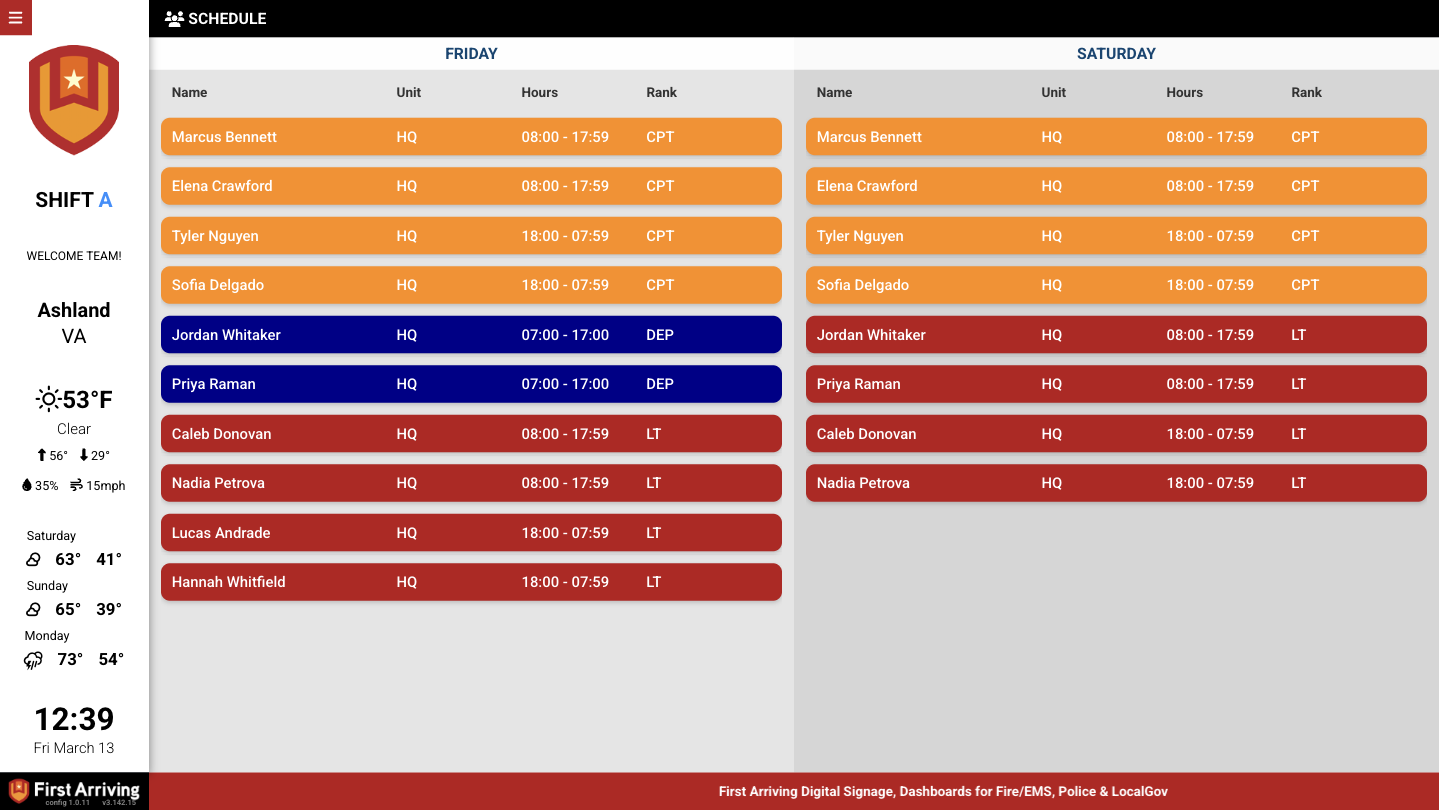
Shift schedule, grouped by unit.
How to get started
You’ll need an API key from Firehouse247, which you then send to us securely. Four steps.
Questions about setup, or want help deciding what your roster screen should show? Open a ticket at our support center or reach us at dashboards@firstarriving.com and we’ll work through it with you. For questions about your Firehouse247 account or API key, contact Firehouse247 support directly.