
Integration Guide
Emergency Networking
Connect your Emergency Networking account to your First Arriving dashboard and put your call volume, response and turnout performance, and incomplete report list on the screens in your stations — pulled straight from your records, no manual entry.
What we can put on your dashboard
Once your API token is connected, these are the widgets available in the initial Emergency Networking integration — five widgets across three formats.
3 Tables
Run data and follow-up
Call counts by unit, turnout times by unit, and a list of incidents with incomplete reports.
1 Chart
Call mix at a glance
A doughnut chart of your calls grouped by incident type.
2 Gauges
Performance on a dial
Average turnout time and average response time, each on its own radial gauge.
This is the initial widget set. If there's something else in your Emergency Networking data you'd like on a screen, tell us — requests from agencies are how we decide what gets built next.
Example screens
A few of these widgets on a First Arriving dashboard.
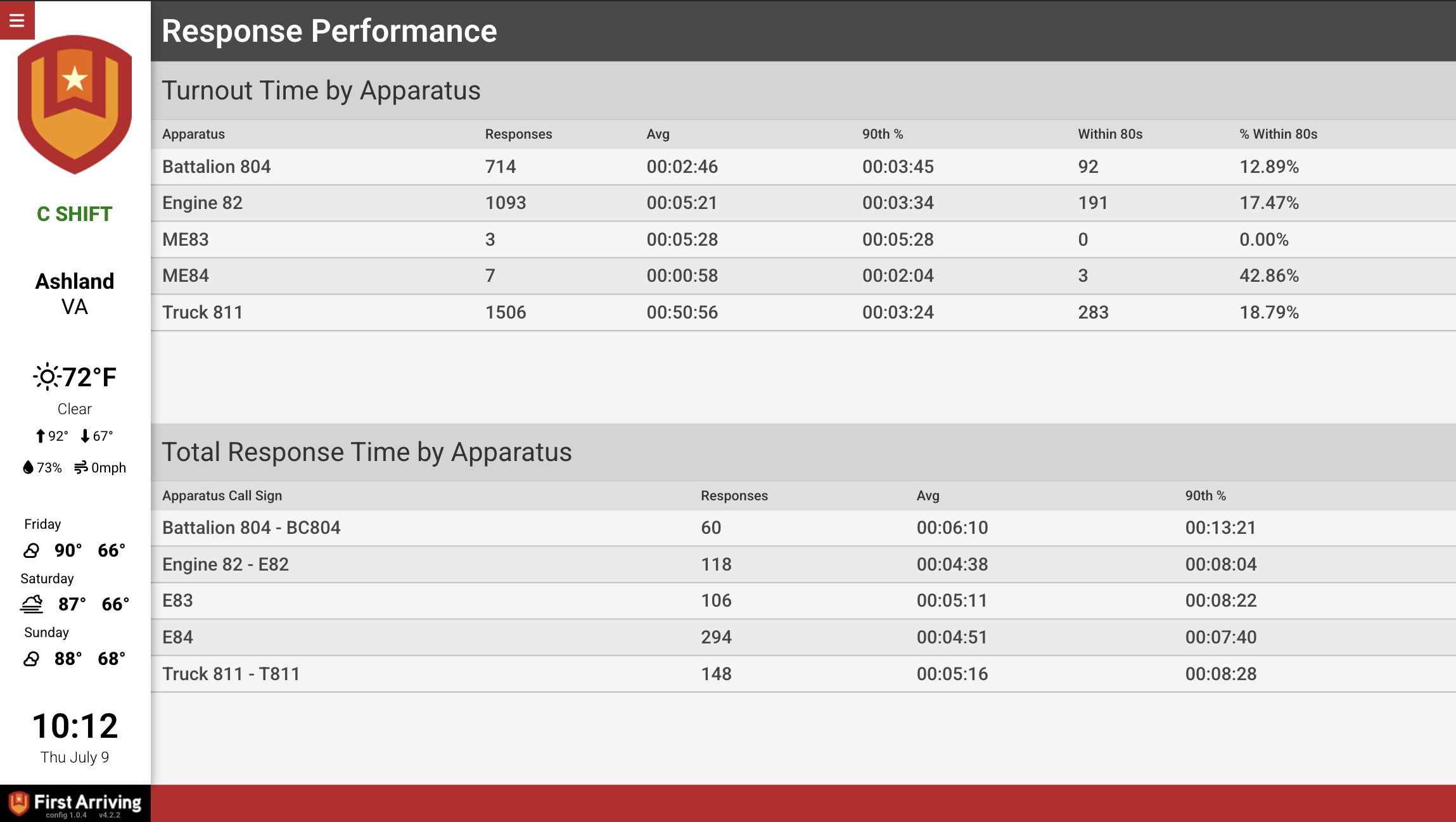
Turnout Time Table and a total response-time table, side by side.
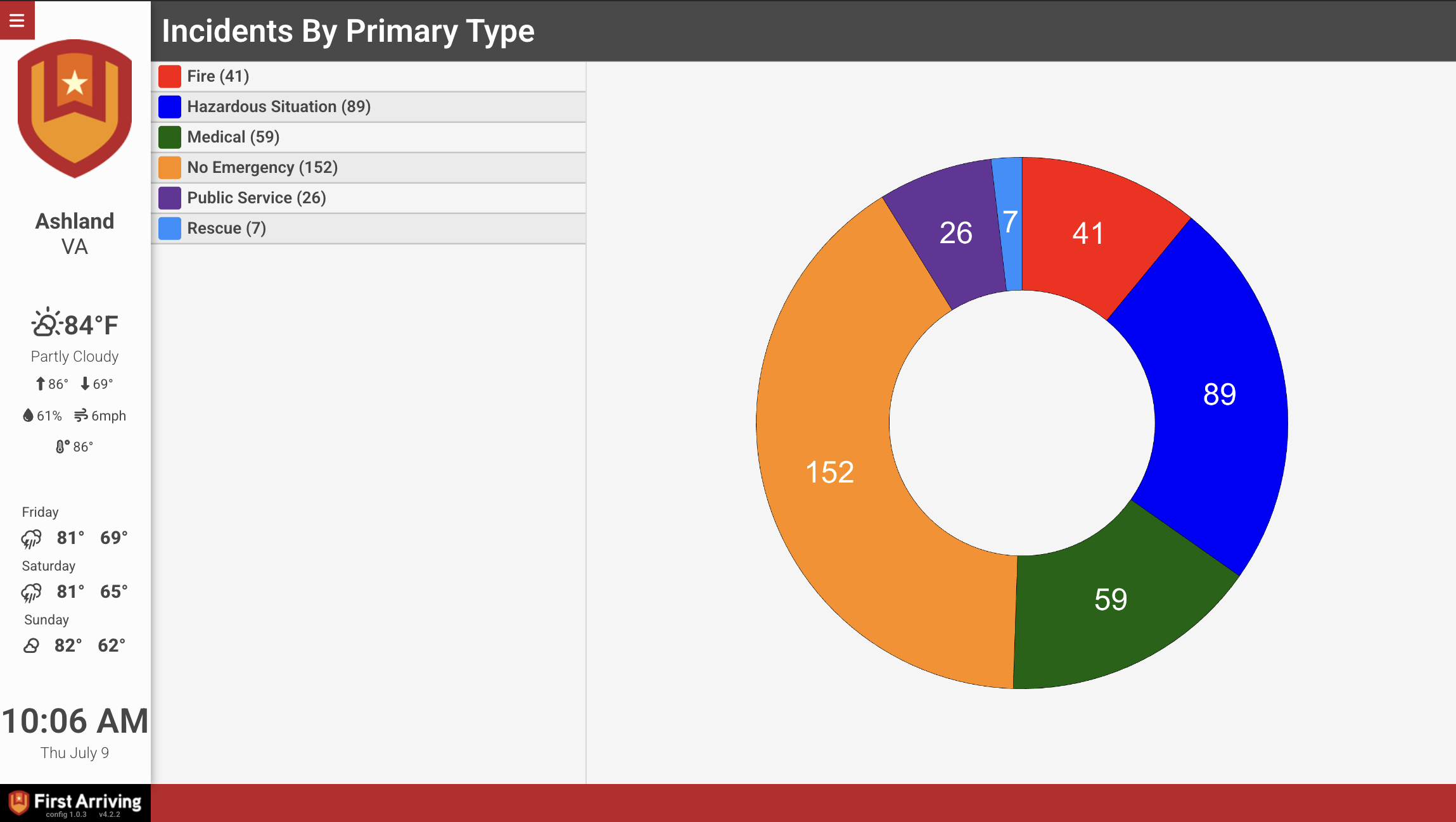
Calls by Type as a doughnut chart.
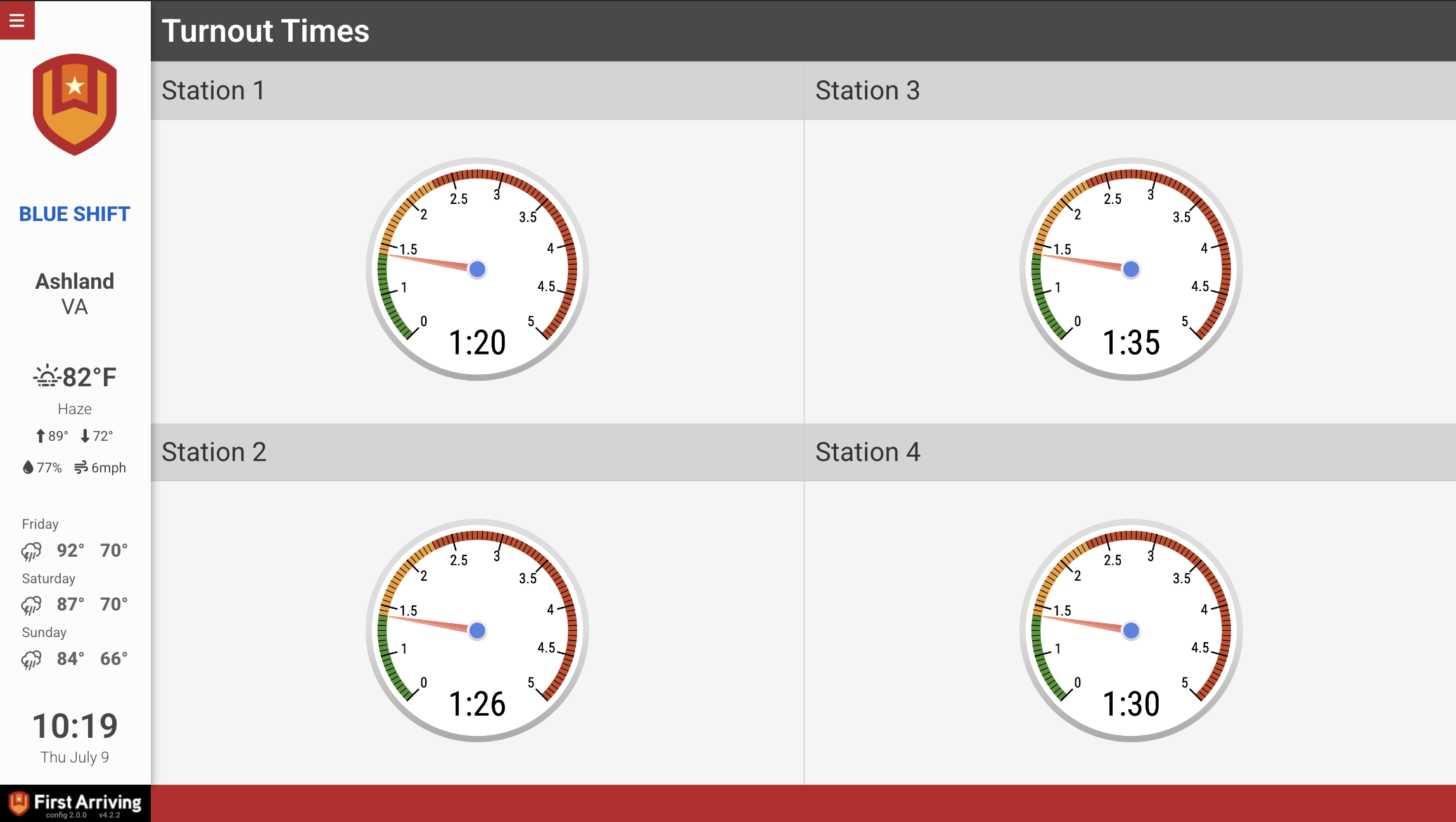
Average turnout and response gauges, one per station.
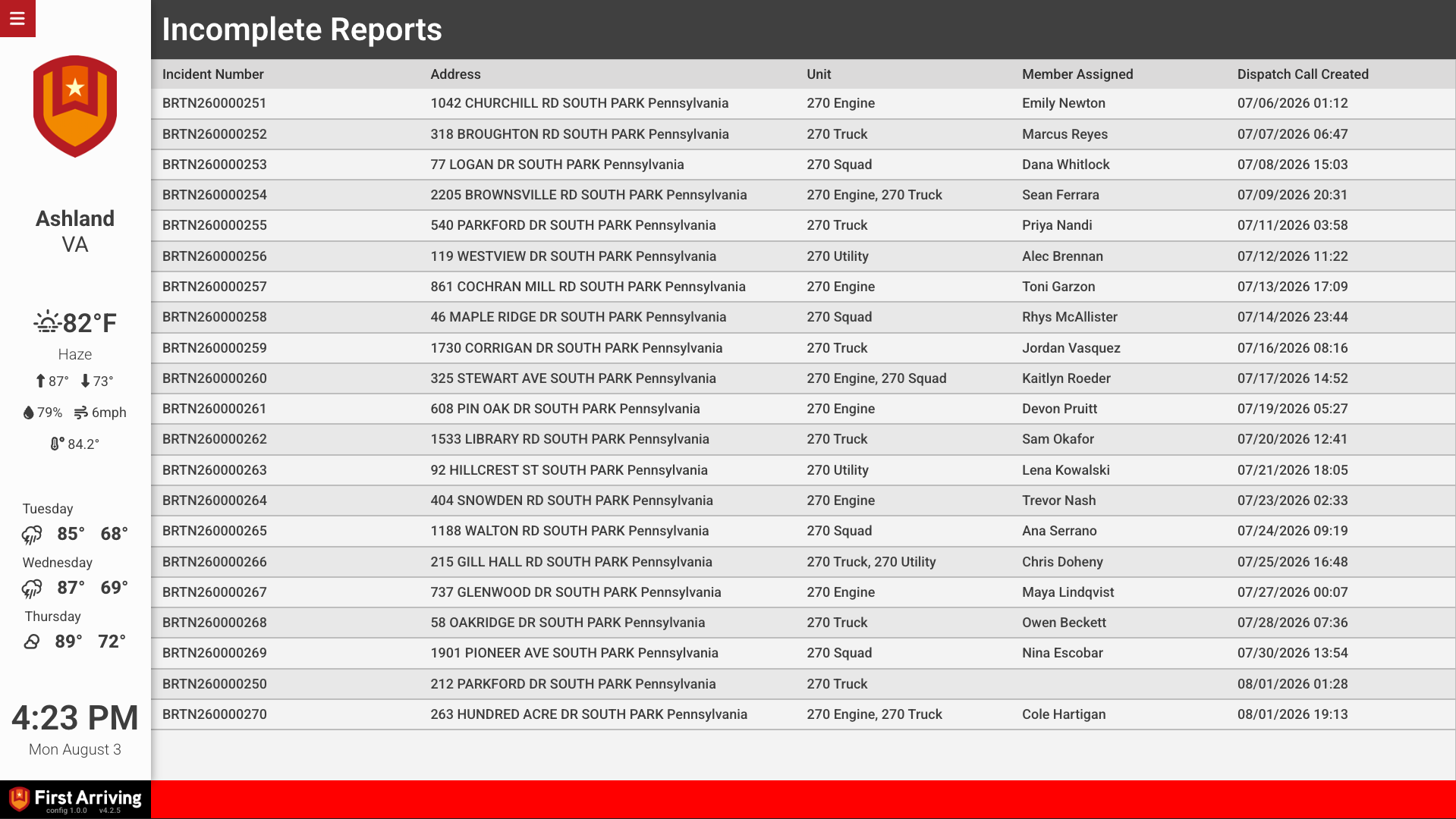
Incomplete Reports table.
Feature by feature
Each widget can be placed on any dashboard, and you can use more than one on the same screen.
Tables
Call Counts
A table of call counts broken down by unit and apparatus.
Turnout Time Table
A table of turnout times by unit, color-coded so outliers are visible from across the room.
Incomplete Reports
A table of incidents with incomplete reports, so follow-up is visible instead of buried.
- Shows incident #, call nature, unit, address, and time
Charts
Calls by Type
A doughnut chart of your calls grouped by incident type.
Gauges
Average Response & Turnout Gauges
Two radial gauges that keep your headline response numbers in front of the crew.
- Average Turnout Time
- Average Response Time
What we need from you
To connect your Emergency Networking account to your First Arriving dashboard, you'll need to set up an API token in the Emergency Networking portal with the correct permissions and share that token with us. Three steps.
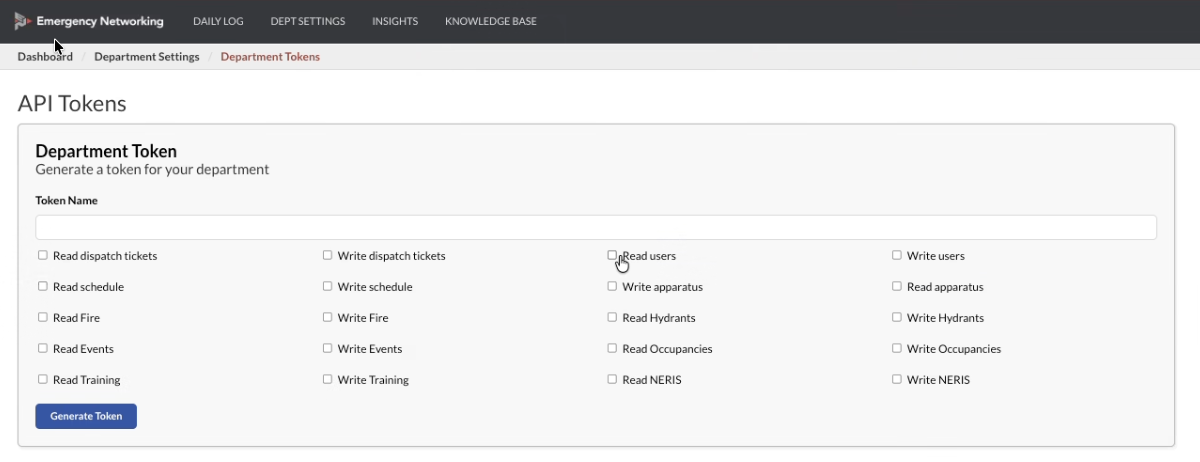
The API Tokens screen in the Emergency Networking portal. Name the token something you'll recognize later, check every read permission, leave the write permissions unchecked, then select Generate Token.
Questions about setup, or want help deciding which widgets belong on which screen? Open a ticket at our support center or reach us at dashboards@firstarriving.com and we'll walk through it with you.