Integration Guide
Microsoft PowerPoint via OneDrive or SharePoint
Already building training material, briefings or station announcements in PowerPoint? Put those decks on the screens in your stations without rebuilding them in Google Slides. We embed a .pptx hosted in OneDrive or SharePoint.
What we can put on your dashboard
Key features
- Any .pptx stored in OneDrive (personal) or OneDrive for Business / SharePoint
- Slides advance automatically inside the embedded viewer
- Edits to the source file appear on the dashboard the next time the page reloads — no re-publish step
- Zone several presentations by station, or run one department-wide
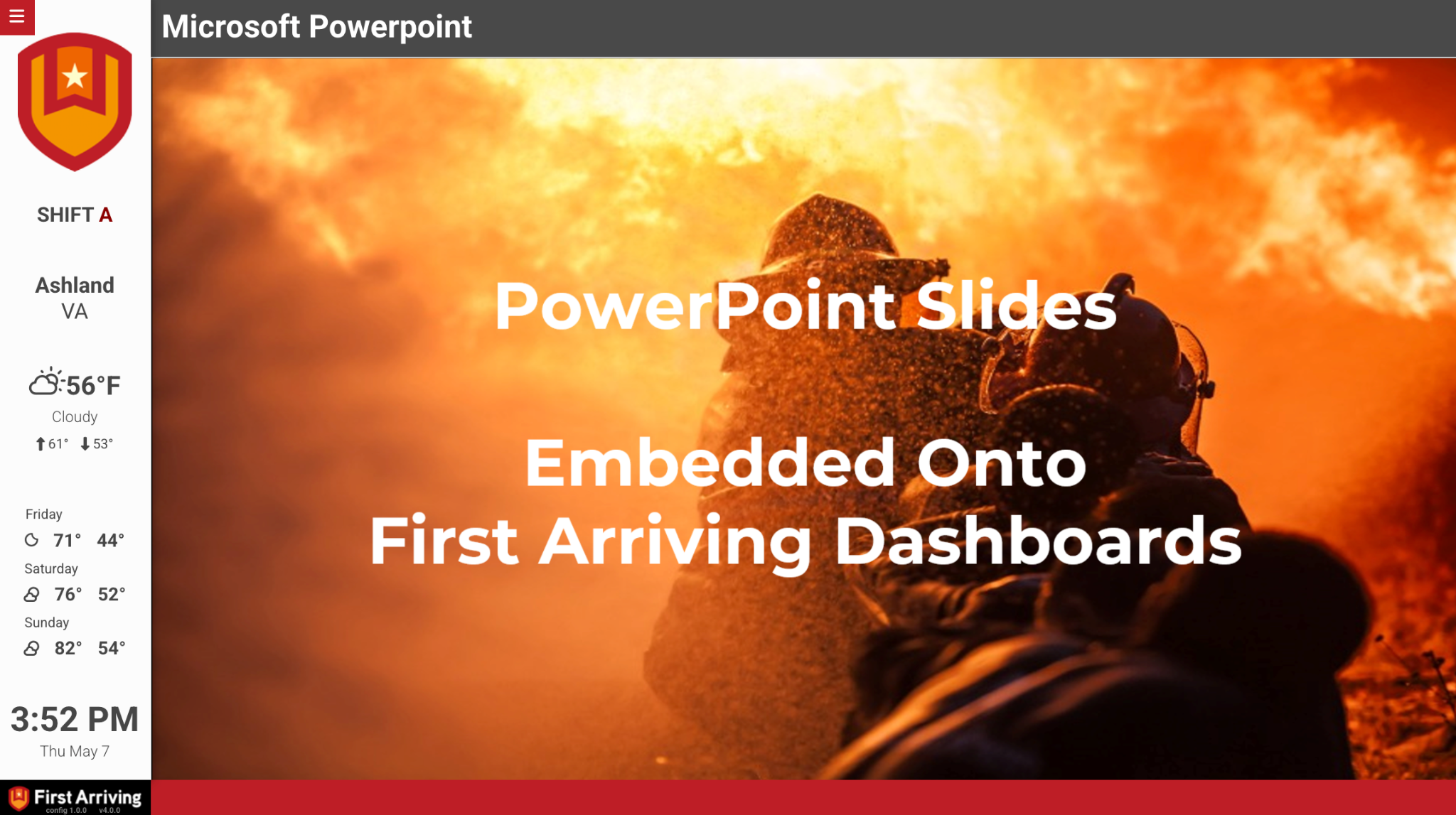
A PowerPoint deck running full-screen alongside the standard dashboard sidebar.
Before you start: the sharing requirement
Embedding requires the file to be shared as Anyone with the link. There is nobody at a station screen to sign in, so a permission-restricted file will only ever show a login prompt.
That means anyone holding the link can view the deck. Keep genuinely sensitive material out of an embedded presentation.
Business accounts: if Anyone with the link is greyed out, your tenant has anonymous sharing disabled at admin level. Public embedding is not possible until IT changes the external sharing policy — see the fallback at the end of this page.
What we need from you
- The .pptx uploaded to OneDrive or SharePoint with Anyone with the link sharing enabled
- The generated embed snippet
- The duration you want each slide to display for
Step 1 — upload and share the file
Upload the .pptx to OneDrive (personal), or to OneDrive for Business / SharePoint using your work account.
- Right-click the file → Share
- Set link permissions to Anyone with the link, or at minimum allow anonymous view
Step 2 — get the embed code
Personal OneDrive
- Open the file in PowerPoint Online
- File → Share → Embed
- Copy the generated snippet — its src will begin
onedrive.live.com/embed?
OneDrive for Business / SharePoint
- Open the file in PowerPoint Online
- Share → … menu → Embed, and copy the snippet
Some tenants hide the Embed option. If it isn’t there, build the URL by hand: generate an Anyone with the link share URL — it will be a guestaccess.aspx link carrying an authkey= parameter — then append &action=embedview and wrap it in an iframe.
https://<tenant>-my.sharepoint.com/:p:/.../_layouts/15/guestaccess.aspx?docid=...&authkey=...&action=embedview
All three pieces are required. Missing any one causes a sign-in prompt or an X-Frame-Options block:
guestaccess.aspx- a valid
authkey= action=embedview
Step 3 — send us the snippet
Open a ticket at our support center with the embed snippet, the slide duration you want, and which devices or dashboards should carry it. The snippet contains an authkey that grants access to the file, so if you would rather not put it in a ticket body, send it through the First Arriving Secrets Tool and paste the generated link instead.
Common pitfalls
A sign-in prompt inside the frame
Sharing permissions aren’t anonymous, or the tenant blocks anonymous links. Fix the sharing setting, or host the file elsewhere.
Blank frame, or an X-Frame-Options error
You used a view link rather than an embed link. Only these three URL patterns can be framed:
onedrive.live.com/embed?…— personal OneDrive<tenant>-my.sharepoint.com/…/guestaccess.aspx?…&action=embedview— Business / SharePointview.officeapps.live.com/op/embed.aspx?src=…— Office Online viewer wrapper
Stale content on screen
Office caches embeds aggressively. Regenerating the embed link, or appending a cache-buster query parameter, forces it to reload.
Your edits don’t appear
Replacing the file in place usually updates the embed. Renaming or moving the file breaks the link. On business accounts, regenerating the share link rotates the authkey and invalidates any iframe already embedded — so send us the new snippet if you do that.
If your tenant blocks anonymous sharing
Corporate tenants often disable anonymous sharing entirely. Where that is the case, embedding publicly is not possible — no workaround on our side will change it.
The fallback is to export the deck to PDF or images and host those instead, or use Google Slides, which has no equivalent restriction.
Stuck on the embed link, or not sure whether your tenant allows this? Open a ticket at our support center or reach us at dashboards@firstarriving.com and we’ll work through it with you.