Integration Guide
PSTrax
Put your PSTrax checks and logistics on the screens in your stations — vehicle checks, equipment status and open alerts, where the crew responsible can actually see them.
What we can put on your dashboard
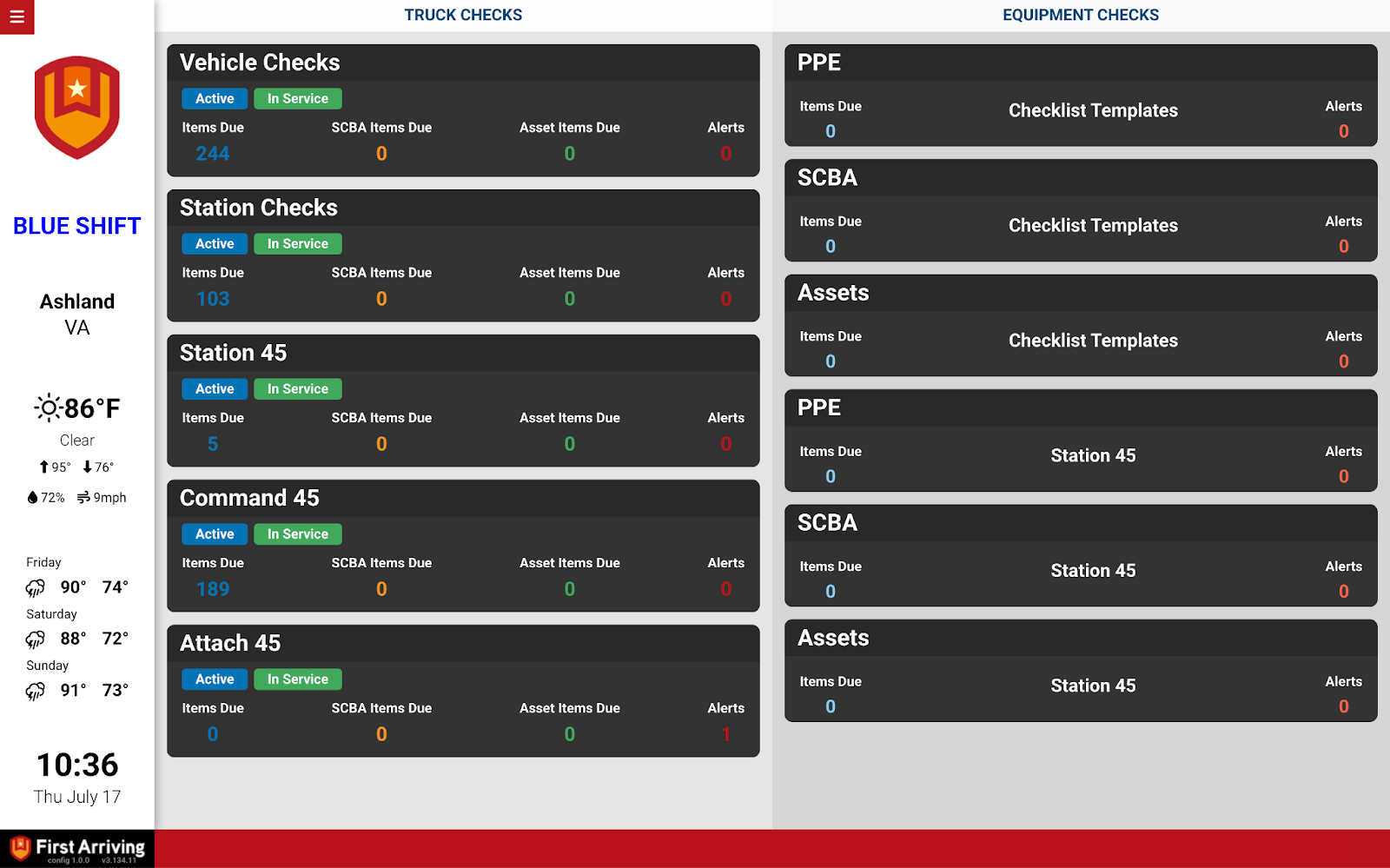
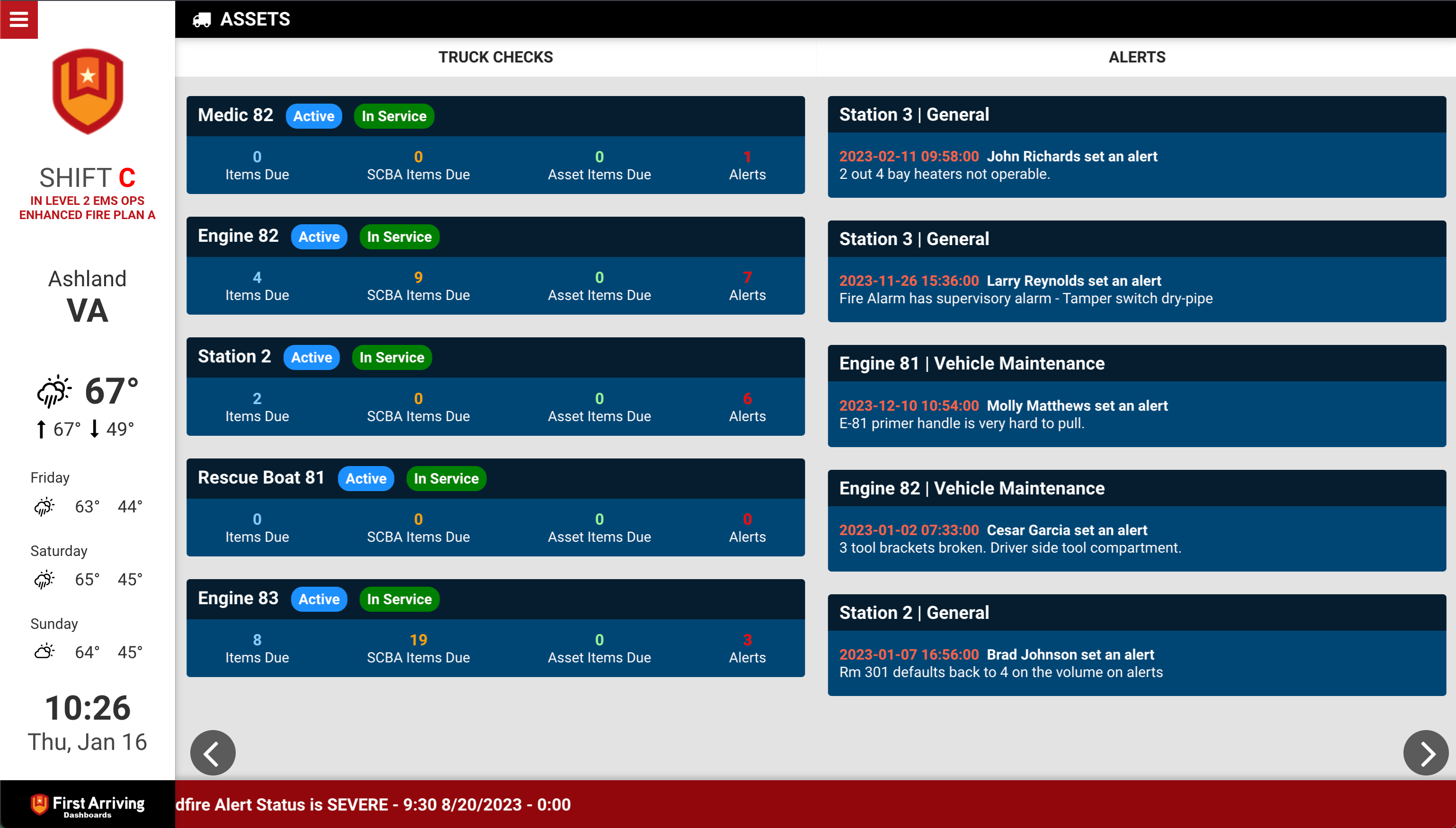
Truck checks
- Unit name and current status — In Service, Out of Service, Active, Non-Active
- Number of items due
- SCBA items due
- Asset items due
- Total alerts for the unit
Equipment checks
- PPE, SCBA and Asset checks
- Due item counts by category
- Assigned locations
- Total alerts by category
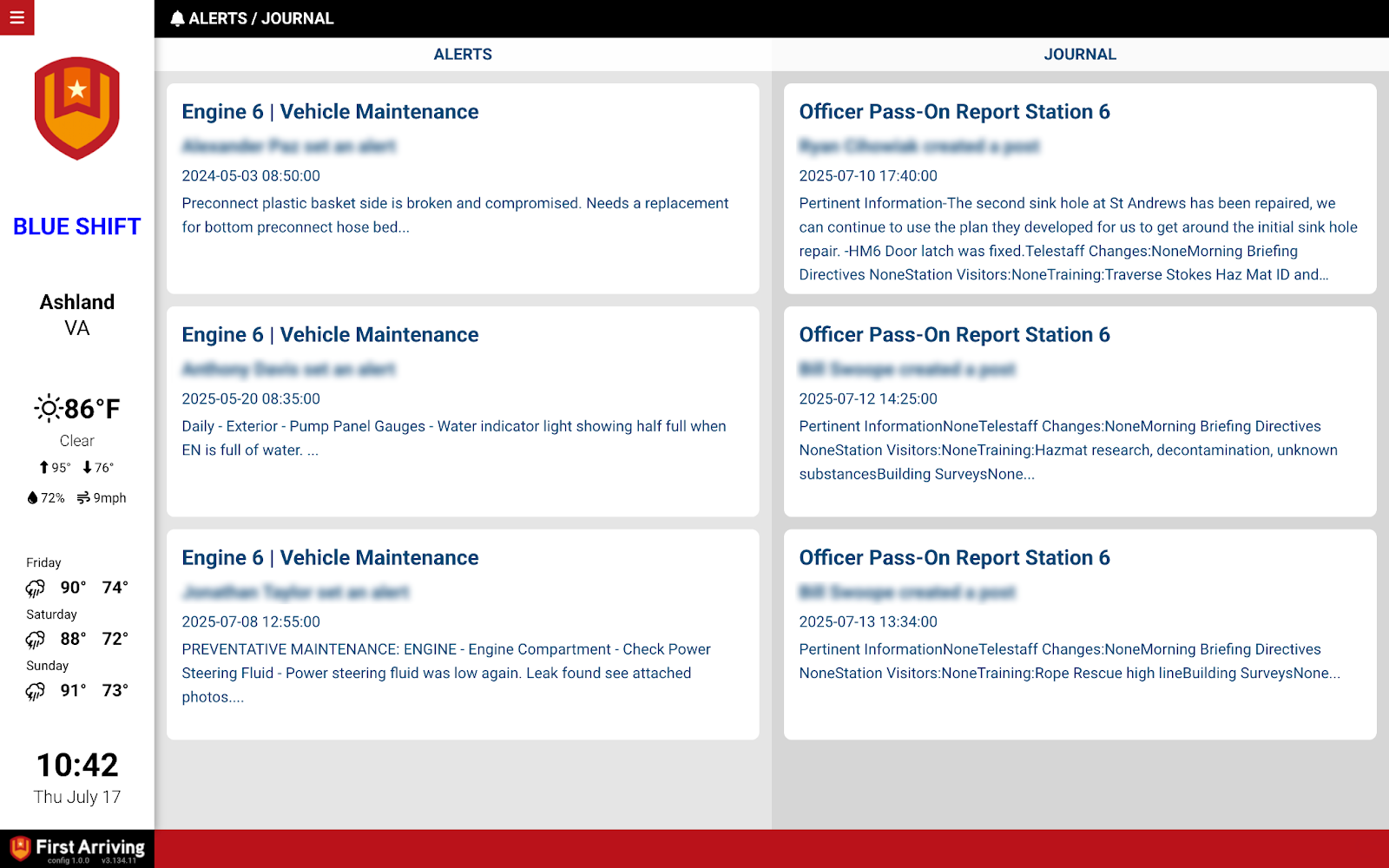
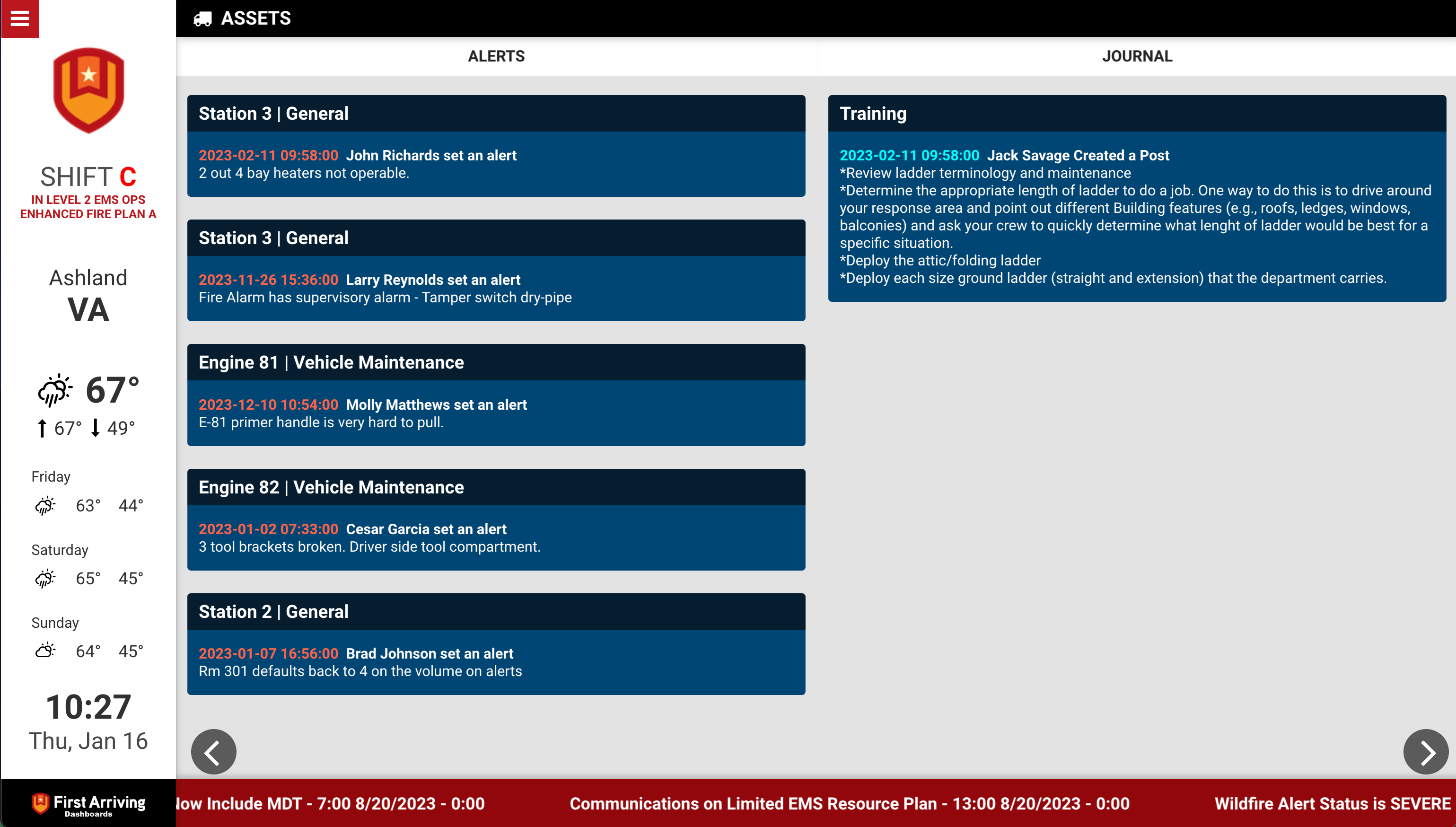
Alerts
- Unit name
- Alert type
- Date and time of the alert
- Personnel who created it
- Alert description
Journal entries
- Title and description
- Associated location or department
- Date and time posted
- Name of the personnel who logged it
What we need from you
A username and password for the PSTrax API. Contact your PSTrax sales representative to get credentials issued — they are not something you generate yourself.
Once PSTrax has issued them:
Open a ticket at our support center first, then submit the credentials through the First Arriving Secrets Tool and paste the link it generates into your ticket. Please don’t send them by email or chat. Full instructions: Sending First Arriving sensitive information.
About vendor charges: data or API access could carry an additional charge, determined by PSTrax and not by First Arriving.
Compatible views
Want particular modules on particular screens? Open a ticket at our support center or reach us at dashboards@firstarriving.com.