Document Library Management
The Document Library allows your agency to store and distribute important documents — such as SOPs, policies, manuals, training materials, safety resources, and administrative forms — directly within the User Accounts platform. Documents uploaded here become accessible to authenticated users on desktop, mobile, and tablet devices, ensuring personnel can quickly find them.
Important: The Document Library does not propagate to large-screen display dashboards. It is strictly a secure, user-facing resource for members accessing content through User Accounts
1. Accessing/Viewing Document Library
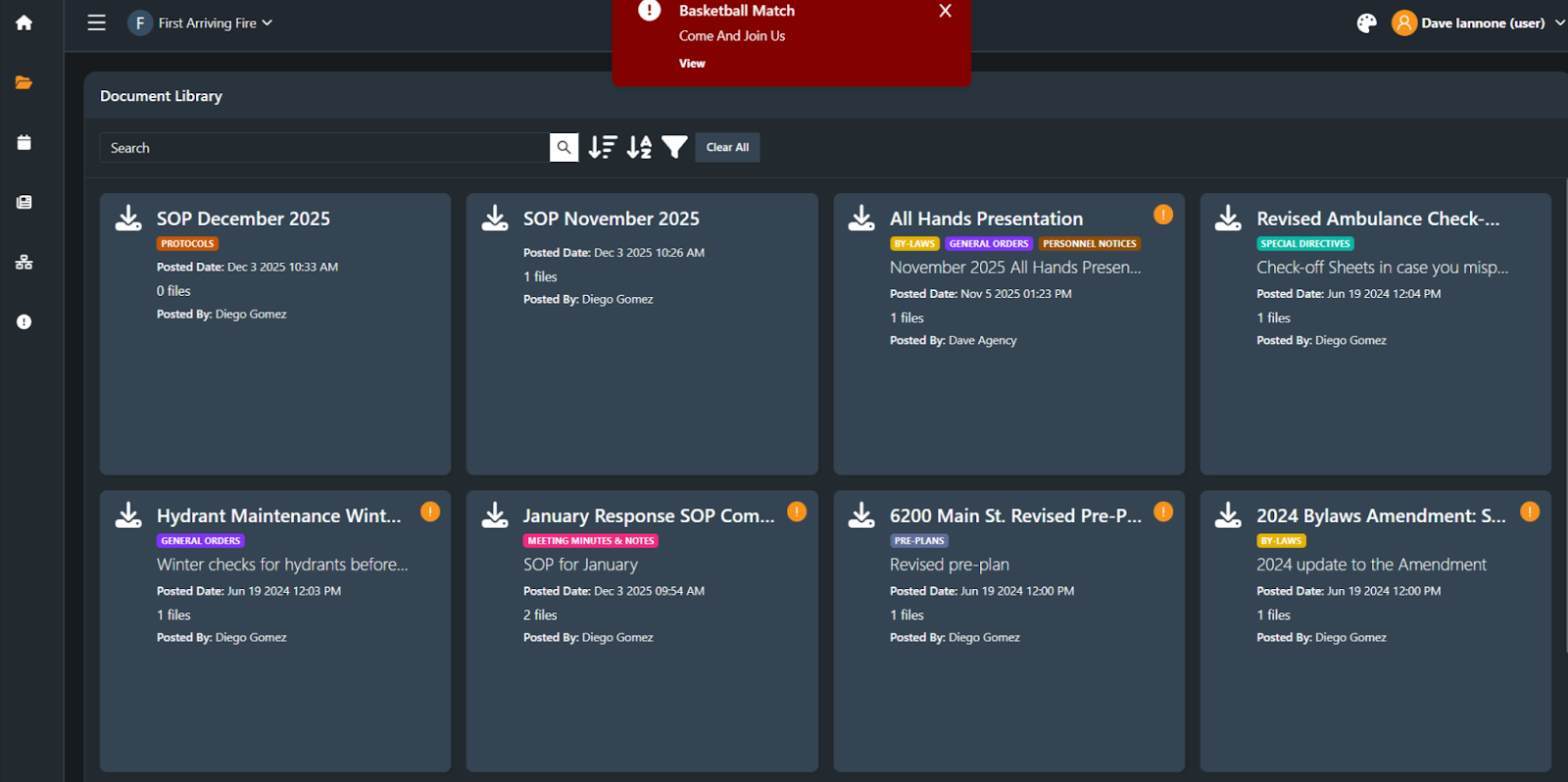
User Accounts View
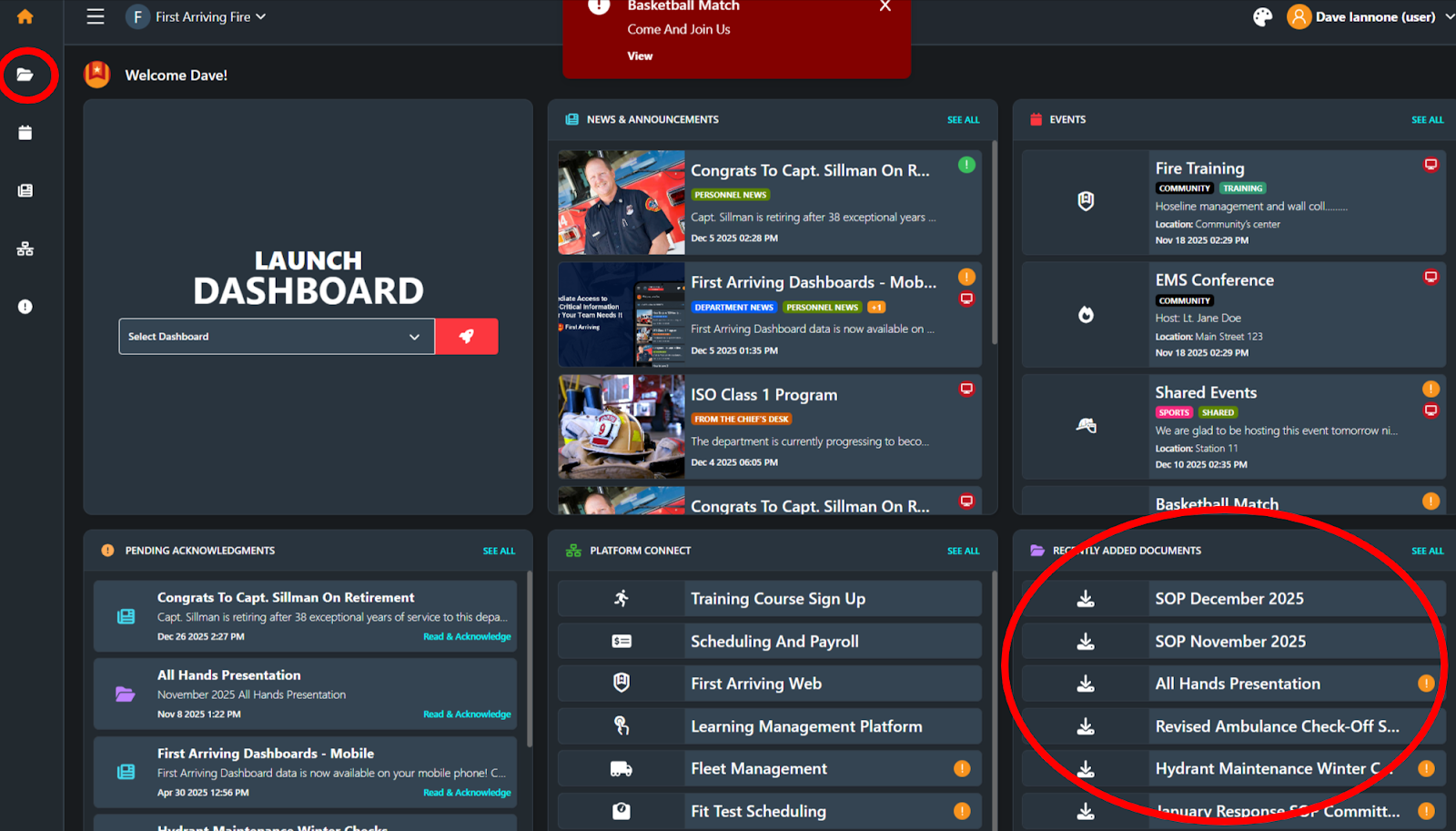
Dive In within User Accounts to Search, Filter by Category, & Sort Documents
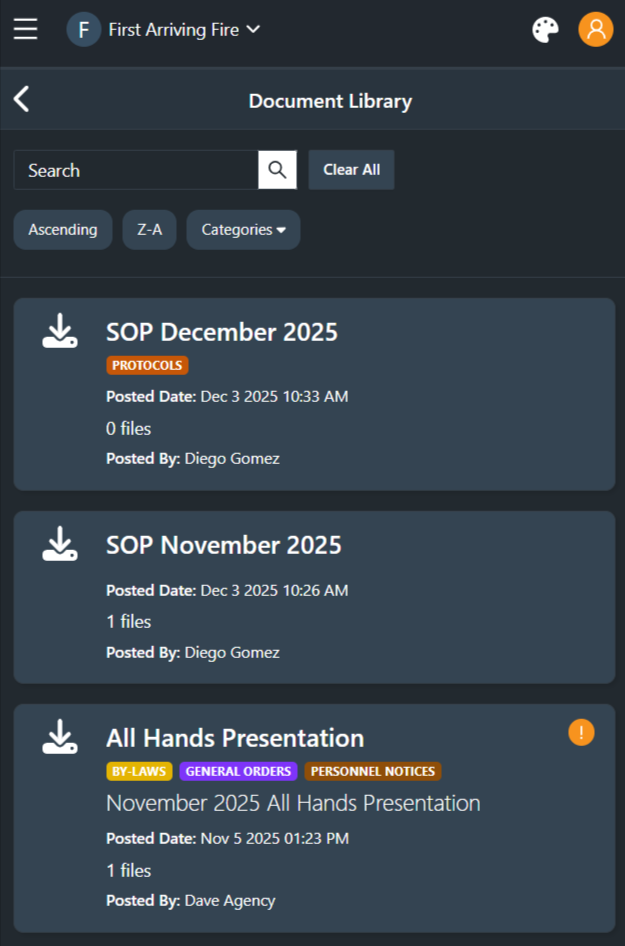
Mobile View
2. Document Library Overview
The Document Library serves as your agency’s online repository for consistently updated, always-accessible resources. Common upload types include:
PDFs (SOPs, policies, procedures, checklists)
Training manuals
Administrative forms
Apparatus manuals
Safety data sheets
HR & benefits documents
ICS templates
Maps, diagrams, or station resources
Recruitment or onboarding materials
Each document can be categorized, assigned descriptions, and updated as needed without creating new versions for users to hunt for.
3. Uploading Documents (PDFs, SOPs, Policies, Manuals, etc.)
Uploading documents ensures your personnel always have access to the latest information.
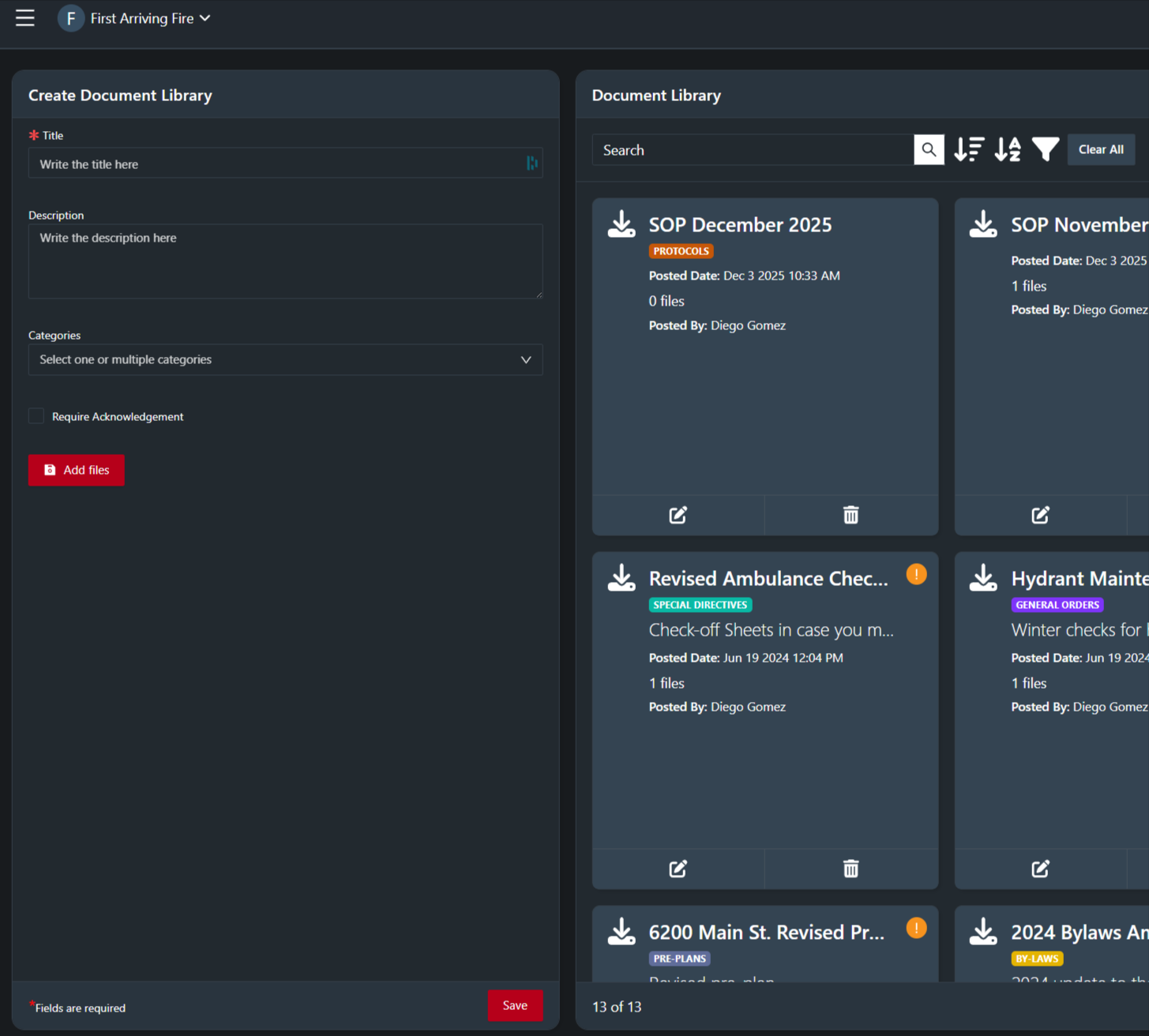
To upload a new document:
Navigate to Document Library in the Admin Panel.
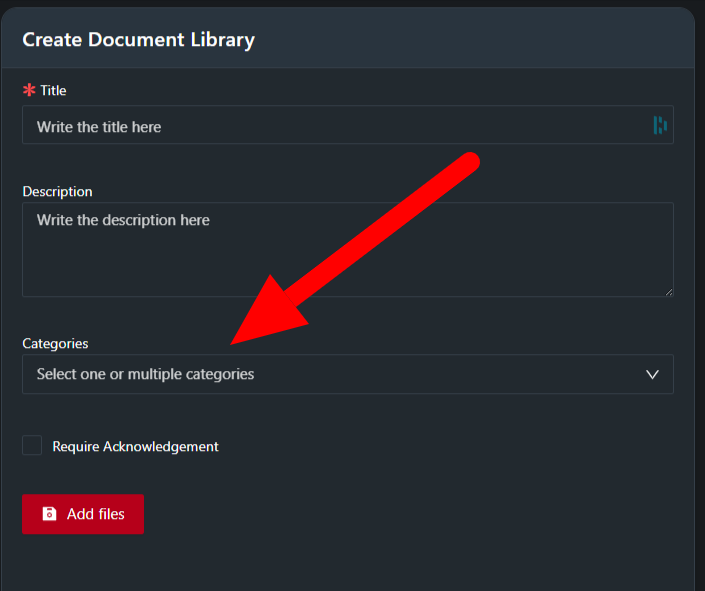
You’ll see “Create Document Library” in the left hand side (of desktop/tablet), it will take up a regular screen in mobile.
Enter required information:
Document Title
Description (optional but recommended)
Category(s) (Training, Policies, SOPs, HR, Station Resources, etc., see details below on Categories)
Add Files (PDF most common; other formats may be supported depending on configuration) Multiple files may be added.
Hit Save
Once saved, the document becomes immediately available to authenticated users.
File type recommendations:
PDF is strongly recommended for consistency and compatibility across devices.
Ensure PDF files are optimized for mobile reading when possible.
4. Creating and Managing Folders or Categories
Categories allow agencies to organize documents into logical groups so users can quickly filter and navigate the library.
Common categories include:
SOPs / SOGs
Policies
Training
HR & Admin
Apparatus Manuals
Station-Specific Resources
ICS / Forms
Safety & Risk Management
Recruitment / Onboarding
To create a new category, follow the instructions here.
5. Editing and Deleting Files
Documents can be edited for changes or removed if they are obsolete or no longer relevant.
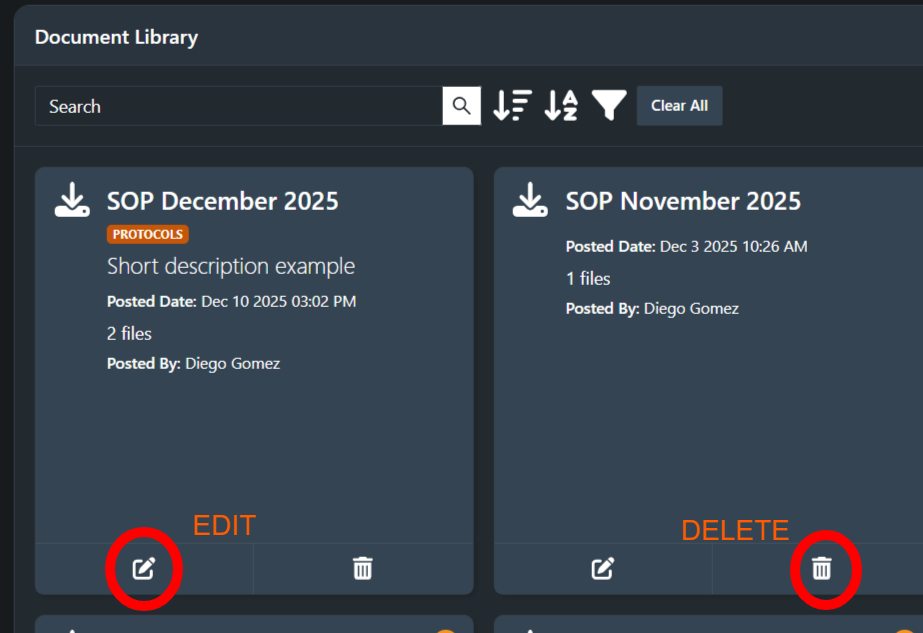
To edit a document
Select the document.
Click the Edit icon.
Make your changes and hit Save
To delete a document:
Select the document.
Click the Delete icon.
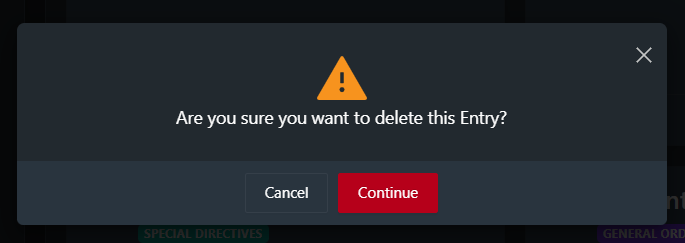
Confirm when prompted.
6. Requiring Acknowledgment of New Document Library Items
Create or edit content
Create the Document Library item as described above..
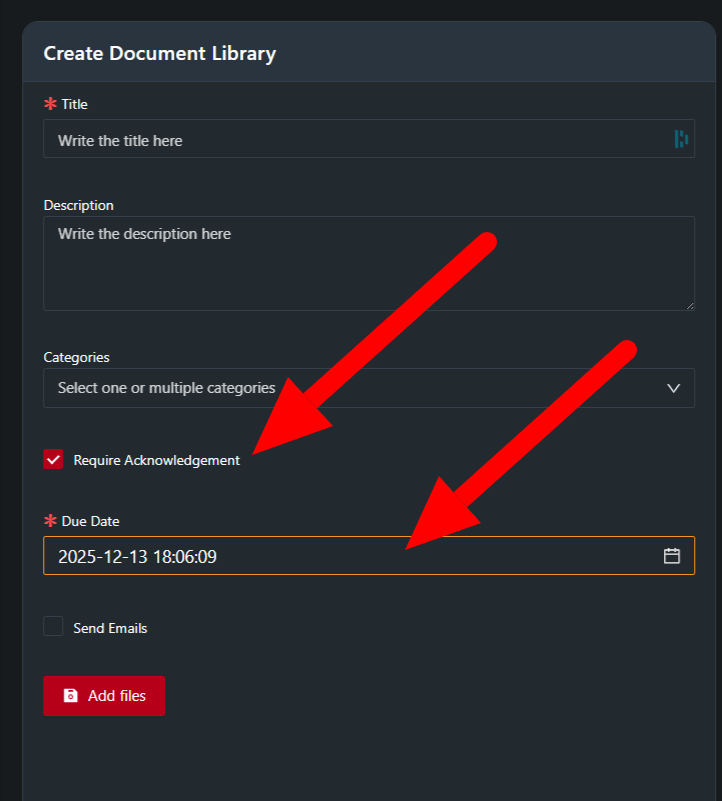
Enable Required Acknowledgement
Locate the Require Acknowledgement checkbox.
Toggle it On for this content item.
Assign a due date if applicable.
Publish the content
Click Save.
The required acknowledgement prompt will appear for selected users the next time they access their account.
Monitor acknowledgements
Go to the Acknowledgements / Reporting view.
Track who has acknowledged, who is outstanding, and export data if needed.
7. Sending New Document Updates via Email Notifications
When an email notification is enabled (for Required Acknowledgements only):
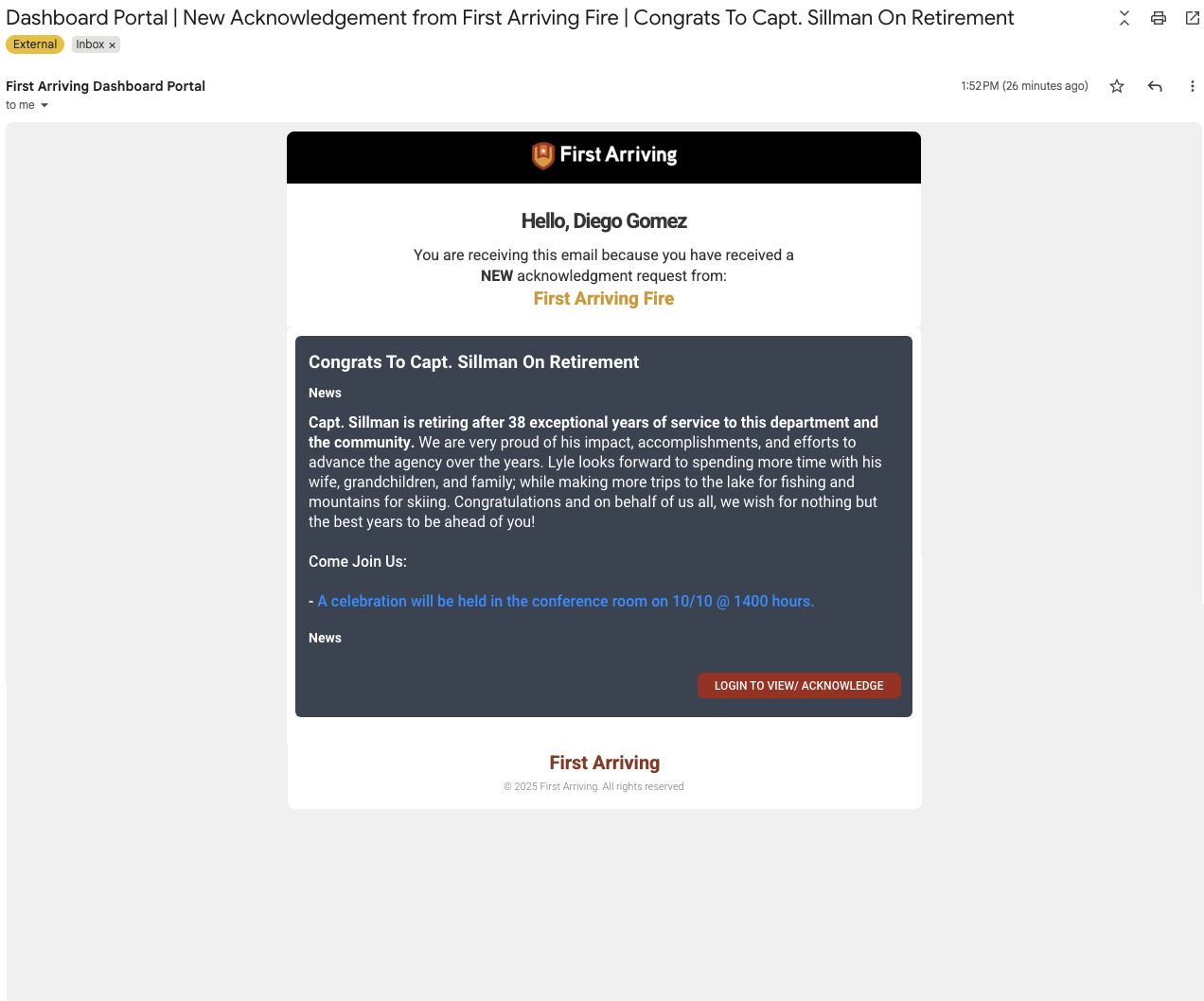
Every user assigned to the relevant content group (or entire agency) receives an email simultaneously.
The email contains the title, body text and a link to view the item inside User Accounts.
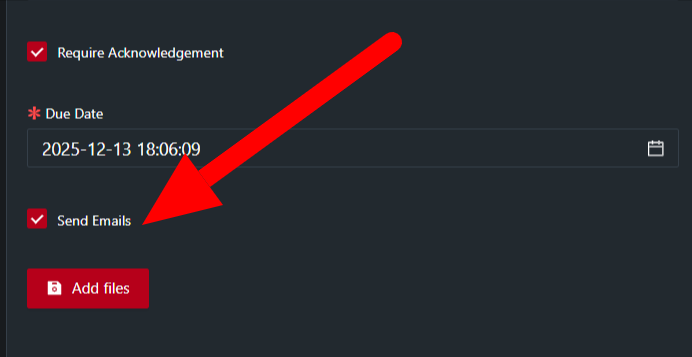
To send via email:
Toggle Send Emails when requiring an acknowledgement when publishing the announcement.
What the Email Notification looks like:
Best practices:
Use email for time-sensitive or safety-related items.
Avoid overuse to prevent “alert fatigue.”
8. Best Practices for Organizing Your Document Library
To keep your library clean, efficient, and easy to navigate, follow these recommended practices.
1. Use Clear, Consistent Naming Conventions
“SOP 300.1 – Structure Fire Response”
“Training Manual – Ladders – 2025 Edition”
“Policy – Employee Benefits – Jan 2025 Update”
Consistency helps users instantly recognize document types.
2. Use Well-Structured Categories
Avoid overly broad categories like “General.”
Use categories that match internal terminology (e.g., SOGs, Admin Policies, Training Materials).
3. Replace Outdated Files Instead of Re-uploading
This ensures:
Audit trails remain intact
Users always see the newest version
Old files do not clutter the library
4. Limit File Size Where Possible
Large PDFs slow down mobile performance.
Optimize PDFs using standard compression tools.
5. Avoid Duplicate Documents
Before uploading, check whether an existing version already exists.
Duplicate uploads cause confusion and untracked changes.
6. Use Descriptions Wisely
Descriptions help users understand context, such as:
“Updated by Training Division – Jan 2025”
“Applies to all EMS personnel”
“Includes revised OSHA compliance procedures”
7. Audit the Library Quarterly
Recommended actions:
Remove outdated materials
Confirm categories reflect current agency structure
Replace outdated SOPs with updated ones
Check for broken or outdated links
8. Align Document Structure Across All Stations
For multi-station agencies:
Use identical categories
Use consistent naming conventions
Apply standardized review cycles
This ensures every station accesses the same materials the same way.