
Integration Guide
eSchedule
Schedule your members in eSchedule and have the roster appear on the screens in your stations — today, or the next three days.
What we can put on your dashboard
Roster
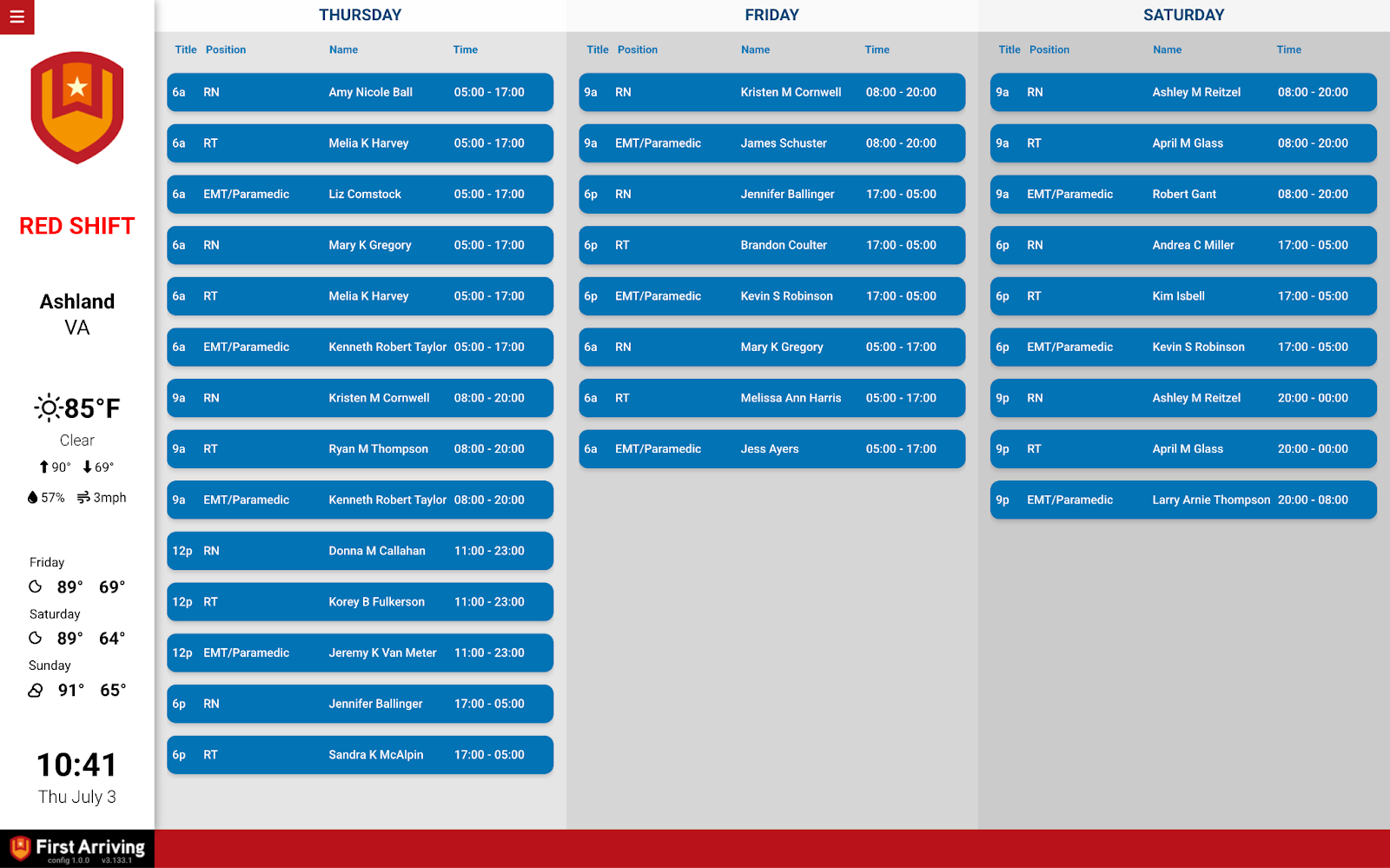
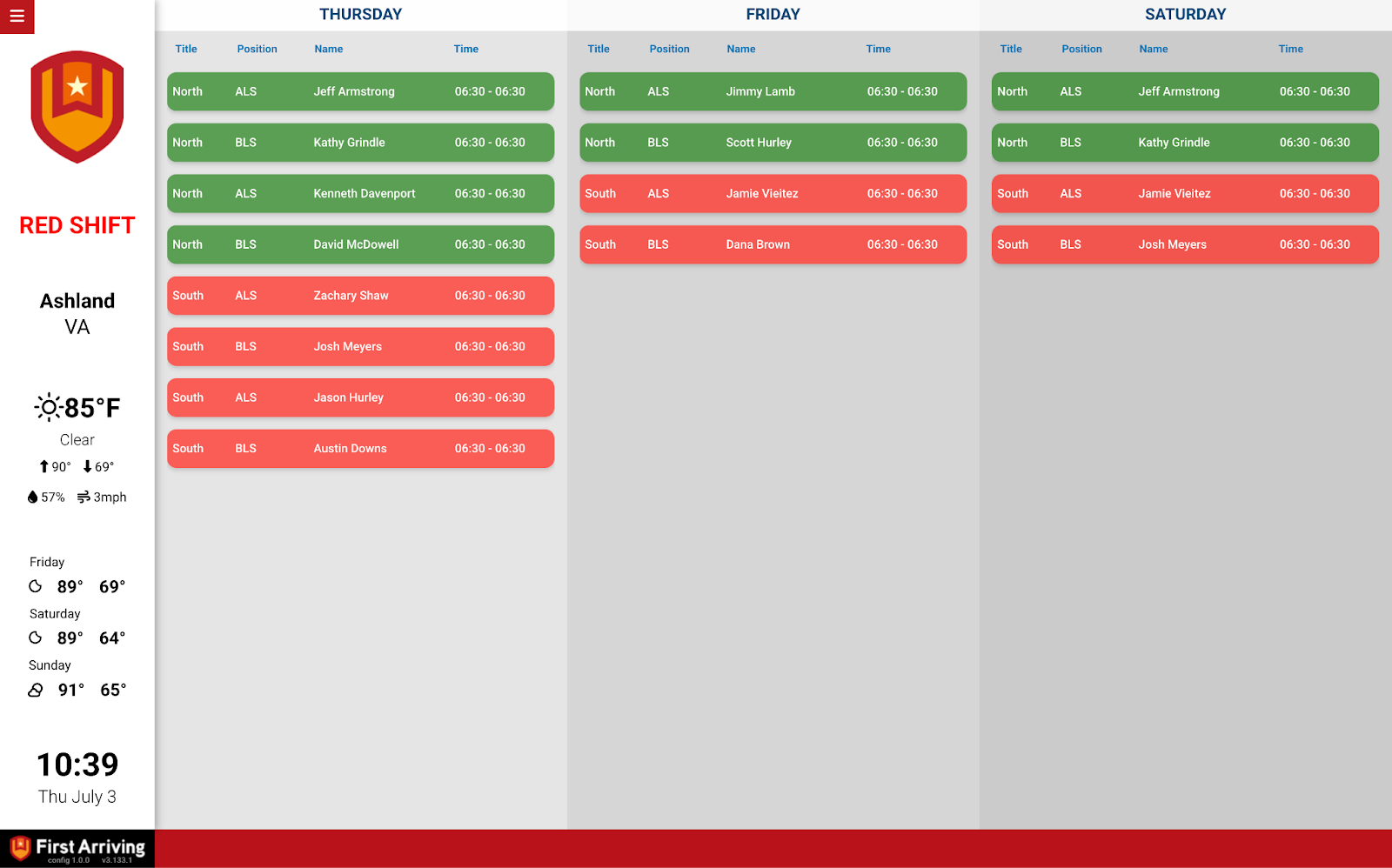
- The current day’s roster, and optionally up to the next three days
- Member name
- Shift start and end time
What we need from you
You need an active eSchedule account, then two details.
About vendor charges: data or API access could carry an additional charge, determined by eSchedule and not by First Arriving.
Example screens
Questions about setup, or want more than three days shown? Open a ticket at our support center or reach us at dashboards@firstarriving.com.