News & Announcements is one of the platform’s most powerful communication tools, giving agencies a single place to publish time-sensitive updates, reminders, policy notices, training alerts, staffing information, and general communications. From one post, content can instantly reach personnel across desktop, mobile, email, and—if enabled—dashboards. Watch this video to better understand how to best utilize this feature in your organization.
Note: This is separate from one-time or scheduled “Messages” that temporarily take over dashboard screens.
For individual users:
Provides desktop and mobile-first access, personalized and role-relevant updates, searchable, and optional email notifications.
For dashboards:
Supplements or replaces google slides when configured to deliver real-time visibility, category-based placement, reduced clutter, and consistent messaging across all facilities.
With category organization and agency-wide distribution, News & Announcements allows you to:
Push critical information directly to individual user accounts—on duty, off duty, in station, or in the field—with optional Required Acknowledgements.
Show the same content on big-screen dashboards for high-visibility, in-station communication.
Sort and filter posts by category (Operations, Training, HR, Safety, Events, etc.).
Avoid duplicate work by creating one post that reaches the right users and displays on the right screens.
Replace scattered emails, paper notices, and group texts with one centralized, searchable system.
Tip: Agencies using Google Sheets for posting news can switch to this built-in content tool for faster publishing and better organization.
This section explains how to create, categorize, publish, and manage News & Announcements
1. Where News & Announcements Appear
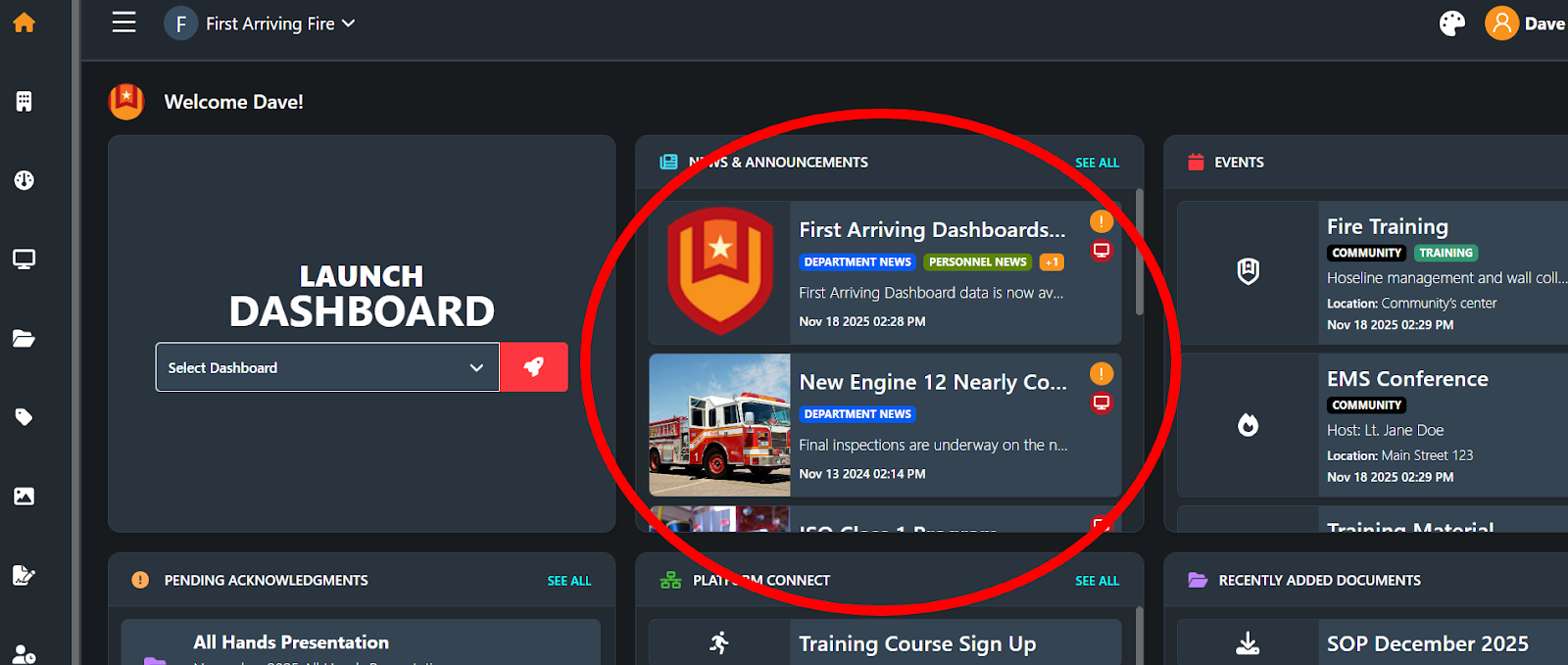
User Account Desktop/Tablet
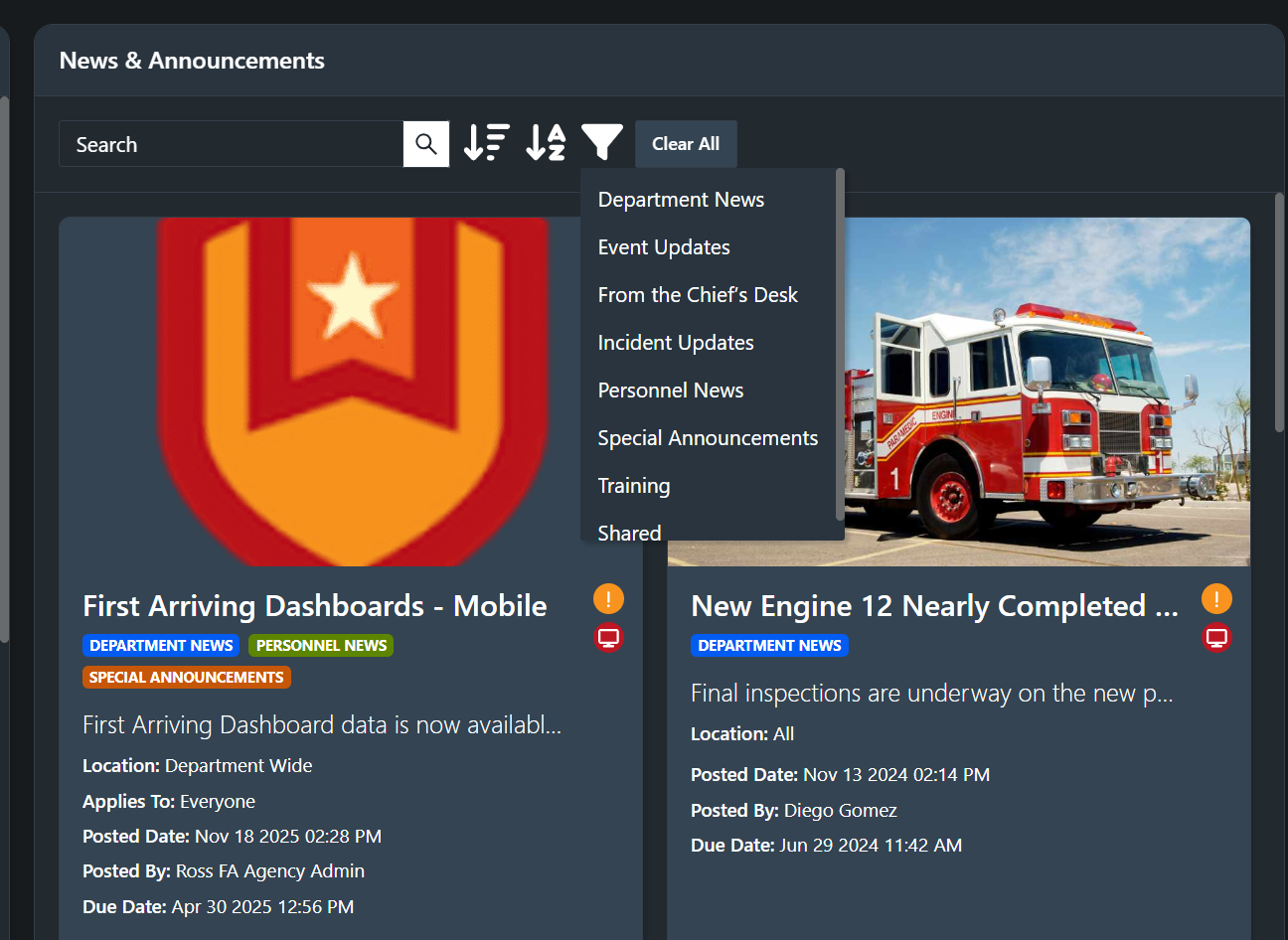
Dive In within User Accounts to Search, Filter by Category, & Sort
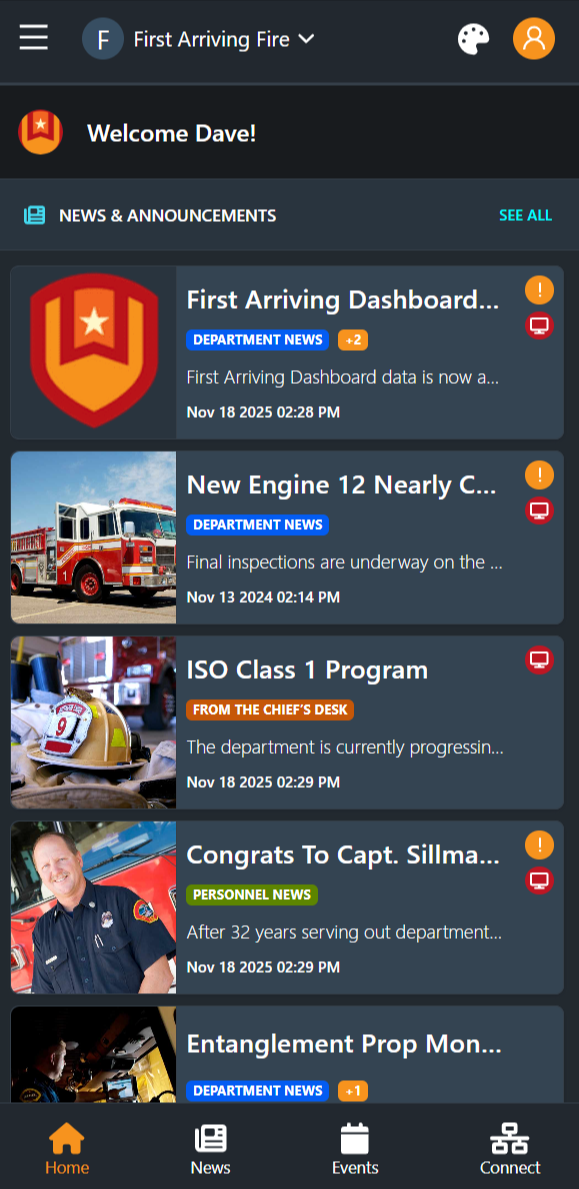
C.Mobile App/Web
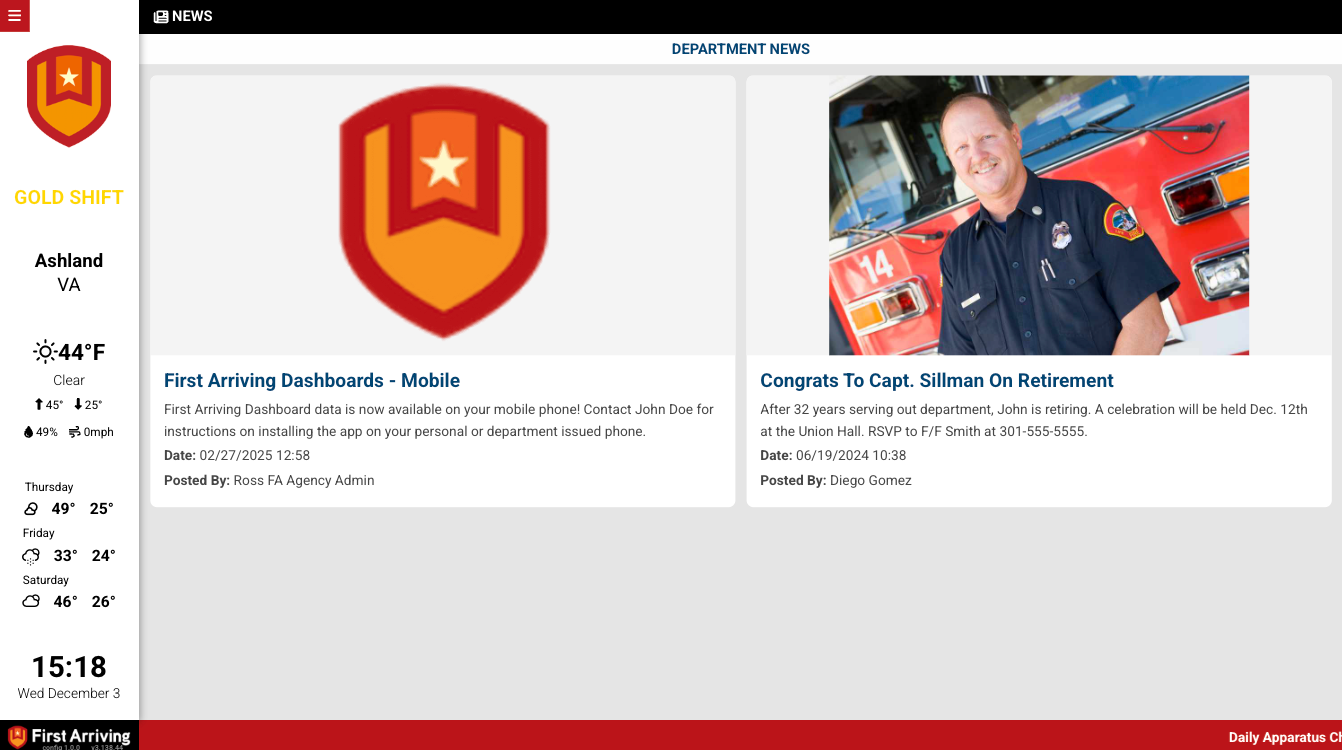
D. News & Announcements on your big screen Dashboard.
You can display all News & Announcements, or display them by category. This is established during your initial implementation process or can be added anytime via our support team.
2. Creating News & Announcements
Navigate to News & Announcements in the left menu of the Admin Panel or via your mobile menu if on our mobile app or mobile web (it works on all devices!).
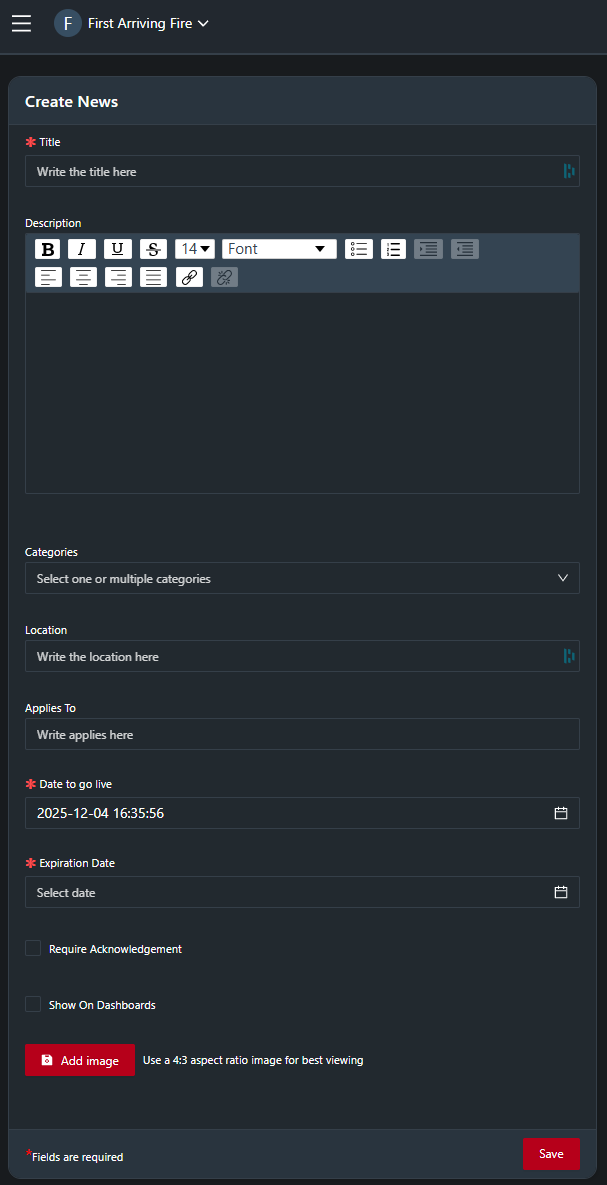
Click Create News.
Enter required details:
Title – short and descriptive
Description – Your content – rich text (formatting, bullets, links, etc.)
Categories – choose from the list (training, operations, HR, etc.)
Location – Add a location if applicable
Applies to – Denote who this applies to, if applicable
Publish Settings – start date/time (when it goes live), expiration date/time (when it no longer appears – if no date added, it will remain until otherwise deleted),
Display on Dashboards (optional. See details below)
Email Notifications (optional. See details below)
Require Acknowledgement (options. See details below)
Upload an Image (optional, but highly recommended for increased visibilitv: Ideally a 4:3 ratio (horizontal)
Click Save.
Best practices when creating content:
Keep titles concise but descriptive.
Use bullet points for readability.
Include links to relevant documents or resources.
Use categories consistently for better user filtering.
For time-sensitive content, always set an expiration date to avoid outdated information staying visible.
3. Editing or Deleting Existing Posts
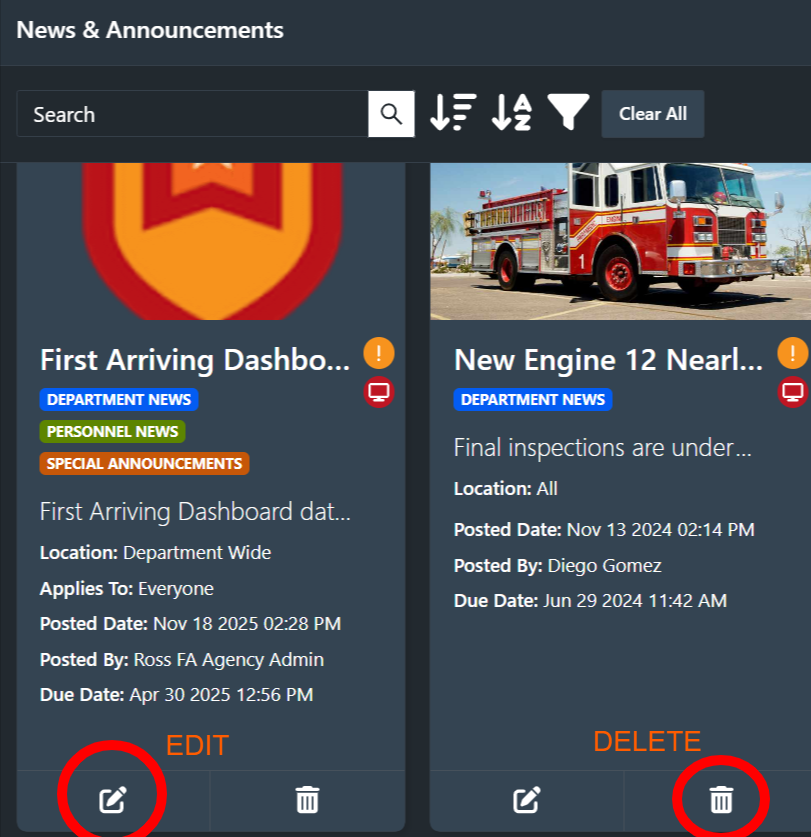
To edit a post:
Go to News & Announcements.
Select the announcement from the list.
Click Edit.
Update the content, category, publishing window, or delivery options.
Click Save to apply changes.
To delete a post:
Open the announcement.
Click Delete or the trash icon.
Confirm deletion when prompted.
Important notes:
Editing a post updates it everywhere instantly.
Deleting a post removes it from all user views and dashboards.
Deleting does not remove any Required Acknowledgement history associated with the item (if applicable); that audit trail remains intact.
4. Setting Publication and Expiration Windows
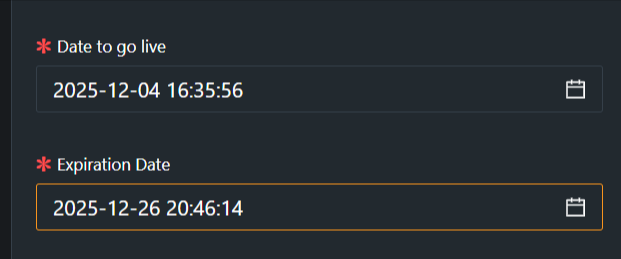
Available publication controls:
Date to Go Live
Choose immediately or schedule for a future date/time
Expiration Time
Automatically hides content after a set date/time
Why these settings matter:
Reduces clutter by automatically removing outdated posts
Ensures time-sensitive information appears exactly when needed
Allows pre-scheduling for holidays, events, or future training deadlines
Eliminates manual cleanup work for admins
Example:
Publish Monday 0700
Expire Friday 1700
5. Pushing Announcements to Dashboards
News & Announcements can be optionally displayed on dashboards to ensure members in the station see important updates even if they do not check email or the app. The ability to display news and announcements on your dashboard is setup during implementation or can be added later via our support team. News & announcements appear with HTML text and the featured image.
During the Dashboard setup process, you determine the maximum number of posts you want to display on your Dashboards at a given time.
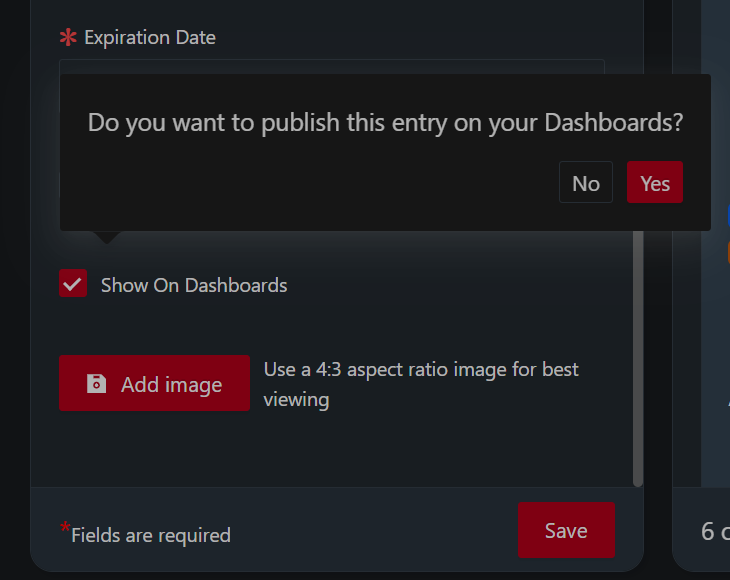
To push an announcement to dashboards:
Check the Display on Dashboards toggle when creating or editing the post.
Select which dashboards should receive the announcement (if selective distribution is enabled).
Save and publish.
Consider pushing items to dashboards when:
Safety alerts
Out-of-service apparatus
Important station reminders
Critical policy changes
Weather-related response notes
Short-term operational updates
Dashboard display behavior varies by layout but typically includes:
Title
Shortened body text
Category label
Timestamp
Optional Required Acknowledgement badge (future enhancement)
6. Requiring Acknowledgment of News & Announcements
Create or edit content
Create the News & Announcement as described above..
Assign a due date if applicable.
Turn on Required Acknowledgement
Locate the Required Acknowledgement option or checkbox.
Toggle it On for this content item.
Publish the content
Click Save or Publish.
The required acknowledgement prompt will appear for selected users the next time they access their account.
Monitor acknowledgements
Go to the Acknowledgements / Reporting view.
Track who has acknowledged, who is outstanding, and export data if needed.
7. Sending News & Announcements via Email Notifications
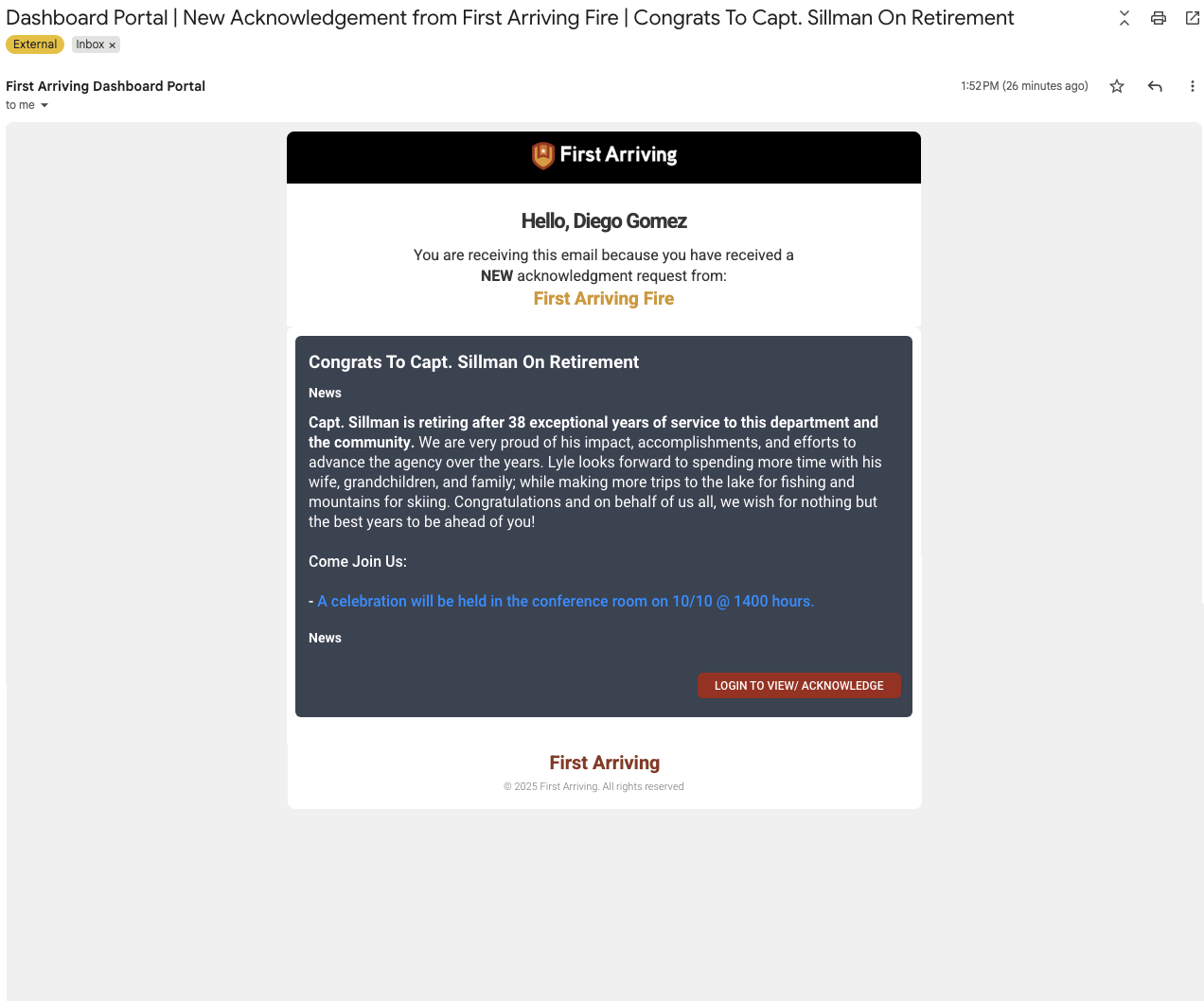
When an email notification is enabled (for Required Acknowledgements only):
Every user assigned to the relevant content group (or entire agency) receives an email simultaneously.
The email contains the title, body text and a link to view the item inside User Accounts.
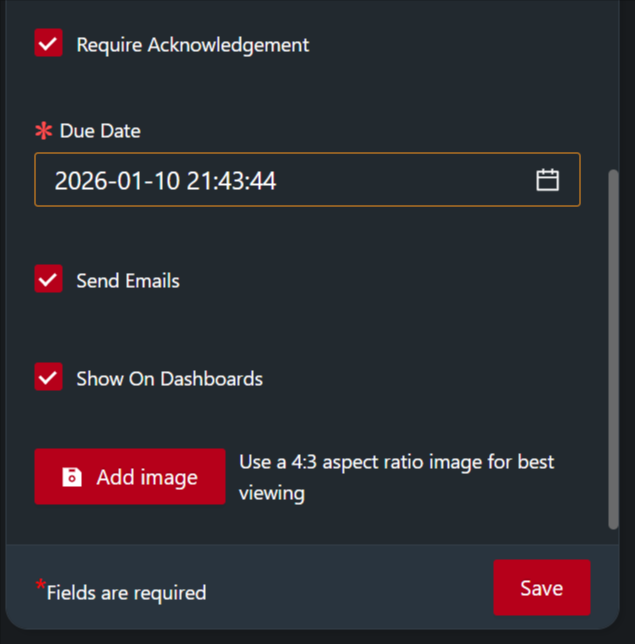
To send via email:
Toggle Send Emails when requiring an acknowledgement when publishing the announcement.
What the Email Notification looks like:
Best practices:
Use email for time-sensitive or safety-related items.
Avoid overuse to prevent “alert fatigue.”
8. Tagging Categories to Improve Discoverability
Categories are essential for organizing content, improving filtering, and ensuring relevant display on dashboards and User Accounts. Learn more about Categorization in our support document here.
Assigning categories helps users:
Filter news by operational area
Understand context instantly
Locate related content more easily
View grouped content in mobile/desktop lists
Improve dashboard segmentation
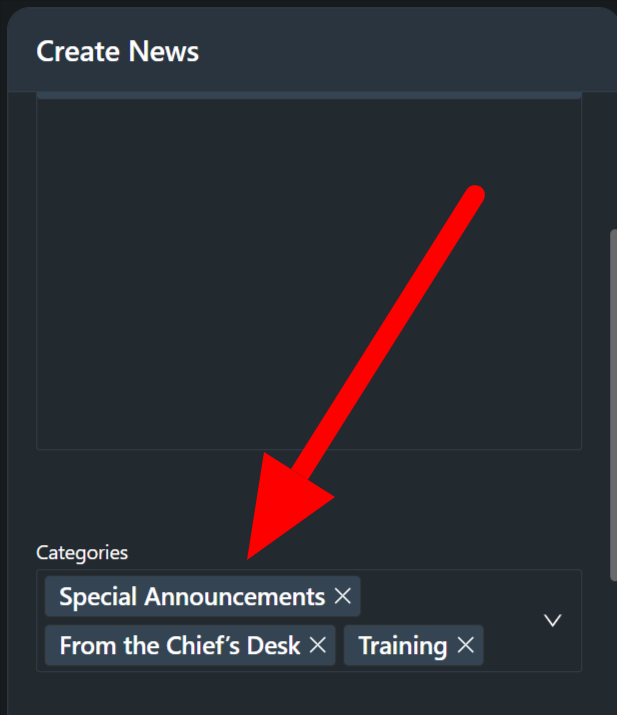
Examples of effective categories:
Training
Operations
HR & Admin
Safety Alerts
Station-Specific (e.g., Station 1, Station 2)
Events
Public Education
Special Notices
Categories can also influence:
Which dashboard displays the content (if category-based routing is enabled)
How Required Acknowledgements are grouped in reports
How items appear in future search, filtering, and analytics features.