
Integration Guide
Stationwise
First Arriving integrates with Stationwise to pull your department’s roster data, so your staffing information stays available on your First Arriving dashboards — without manual entry.
What we can put on your dashboard
Two formats, each with its own layout options.
Roster Table
A compact grid
Best for showing a whole shift at once. Flat list, or grouped by apparatus/unit, station, or rank — you choose the columns and sort order.
Roster Cards
One card per person
Easier to read from a distance. A condensed “schedule” style (several per row) or a larger detailed style with a header, body, and footer area — you choose what lands in each.
Feature by feature
Roster Table
A grid of your staffing, one row per person.
- Flat list, or grouped into sections by apparatus/unit, station, or rank
- Choose which columns appear and how rows are sorted
Roster Cards
One card per person, in either of two styles.
- Condensed: a “schedule” style with several cards per row
- Detailed: a larger card with a header, body, and footer area — you choose which information lands in each
Fields available for each person
Pick any combination, in either format above. Labels can be renamed to match your department’s language — for example, “Assigned Station” instead of “Station.”
- Name
- Employee ID
- Unit / apparatus assignment
- Station
- Shift start and end times, or the full shift time range (e.g. 07:00 – 07:00)
- Scheduled hours — calculated correctly for shifts that cross midnight
- Rank — short code or full title
Days covered
- Today’s roster
- Multiple days at once, up to 5, displayed day by day
- A future day — start the view a set number of days ahead, useful for a “tomorrow’s staffing” board
The schedule shows today and forward. Past days are not available.
What we need from you
First Arriving reads roster data from Stationwise — who’s working, when, and on which unit — pulled from the Stationwise Shift API. Three steps.
Example screens
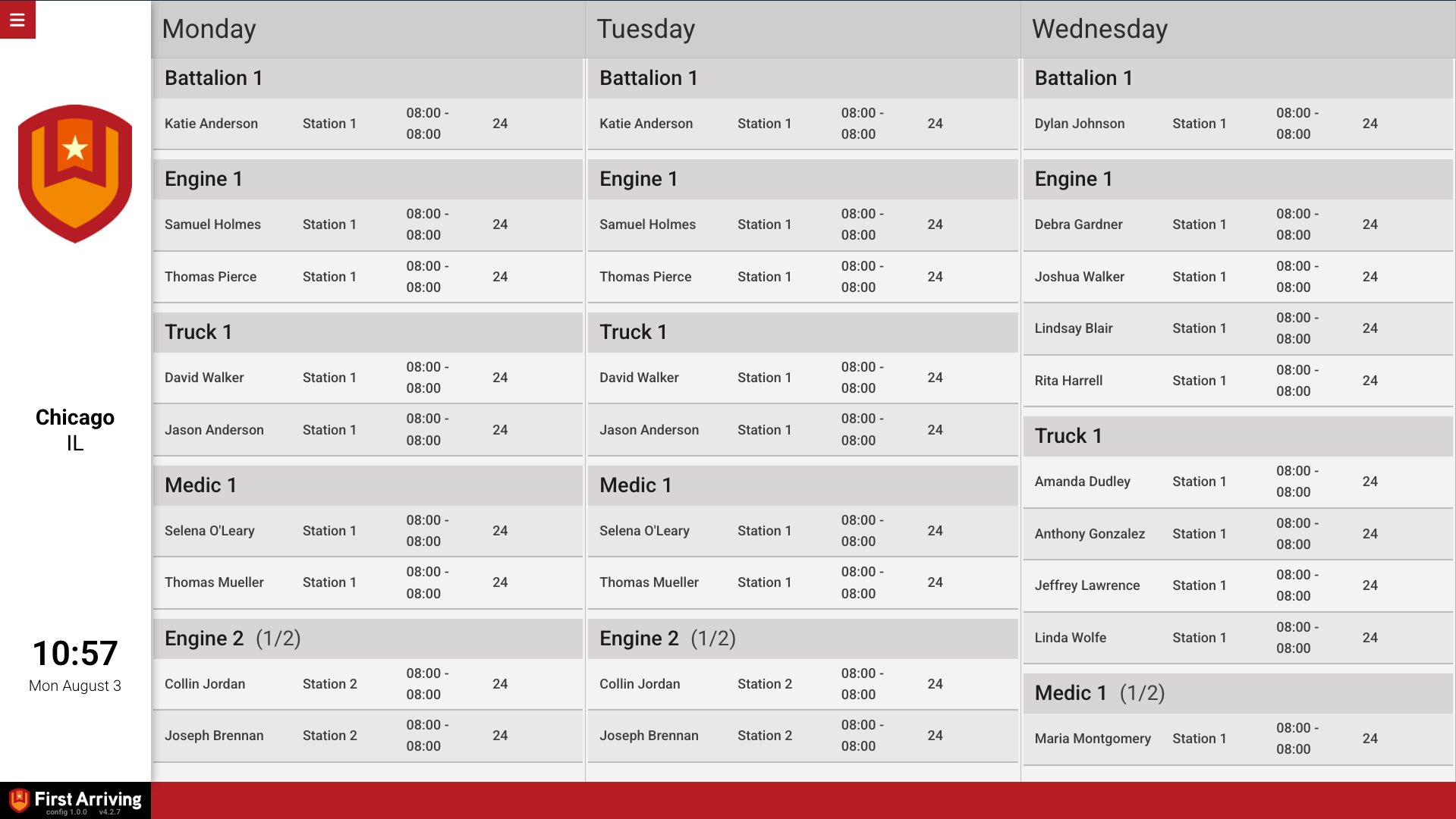
Roster table, grouped by unit, shown across multiple days.
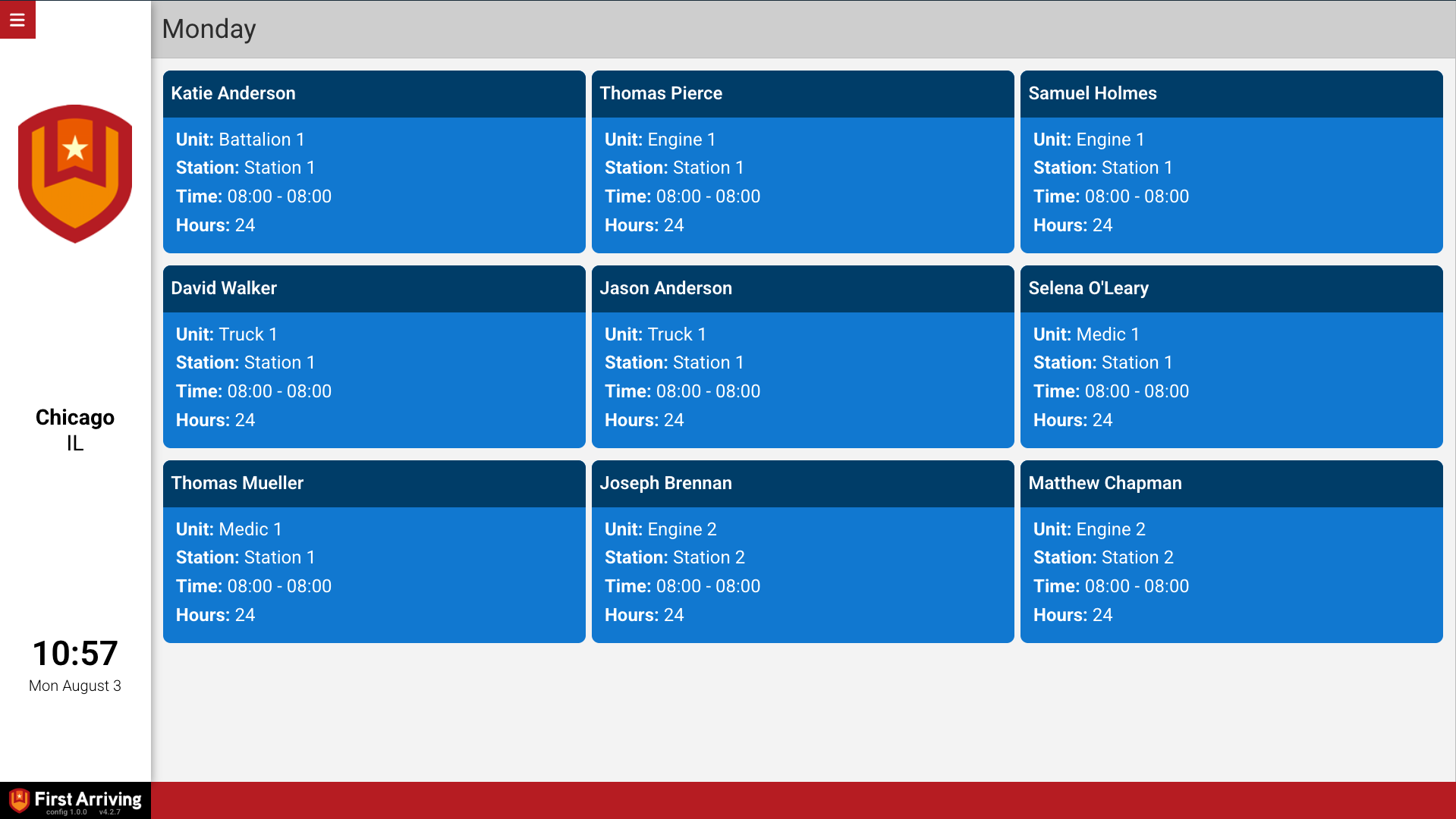
Roster cards, condensed “schedule” style.
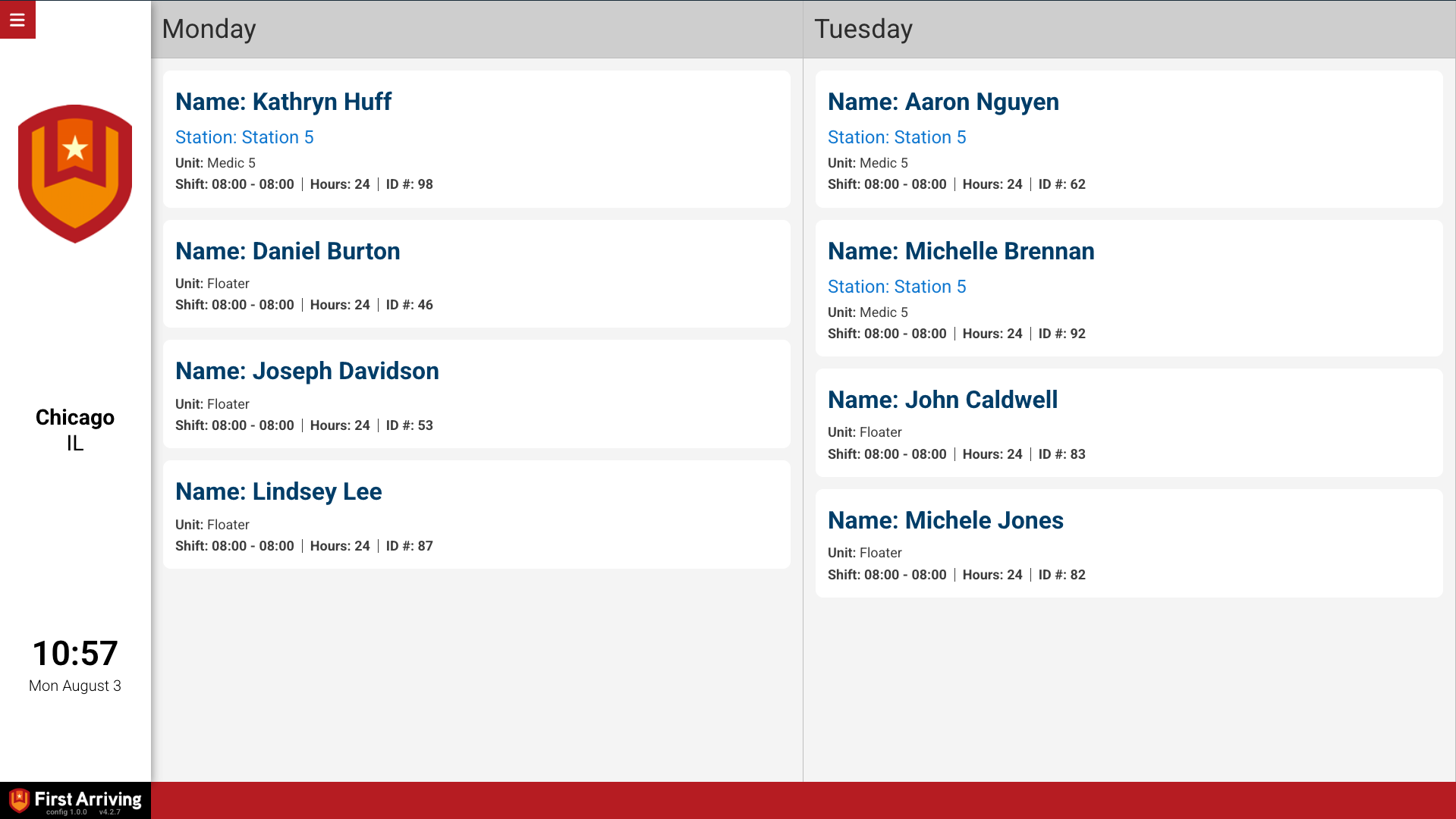
Roster cards, detailed style with header, body, and footer.
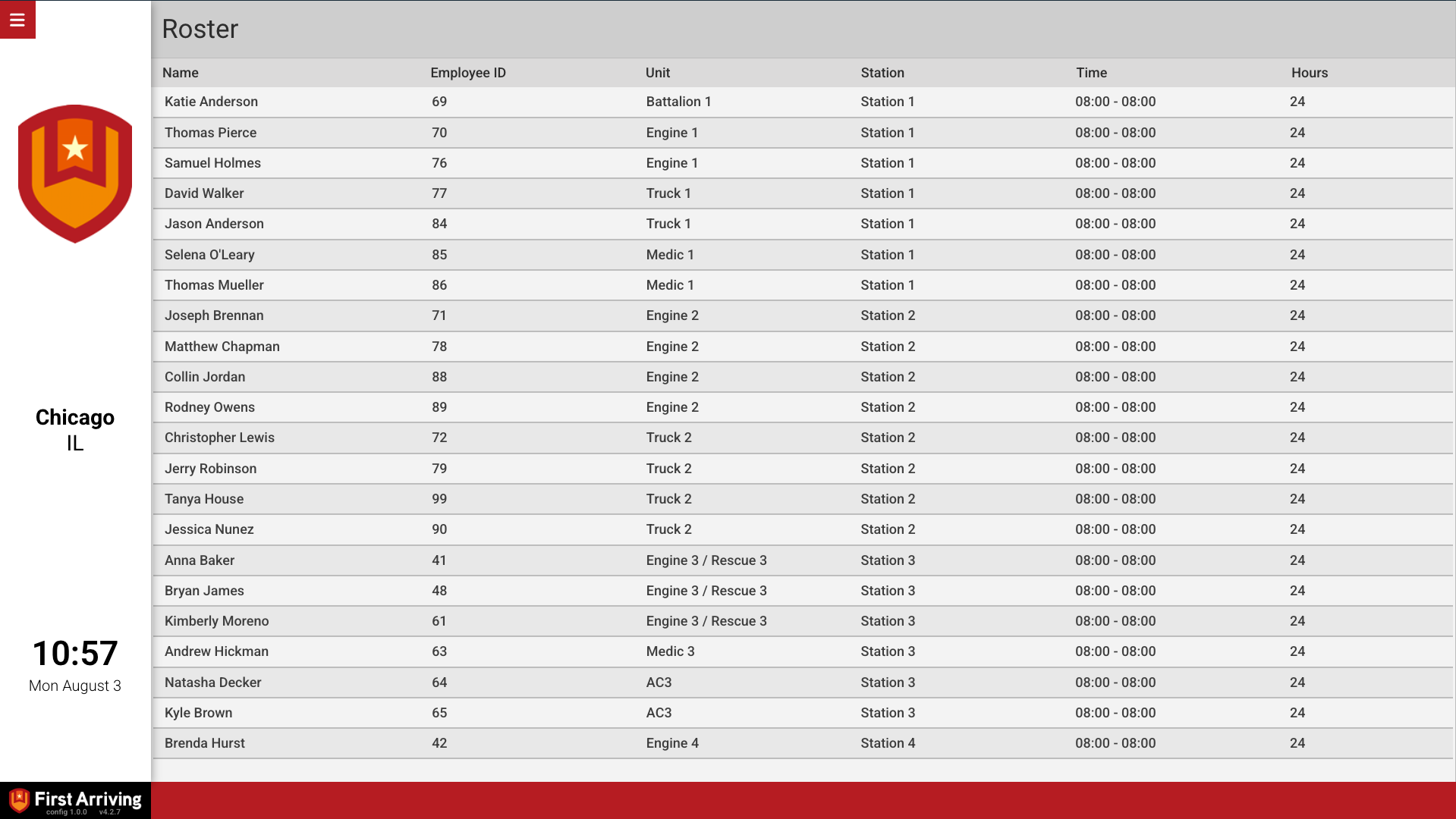
Roster table, flat list.
Questions about setup, or want help deciding which roster view belongs on which screen? Open a ticket at our support center or reach us at dashboards@firstarriving.com and we’ll walk through it with you. For more information about this integration, visit Stationwise’s First Arriving integration docs.