Creating and Using Groups
A guide to organizing your users and targeting content in user accounts and dashboards
What Groups Are
Groups let you organize your users into simple, named buckets — like Officers, Station 1 Personnel, Battalion Chiefs, or Training Team — so you can send the right content to the right people. Once a group exists, you can target news, announcements, events, and dashboard content directly to it, instead of showing everything to everyone.
Think of groups as another way to slice your audience, right alongside the content categories you already use. They’re built to be quick to set up and easy to target, down to a very specific level.
Part 1: Creating a Group
Step 1 — Open the Groups area
From the left-hand menu, go to Agency Admin, then click Groups.
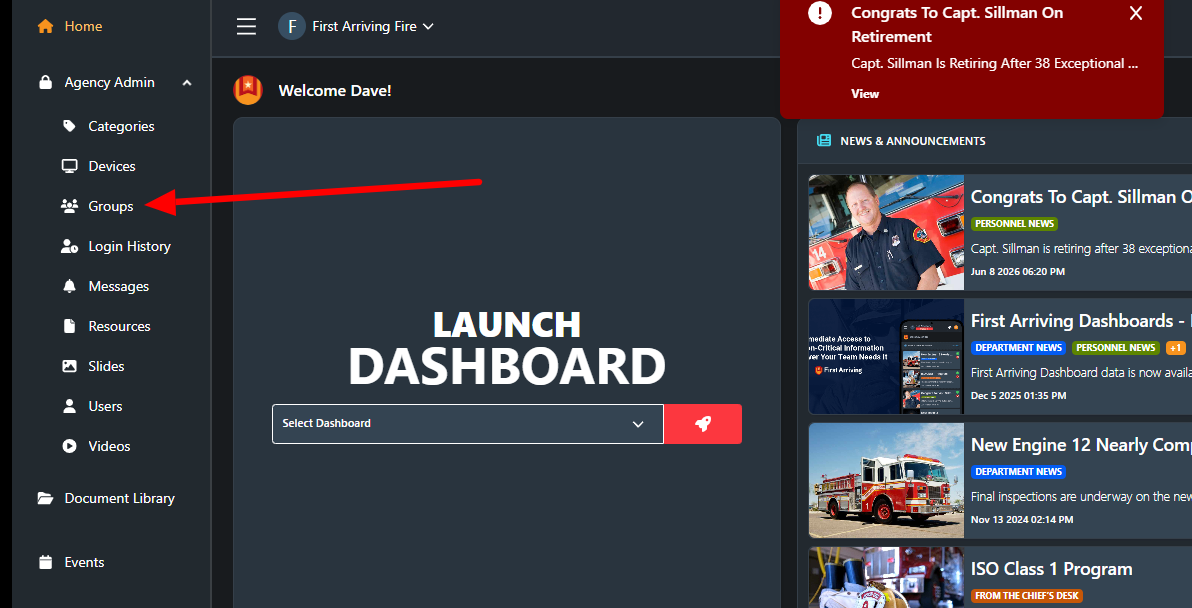
Step 2 — Start a new group
On the Groups page you’ll see any groups you’ve already created, along with their Agency and Type. To make a new one, click the red + Add group button near the top left.
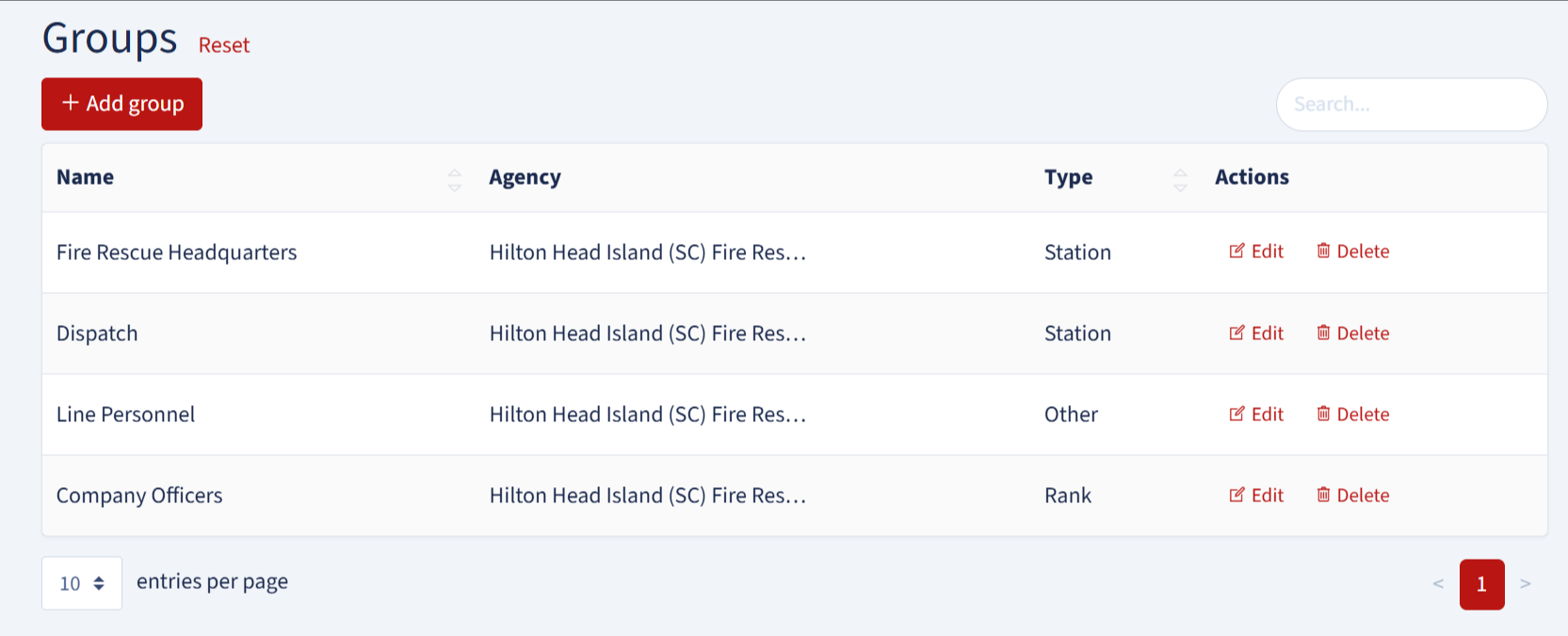
Tip: You can also use this screen to Edit or Delete existing groups, and the Search box on the right helps you find a specific group if your list gets long.
Step 3 — Fill out the group details
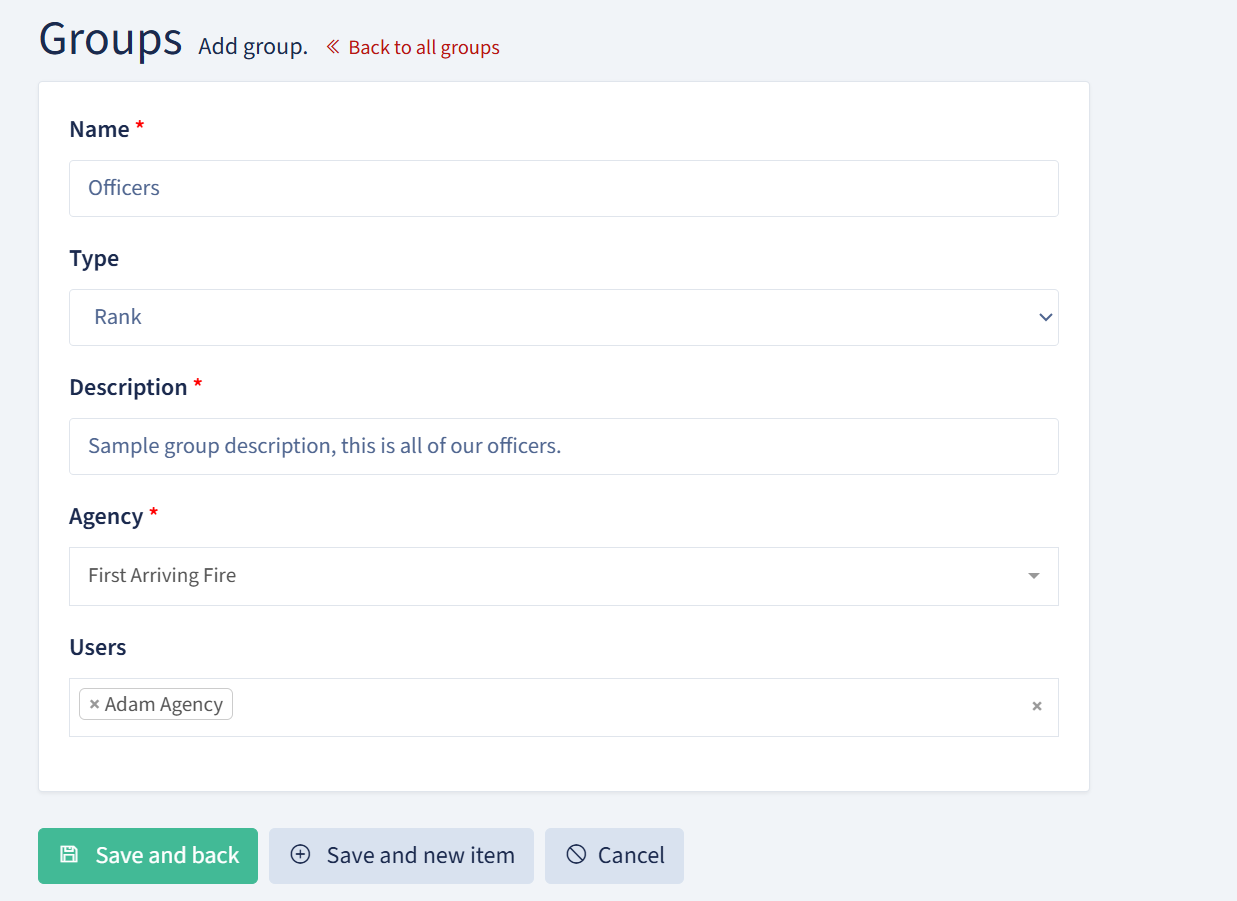
On the Add Group form, complete the fields:
Name (required) — What you want the group called, for example “Officers.” This is the name you’ll see when targeting content later.
Type — A category for the group, such as Station, Rank, or Other. This just helps you keep your groups organized.
Description (required) — A short note on who the group is for, for example “All of our officers.”
Agency (required) — The agency this group belongs to. Pick it from the dropdown.
Users — Add the members who belong in this group. Start typing a name and select each person you want to include. You can add as many as you need, and remove anyone by clicking the × next to their name.
Step 4 — Save the group
When everything looks right, choose one of the buttons at the bottom of the form:
Save and back — Saves the group and returns you to the Groups list.
Save and new item — Saves this group and immediately starts another — handy when you’re setting up several at once.
Cancel — Discards your changes.
That’s it — your group is ready to use.
Part 2: Targeting Content to a Group
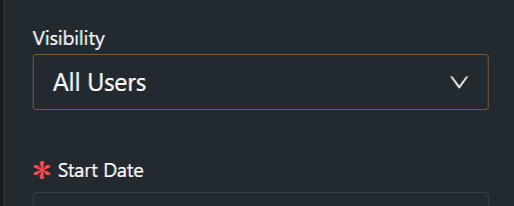
Once your groups exist, you control who sees a piece of content using the Visibility setting. You’ll find this whenever you create content like News / Announcements or Events.
Visibility gives you three choices:
1. All Users (the default) — Everyone in your agency sees the content. This is the standard behavior you’re already used to.
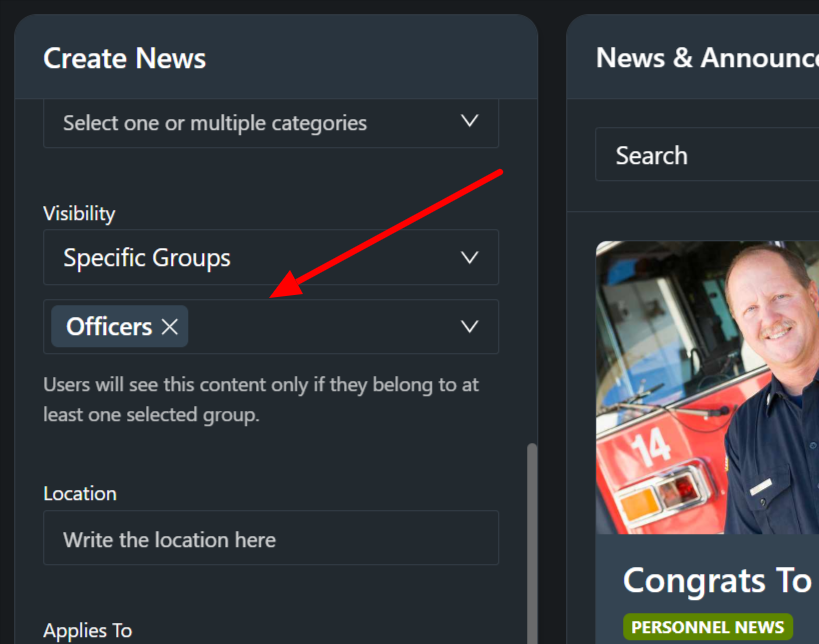
2. Specific Groups — Choose one or more groups (for example, Officers). Only people who belong to at least one of the selected groups will see the content.
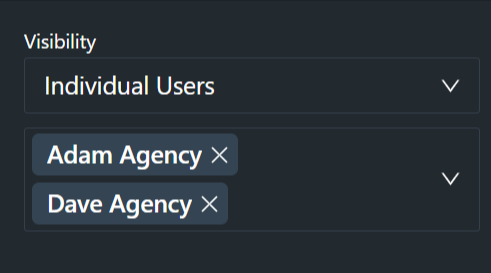
3. Individual Users — Hand-pick specific people (for example, Adam Agency and Dave Agency). Only those individuals will see the content.
Whatever you choose here decides exactly who sees that item inside their user accounts. Anyone outside the selected groups or individuals simply won’t see it.
Part 3: Targeting Dashboards by Group
Groups also work on your dashboards. Just as you can already push content to dashboards globally, you can now target dashboard widgets by group name — so a widget can display content meant only for a particular group. This lets you tailor what appears on a dashboard down to a finite level, the same way group visibility works in user accounts.
If you'd like to add widgets to your Dashboards pushing content from Groups to them, just open a quick support ticket at https://support.firstarriving.com or email support@firstarriving.com once you've created the group.
What’s Next
Groups are designed to be genuinely easy to set up and to give you precise control over who sees what — in both user accounts and dashboards. This is just the starting point: as we revamp the platform later this year, you’ll see even more options for messaging and new content types built on top of this foundation.